Contents
0%Hey!
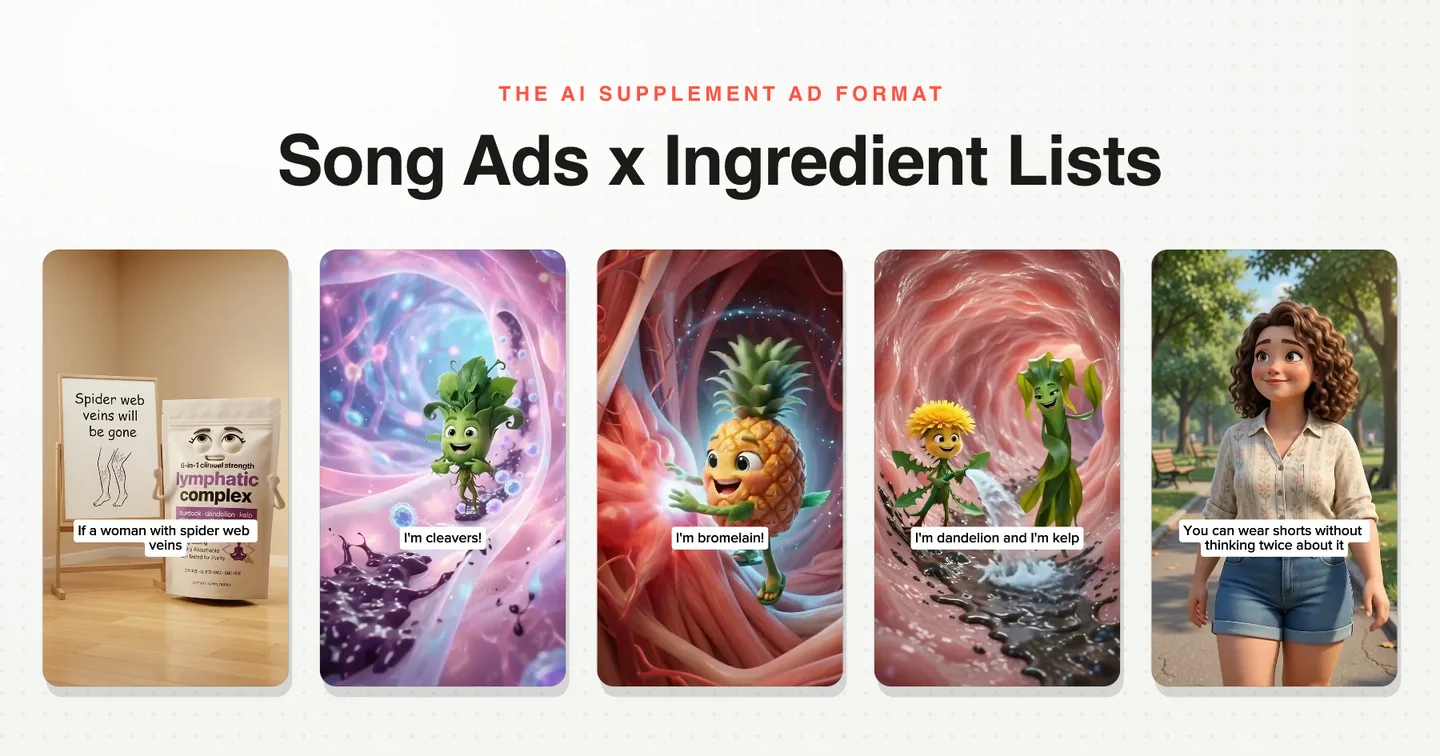
The CapCut edit of an AI song ad is the shortest part of making one, and almost all of it is decided before you open CapCut. Here is the exact order I work in.
The song ad that came out of this edit
About 36 seconds for a client in the supplement space, built from three MiniMax H3 Max generations, one Suno song, and a hypermotion product shot at the end. The ad plays muted on this page, since the song belongs to the client.
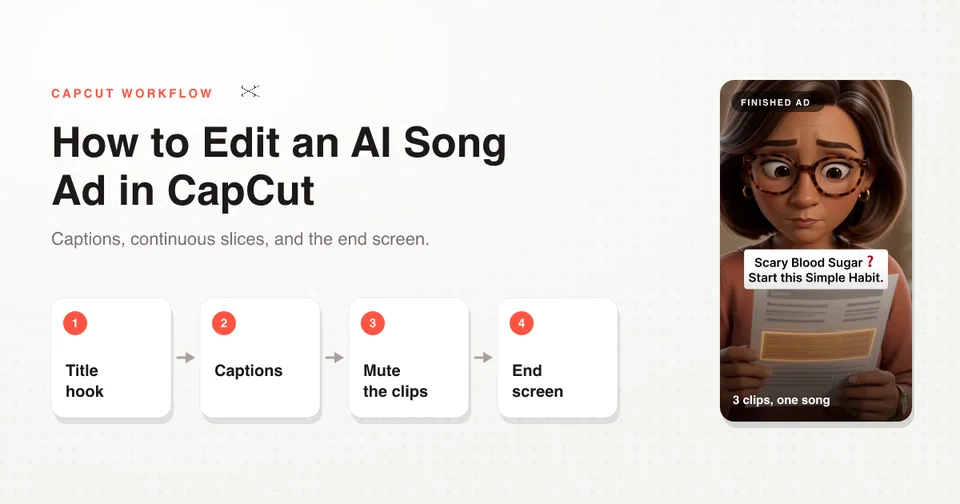
Everything CapCut did here fits in five moves: a title hook, captions, muted clips, two small speed nudges, and an end screen. The whole session is short when the slices were continuous.
The rule that makes the edit easy: a song cannot be cut
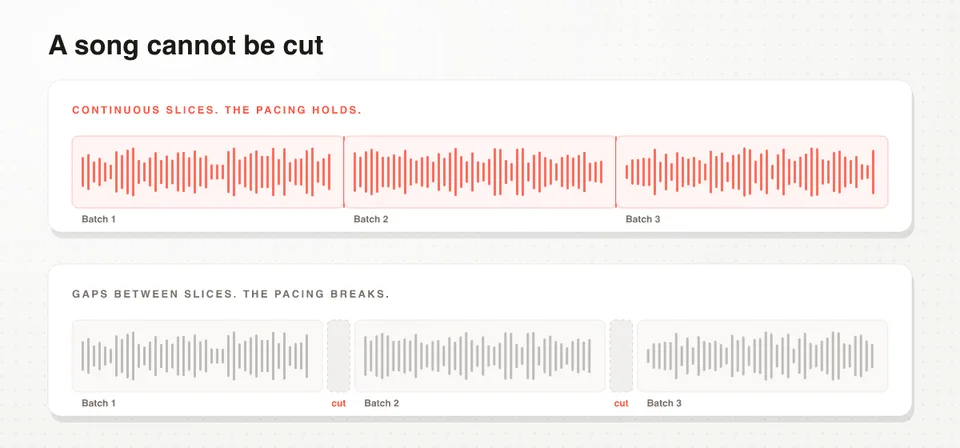
Continuous song slices versus gapped slices, and what each does to the pacing of an AI song ad
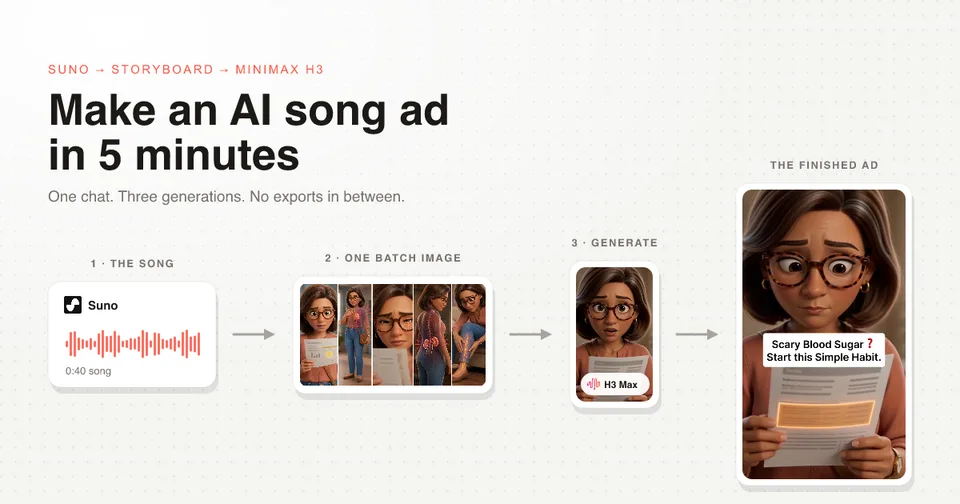
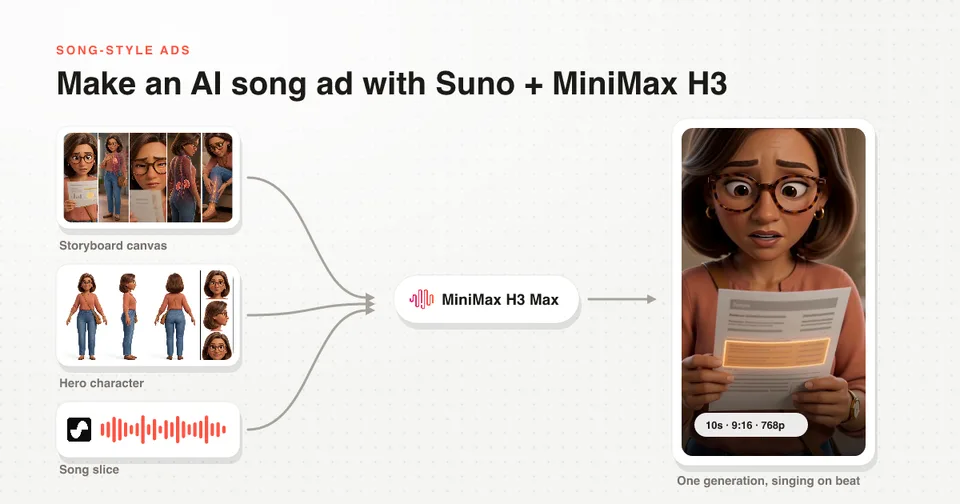
A song-style ad is generated in batches, and each batch gets its own slice of the song as the timing source. Those slices have to be continuous. If batch 1 ends at 11.4 seconds, batch 2 starts at 11.4 seconds, not at the next lyric.
The temptation is to trim the instrumental bits where nobody is singing. Do not. Instrumental beats are part of the song, and cutting them is what breaks the pacing when you reassemble the clips over the full track.
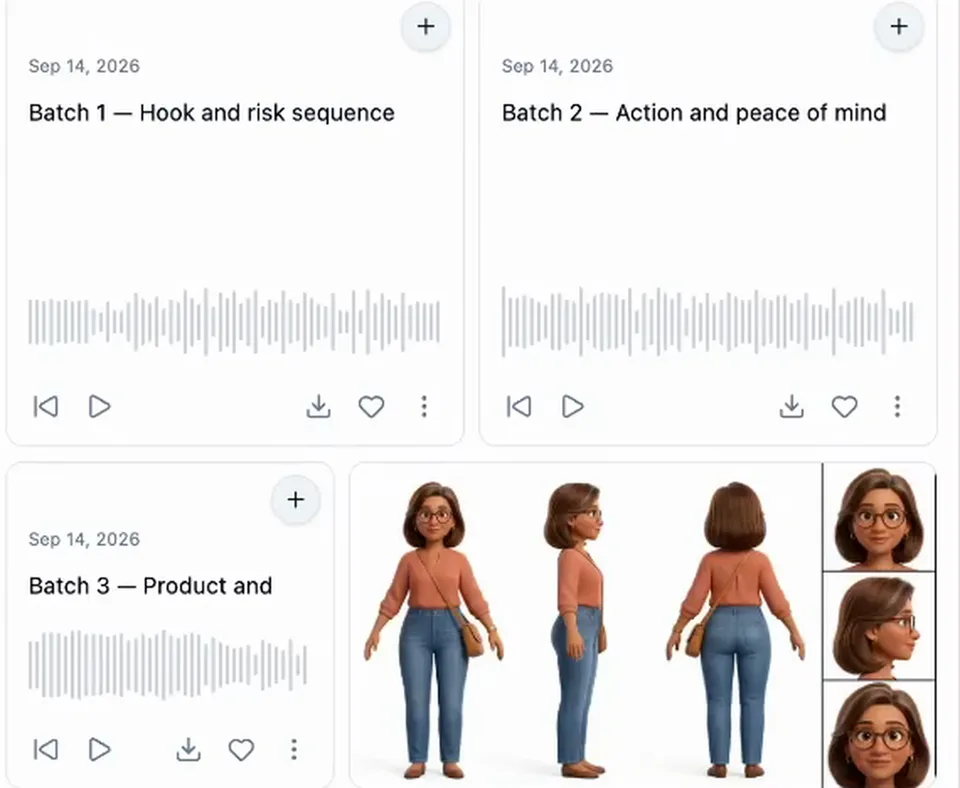
Three continuous song slices in the Starpop chat, named Batch 1 hook and risk sequence, Batch 2 action and peace of mind, Batch 3 product and daily habit, next to the locked character sheet
In my own chat the slicing is automatic, which is why the three slices above run back to back with no gaps. If you are cutting them by hand in CapCut or Premiere, write the timestamps down and make every slice end exactly where the next one starts.
The chat sliced one boundary a fraction short, so batch 2 landed slightly early. I had to fix it with a speed nudge in CapCut instead of fixing it at the source. Get the slices right and the edit is drag, drop, done.
I wrote everything I know about song-style ads into a Claude skill file, free. Get the free song-ad skill for Claude.
Stack the layers: one song at the bottom, muted clips on top
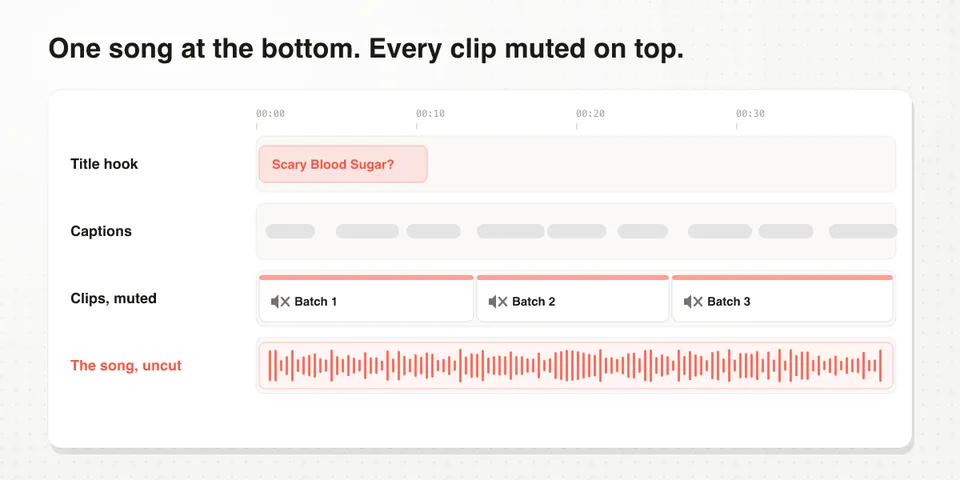
The CapCut layer stack for an AI song ad: title hook, captions, muted clips and the full uncut song
The whole edit is four tracks, and the order matters more than anything else you will do in CapCut.
| Track | What sits on it | Audio |
|---|---|---|
| Title hook | One text clip on the first frame | None |
| Captions | The lyrics, word by word | None |
| Clips | Your generations, in batch order | Muted |
| Song | The full track, uncut, from zero | The only audio in the ad |
Drop the full song in first and never touch it again. Then lay the generated clips on top in batch order. Because the clips were generated against continuous slices of that same song, they line up without you hunting for the beat.
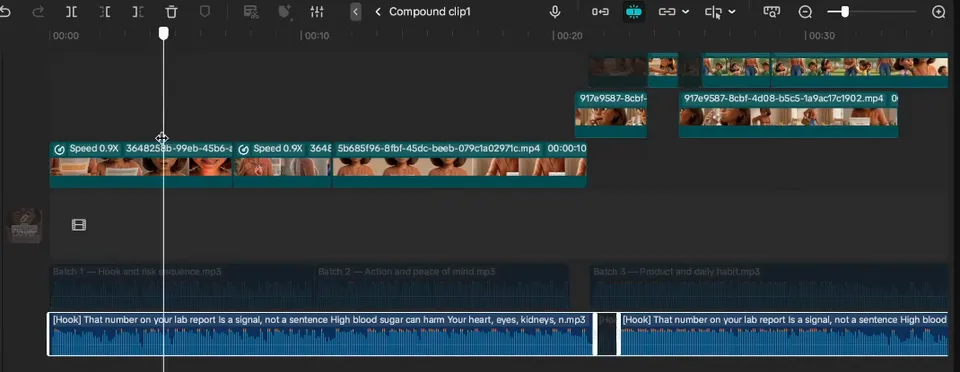
The real CapCut timeline: video clips on top, three batch slices in the middle, the full song waveform on the bottom track
That is the actual timeline from this ad. The three greyed tracks in the middle are the batch slices, kept in the project as a reference ruler. The blue waveform at the bottom is the song, in one piece.
Mute every clip your video model hands you
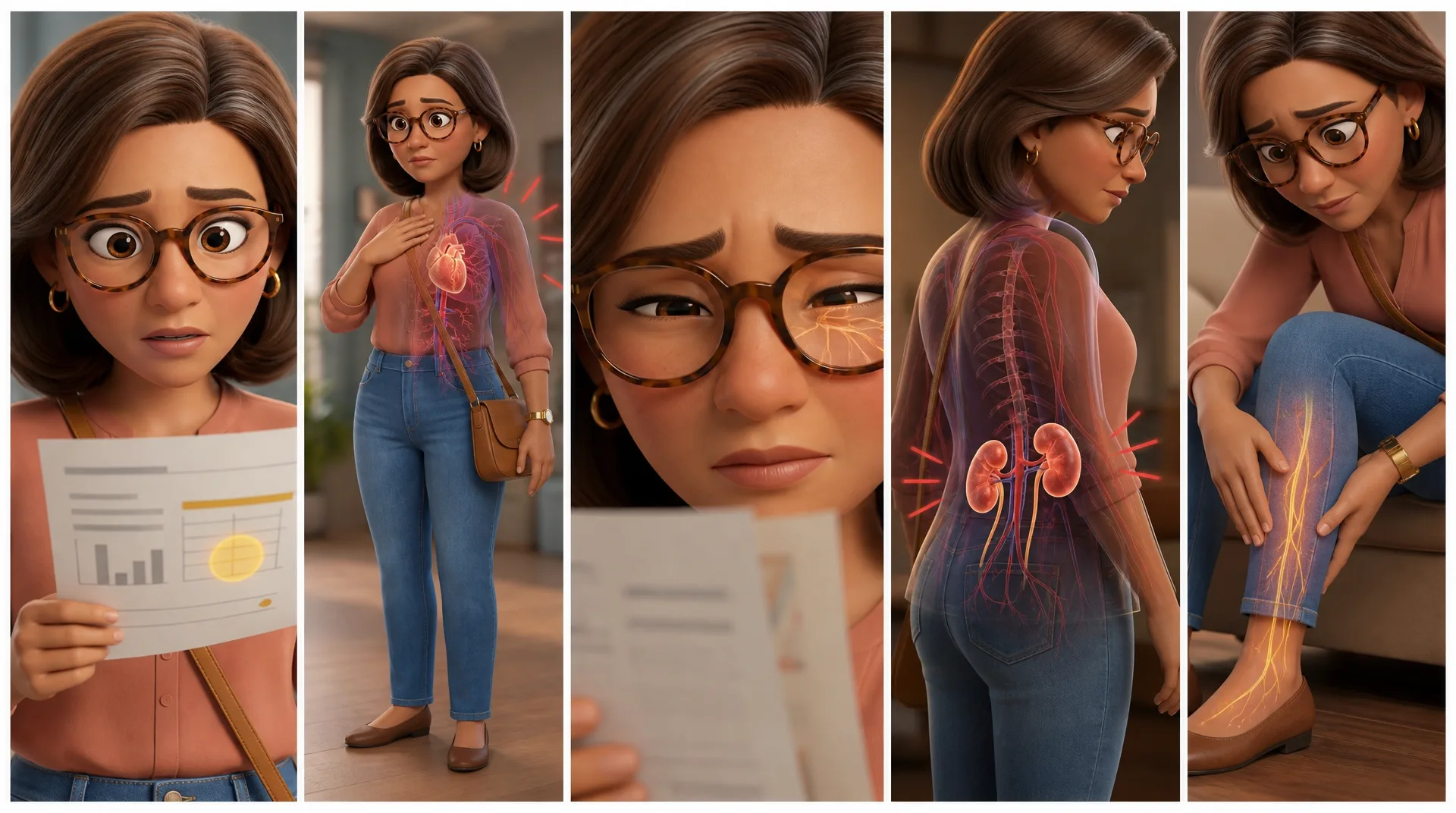 Batch 1 storyboardBatch 1 storyboard
MiniMax H3 outputs picture and sound together, so every clip you drop on the timeline arrives with its own audio track. That audio is a re-performance of the song slice, not the song, and it will phase against the real track underneath.
Mute all of it. Select every video clip, set the volume to zero, and let the one song at the bottom carry the entire ad. No crossfades, no ducking, nothing to balance.
Put the title hook on the first frame
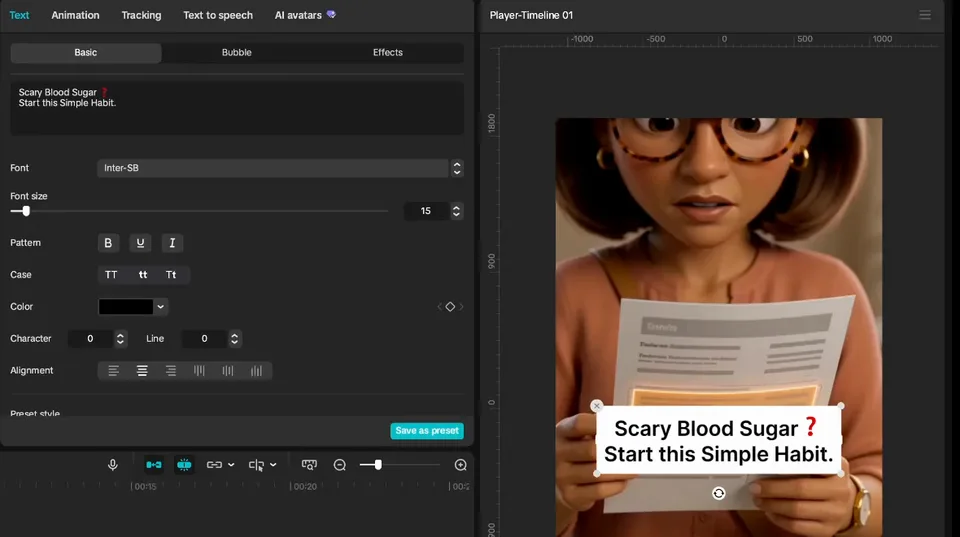
Adding the title hook text in CapCut: Scary Blood Sugar, Start this Simple Habit, on the first frame of the ad
One text clip, one line, sitting on the opening shot. On this ad it reads "Scary Blood Sugar? Start this Simple Habit."
It is doing a different job from the lyrics. The song is the entertainment, the title hook is the thing a scroller reads in the first half second that tells them the ad is about them. Keep it short enough to read at a glance and put it over a face, not over the product.
Captions: Auto lyrics for English, an SRT for everything else
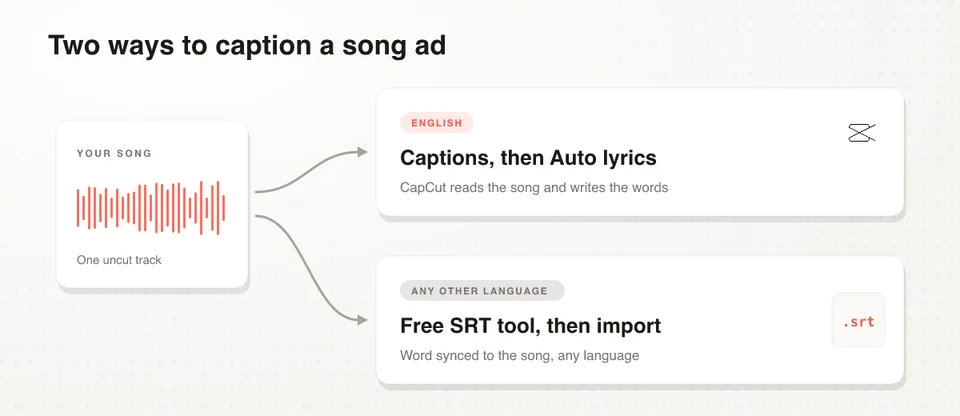
Two ways to caption an AI song ad: CapCut auto lyrics for English, a free SRT generator for any other language
Song ads need captions more than a normal ad, because a sung lyric is harder to catch than a spoken line. CapCut has a feature built for exactly this, and most people never find it.
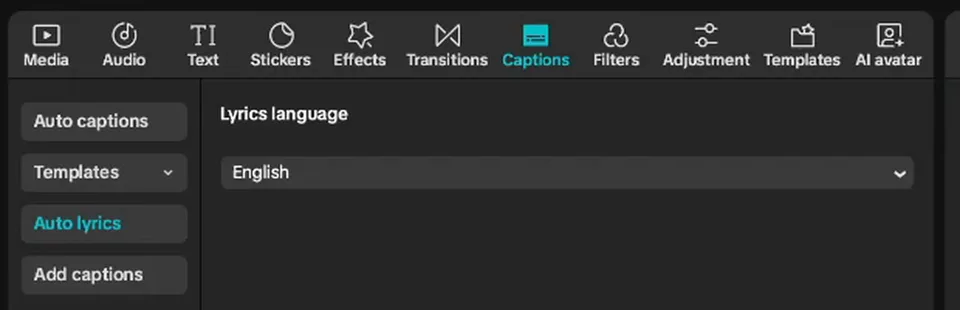
CapCut captions panel with Auto lyrics selected and the lyrics language set to English
Go to Captions, then Auto lyrics, set the language and generate. It reads the singing rather than trying to transcribe speech, which is why it beats Auto captions on a song.
For anything other than English, CapCut gets sloppy. That is why I built a free song caption generator: paste your lyrics, upload the track, and it returns a word-synced SRT you can import into CapCut, Premiere or Resolve. No signup.
If your captions come out wrong, the fixes are in how to fix wrong CapCut auto captions and how to add correct captions in any language.
Nudge the speed when a slice lands early
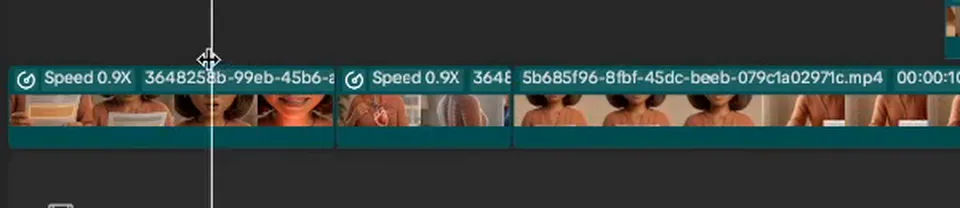
Two clips in the CapCut timeline set to Speed 0.9X to pull a batch back onto the beat
Two clips in this ad are running at 0.9x. That is the repair for the slicing mistake further up: the batch came back a beat early, so I slowed the clip instead of re-generating it.
A 10 percent speed change is invisible on an animated clip and the lip-sync still reads as on beat. Anything past 15 percent starts to look wrong, and at that point you are better off re-slicing the song and generating the batch again.
The end screen: fill the last seconds of instrumental
 Product sheetProduct sheet
Suno songs almost always finish on three to five seconds of instrumental. You can cut it, but it is the most satisfying part of the track, and it is free real estate for your product.
So I fill it with one hypermotion generation: the locked product reference in, a fast glossy product shot out, a few seconds long. It costs one generation and it gives the ad a proper closing chapter instead of a hard stop.
The one thing I would add next time is a headline over it with the main selling point. I picked this habit up from Kristian Jennings, who has a full video on building end cards.
The research, the script, the song, the slices and the storyboard batches are all written up in a skill file for Claude. Get the free song-ad skill for Claude.
Frequently asked questions
How do I add song lyrics as captions in CapCut?
Open the Captions tab, pick Auto lyrics rather than Auto captions, set the lyrics language, and generate. Auto lyrics is tuned for singing, so it catches sung words that Auto captions drops.
Should I keep the audio from the AI video generation?
No. MiniMax H3 generates native audio with every clip, and it will fight the real song underneath. Mute every generated clip and let one uncut track carry the ad.
How do I sync AI clips to a song?
You do not sync them in the editor, you sync them at generation time by giving each batch its slice of the song as an input. If the slices are continuous, the clips land in the right place when you lay them in order. The workflow is in the full song ad guide.
How long should the CapCut edit take?
A short session for a 36 second ad, assuming the slices were continuous. If you have to fix timing in the editor, budget an hour and expect a worse result.
What should go on an ad's end screen?
The last three to five seconds of instrumental, filled with a fast product shot and one line of copy carrying your strongest selling point. It is the cheapest thing in the whole edit and it is the frame people are looking at when the song resolves.
Next Steps
The edit is the easy half. If it feels hard, the problem is upstream: the song was cut, or the batches were not sliced against it.
- Start at the beginning. The full workflow, research through export, is in how to make an AI singing ad with MiniMax H3.
- Get the song and the slices right. How to make an AI song-style ad with Suno and MiniMax H3 covers the song first, the slicing rule, and the three inputs per generation.
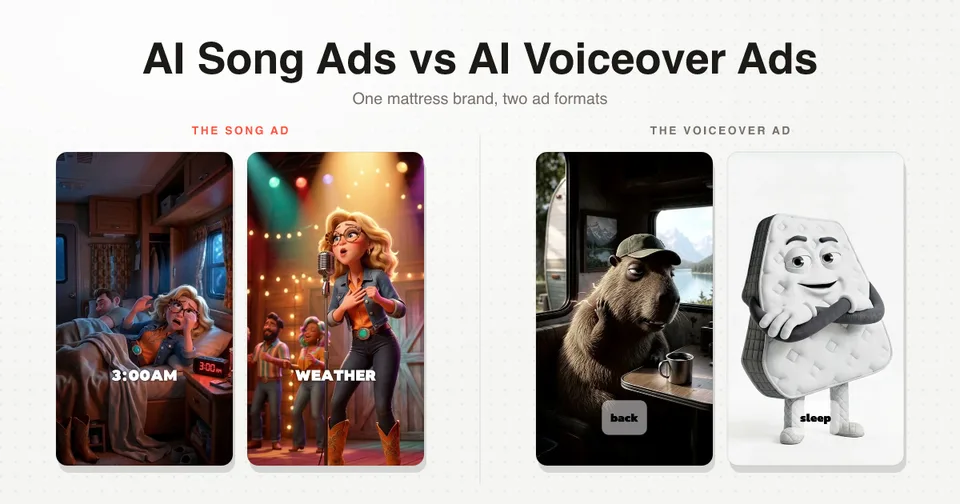
- See what the format does on Meta. One of these ads returned 5x ROAS for a mattress brand: the case study.
- The short version of the format. My earlier walkthrough, AI song ads the easy way, is the same idea on a simpler ad.
- See the same edit on another ad. The song stays in one piece and the clips go on top in my full Disney/Pixar style AI ad workflow.
- Make one for your own product. Research, script, song, characters, storyboards and generations happen in one chat. Open Starpop.