Contents
0%Hey!
If you have ever tried to auto-caption a video in Spanish, Arabic, Hindi, Polish, or Japanese, you already know the problem. The tool hears the audio, guesses the words, and hands you back a mess: wrong words, missing accents, no punctuation, and your brand name spelled three different ways. This is a guide to the fix. Instead of letting a machine guess your words, you paste the exact words yourself and let it solve only the one thing it is actually good at: the timing.
I built a free tool that does exactly this, and below I will walk through why auto-captions fail on non-English audio and how to get correct subtitles in any language in about a minute.
Caption your video in any language (free)Why Auto-Captions Get Non-English Audio Wrong
Every auto-caption tool, CapCut included, does two jobs at once. It transcribes the audio (turns sound into words) and it times those words (decides when each one appears on screen). The timing part is reliable. The transcription part is where everything falls apart, and it falls apart hardest the moment you leave clean English behind.
Here is what actually goes wrong, in the languages people ask about most:
- Spanish, Portuguese, Italian, French: the words are close but the accents and diacritics are dropped or wrong. "Año" becomes "ano", "está" becomes "esta", and the meaning shifts. Punctuation and question marks often vanish entirely.
- Polish, Turkish, Vietnamese: heavy diacritics (ł, ą, ż, ş, ğ, and the Vietnamese tone marks) get flattened to the nearest plain letter, so half the words are technically misspelled.
- Arabic and Hebrew: many tools do not support these well at all. When they do, the transcription is often garbled, and the right-to-left direction gets mangled.
- Hindi and other Indic scripts: frequently transliterated into wrong Latin spellings or dropped altogether.
- Japanese, Chinese, Korean: the tool has to guess word boundaries in a language with no spaces, pick the right characters out of many homophones, and it regularly picks the wrong ones.
On top of the language problem, auto-captions choke on the things that matter in an ad no matter the language: brand names, product names, proper nouns, and slang. Your brand is not in the model's vocabulary, so it gets replaced with whatever common word sounds closest. And if there is any singing, the tool loses the plot completely, because sung word-endings and held notes do not sound like plain speech.
So you end up doing the worst kind of work: reading every single line, catching the errors, and retyping. At that point the "automatic" tool saved you nothing.
The Fix: Transcribe for Timing Only, Then Snap Your Exact Words Onto It
The insight is simple. You already know exactly what was said. It is your script. It is your lyrics. You wrote it, or you have it in a doc. The words were never the hard part. The hard part is figuring out which millisecond each word lands on so the captions sit perfectly on the frame.
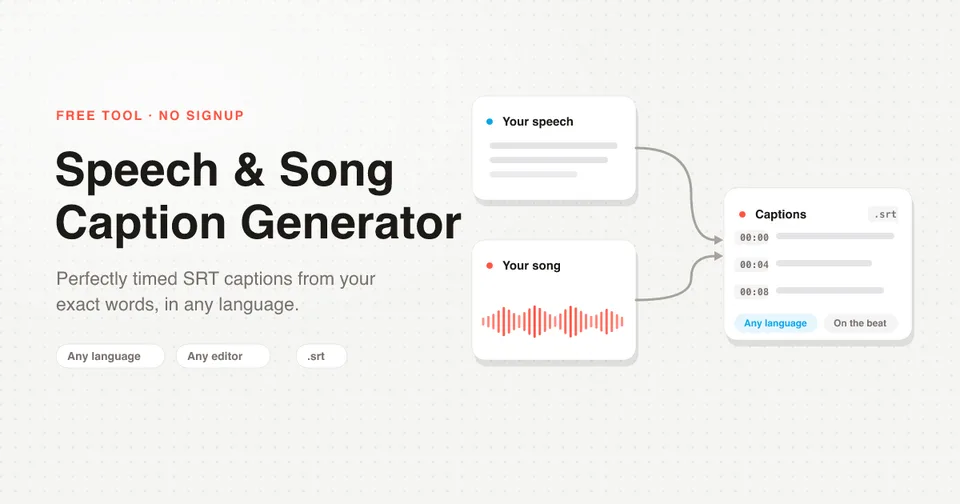
So flip the process. Instead of asking the tool to guess the words, you give it the words. The tool transcribes the audio only to build a timeline, then it snaps your exact text onto that timeline. Your words never change. The tool only decides when each one appears.
Because your pasted text is the source of truth, the captions are correct in every language by definition. Every accent, every diacritic, every brand name, and every sung word-ending stays exactly the way you typed it. The tool has no opinion about spelling. It only solves the timing.
This is the whole reason it works in any language while auto-captions do not. There is nothing to mishear. The output is a standard SRT subtitle file, the universal format that imports into any editor.
How to Add Subtitles in Any Language, Step by Step
The whole thing takes about a minute. Nothing to install, no account.
Write or paste your exact words
Open the free caption generator and paste your script or lyrics in the box, one line per caption, in whatever language they should appear. Type them exactly as they should read on screen, accents and all. This text is what ends up in your video, so this is where you make it perfect. If your language uses a non-Latin script (Arabic, Hindi, Japanese, and so on), just paste it normally; it is kept character for character.
Upload your audio or video
Drop in your file. It accepts MP3, WAV, or M4A audio, or an MP4 video. This is the only thing the tool listens to, and only to work out timing. It works for any spoken audio (talking-head clips, UGC ads, podcasts, voiceovers, faceless videos) and for sung songs and lyric videos.
Generate and download the timed SRT
Pick your aspect ratio (Vertical 9:16 for TikTok, Reels, and Shorts, or Horizontal 16:9 for YouTube), then generate. In a few seconds you get a preview of every caption line with its start and end time, and a Download .srt button. You never type a single timestamp.
Import the SRT into your editor
Drop the SRT into CapCut, Premiere Pro, DaVinci Resolve, or wherever you edit. Every line lands on the right frame. Then style it however you want.
One nice detail: your script does not have to match the audio word for word. If there is an extra ad-lib, a repeated word, or a dropped filler, the alignment handles it. It anchors the words it recognizes and evenly spaces the rest, so the timing stays smooth even when the take drifted a little from the page.
Import the SRT into CapCut, Premiere, DaVinci, or CapCut Mobile
SRT is the universal subtitle format, so there is no plugin and no conversion. The rough steps in the editors people use most:
- CapCut (desktop): Text, then Local caption (or Import captions), and choose your SRT. In CapCut mobile, add a text or caption track and import the SRT the same way.
- Adobe Premiere Pro: File, Import, select the SRT, then drag it to your timeline as a captions track. Use the Captions panel to restyle.
- DaVinci Resolve: on the Edit page, right-click in the media pool, Import Subtitle, then drop the subtitle track onto the timeline.
- Final Cut Pro, VN, InShot, and others: all read SRT directly. Import it and every cue is already on the correct frame.
Because the timing is baked into the file, the captions are correct the moment they land. Your only job left is font, size, and position.
The format toggle controls line length so captions fit the frame. Vertical caps each line at 25 characters for TikTok, Reels, and Shorts; horizontal caps at 42 for YouTube and TV. You can switch between them after generating with no re-processing, so you can caption once and export for both a Short and a long-form cut.
Right-to-Left Languages (Arabic, Hebrew) and CJK
Two families of languages deserve a note, because this is exactly where auto-captions do their worst work and where supplying your own text pays off the most.
Right-to-left languages (Arabic, Hebrew). The SRT is plain UTF-8 text, so your Arabic or Hebrew is stored exactly as you paste it. The actual right-to-left display is handled by your video editor, not the subtitle file, so two practical tips: pick a font in your editor that fully supports the script, and if a line looks reversed on screen, check your editor's text direction setting rather than the SRT. The captions themselves are already correct; you are only choosing how they render.
CJK (Japanese, Chinese, Korean). These scripts have no spaces between words, which is precisely why auto-transcription guesses so badly. Since you supply the text, that guessing problem disappears. Because each character carries more meaning than a Latin letter, keep your caption lines short: put a natural, readable chunk on each line in the paste box, since the tool treats one line as one caption. That gives you clean, well-timed captions without a line running off the frame.
In all of these cases the point is the same. The tool is not trying to understand the language. It is preserving your exact characters and solving the timing around them.
When You Should Still Use Auto-Captions (And When You Should Not)
To be fair, auto-captions are not useless. They are just the wrong tool for a specific job.
Auto-captions are fine when: the audio is clean, conversational English, you do not already have a script, and you are happy to skim and fix a few errors. For a quick English talking-head clip with no brand names, a one-click auto-caption is a reasonable first draft.
Supply your own words when:
- The audio is in any language other than English, where transcription accuracy drops fast.
- The script is full of brand names, product names, or proper nouns that a model will not know.
- It is a song or a lyric video, because singing breaks speech transcription.
- Spelling has to be exactly right, with correct accents and diacritics, because it is going in front of customers.
The rule of thumb: if you already have the words, never let a machine re-guess them. Give it the words and let it do only the timing.
FAQ
What files can I upload, and how big?
MP3, WAV, or M4A audio up to 50 MB, or an MP4 video up to 200 MB. If a clip is over the limit, a shorter cut or a compressed export gets you under it.
Which languages does it support?
Any language. Because you paste the real words, there is nothing to mishear, so Spanish, French, German, Portuguese, Polish, Arabic, Hindi, Japanese, Korean, Mandarin, and everything else all come out correct.
Do I have to type any timestamps?
No. You never touch a timestamp. Paste your words one line per caption and every start and end time is calculated for you from the audio.
Will my brand names and spelling stay exactly right?
Yes. Your pasted text is the source of truth, so every word, accent, and diacritic is exactly what you typed. Nothing gets re-guessed.
Does it cost anything, and do I need an account?
It is completely free and needs no signup. Upload, paste your words, and download the SRT.
Caption It Correctly, In Any Language
Auto-captions will keep mishearing non-English audio, brand names, and singing, because guessing words from sound is the hard part and the part that breaks. The fix is to stop guessing. Supply your exact words, let the tool solve only the timing, and export a clean SRT that drops straight into CapCut, Premiere, DaVinci, or any editor, correct on the first try.
Open the free caption generator