Contents
0%Hey!
If you have ever added auto-captions in CapCut and then spent ten minutes fixing every third word, this one is for you. CapCut's auto-captions are fine for casual clips, but the moment you have a brand name, a proper noun, a bit of accent, or any language other than English, they start guessing, and the guesses are wrong.
There is a faster fix than editing them by hand. You already know exactly what was said, because you wrote the script or the lyrics. So instead of letting CapCut transcribe and misspell, you hand it the correct words and only ask a tool to solve the timing. That gives you a clean subtitle file you import in one click, with every word spelled the way you typed it.
Here is why the auto-captions break, why hand-fixing them is slower than it looks, and the three-step path to captions that are right the first time.
Why CapCut auto‑captions misspell names, drop punctuation, and lowercase everything
Auto-captions work by listening to your audio and predicting the words. That prediction is a best guess, and it fails in predictable ways:
- Brand and product names. Speech models have never seen your brand, so they substitute the nearest common word. "Glossier" becomes "glossy," your SKU names turn to noise, and your founder's name gets a random spelling.
- Punctuation and casing. Auto-captions tend to strip commas and periods and lowercase proper nouns, so sentences run together and names lose their capital letters.
- Homophones and slang. "There," "their," and "they're" are a coin flip, and informal phrasing gets normalized into something you never said.
- Singing. Sung vowels stretch and word endings blur, so lyric captions come back with dropped syllables and swapped words.
- Non-English audio. This is the big one. Auto-caption engines are tuned for a handful of languages and mishear the rest. Spanish, Polish, Arabic, Hindi, and Japanese audio come back with wrong words and missing diacritics, if they transcribe at all.
None of this is a CapCut-specific bug. Every auto-caption tool that transcribes first has the same ceiling, because it is guessing at words it cannot actually know.
Why editing them by hand is slower than it looks
The obvious move is to run auto-captions and then correct the mistakes. On a short clip that feels quick. On anything real it is a grind.
You are not just retyping words. You are clicking into each caption block, fixing the text without nudging the timing, re-capitalizing names, adding back punctuation, and re-checking the ones that looked right but were not. On a 60-second ad with fast delivery you can touch twenty or thirty blocks. On a music video or a podcast it is worse, and every pass risks introducing a new typo or knocking a caption off its frame.
The deeper problem is that you are correcting a transcript when you already have the perfect script sitting in a document. You are doing the machine's job twice: once to read its guess, once to overwrite it. The efficient version skips the guessing entirely.
The faster path: bring a correct SRT into CapCut
An SRT file is just a plain-text list of captions with a start and end time on each one. Every editor, CapCut included, can import one and drop each line onto the exact frame.
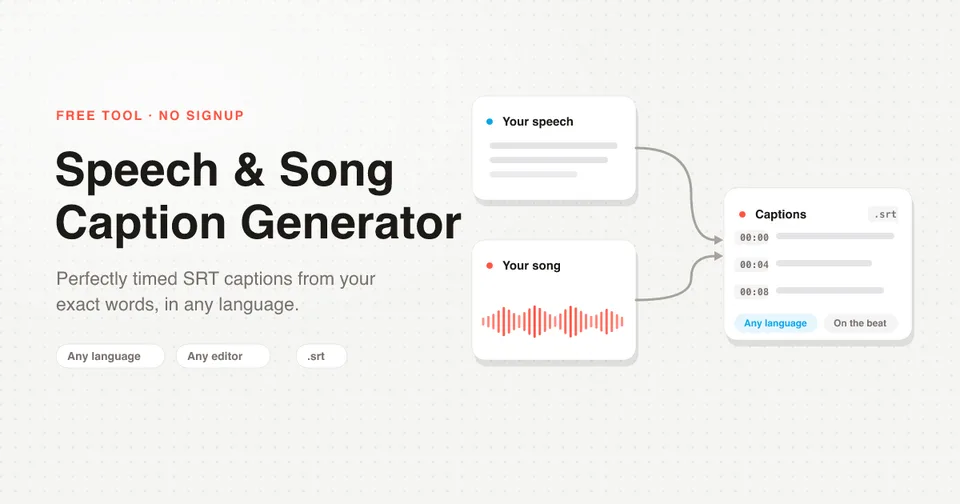
So the fix is to generate a correct SRT before you ever open the Captions panel. I built a free tool that does exactly this: the Speech & Song Caption Generator. It flips the normal flow around.
You give it two things: your audio or video, and the exact words. It transcribes the audio only to find the timing, meaning when each word is spoken or sung. Then it snaps your typed words onto that timeline and hands you the SRT. Your text is the source of truth, so the words are never guessed and never misspelled. The tool solves the one hard part, timing, and leaves the words alone.
Get correct captions freeAuto-captions ask the machine "what words were said?" and get it wrong. This flips the question to "here are the exact words, when does each one land?", which a machine can actually answer.
How to get 100% correct captions in three steps
The whole thing takes about a minute, there is nothing to install, and you never type a timestamp.
Paste your exact script or lyrics
Open the Speech & Song Caption Generator and upload your file. It takes MP3, WAV, or M4A audio, or an MP4 video. Then paste your script or lyrics, one line per caption, in any language. This pasted text is what ends up on screen, character for character, so type it the way you want it to read, with the right capitalization, punctuation, and spelling.
If your delivery drifted a little from the page, an ad-lib here, a repeated word there, that is fine. The alignment anchors the words it recognizes and evenly spaces the rest, so small mismatches do not throw off the timing.
Generate the timed SRT
Hit generate. The tool transcribes the audio to get the timing, then maps your exact words onto it and produces a downloadable SRT. Pick vertical (9:16) to cap each line at 25 characters for TikTok, Reels, and Shorts, or horizontal (16:9) to cap at 42 characters for YouTube and landscape video. You can switch between the two after generating with no re-processing.
Import the SRT into CapCut
Bring the SRT into CapCut and every caption lands on the right frame, already spelled correctly. You only style it from there.
On CapCut desktop: open your project, then import the .srt from the Captions panel (look for the local or imported caption option; the exact label moves around between versions). CapCut lays each line onto the timeline as an editable text clip at its own timecode. Select them and apply your font, size, and animation as usual.
On mobile: SRT import is more limited and depends on your CapCut version. If your app does not expose it, the reliable route is to import the SRT on CapCut desktop, or drop it into an editor that supports it well, such as VN or InShot. Because SRT is the universal subtitle format, the same file works in Adobe Premiere Pro, DaVinci Resolve, Final Cut Pro, and Descript too, so you are never locked to one app.
Fixing non‑English CapCut captions specifically
This is where the approach matters most. If your ad, song, or voiceover is in Spanish, Portuguese, French, German, Polish, Arabic, Hindi, Japanese, Korean, or anything else, CapCut's auto-captions are the wrong tool. They will either refuse the language, mishear it, or strip the accents and diacritics that change a word's meaning.
Because you supply the real text here, the language is never in question. You paste the correct sentence, accents and special characters included, and the tool only figures out when each word is sung or spoken. A Polish caption stays Polish. An Arabic line keeps its script. The é, ñ, ü, and ç all survive, because nothing is being transcribed into your caption in the first place. That is the difference between subtitles a native speaker trusts and ones that read like a bad machine translation.
Keeping brand names and proper nouns exact
The same logic protects the words you most need to get right: your brand, your product names, people's names, and any industry term a general speech model has never encountered.
Auto-captions will always take a swing at these and usually miss, and those are exactly the words your viewer notices when they are wrong. A misspelled brand name on your own ad undercuts the whole thing. Since your pasted script is the source of truth, "Starpop" stays "Starpop," your product line stays spelled correctly, and your founder's name keeps its capital letter. You proof the text once, in your script, and it carries through to every caption untouched.
Fix spelling in your script before you upload, and it is correct in every caption automatically. There is no per-block cleanup pass, because there is nothing for the machine to get wrong.
Frequently asked questions
Does this work for speech, or only songs?
Both. It handles any spoken audio, so talking-head videos, UGC ads, podcasts, interviews, voiceovers, and faceless videos all work, and it handles sung songs and lyric videos too. If you have the words and the audio, it times them.
Do I have to type any timestamps?
No. You never touch a timestamp. You paste your words one line per caption, and every start and end time is calculated for you from the audio.
What if my script does not match the audio word for word?
That is fine. The alignment tolerates small differences, like an extra ad-lib, a repeated word, or a dropped filler. It anchors the words it recognizes and evenly spaces the rest so the timing stays smooth.
Can I use the SRT outside CapCut?
Yes. SRT is the universal subtitle format, so the same file imports into Adobe Premiere Pro, DaVinci Resolve, Final Cut Pro, VN, InShot, and Descript. Every line lands on the right frame, and you style it however you like.
Is it free, and do I need an account?
It is free and needs no signup. Upload your file, paste your words, and download the SRT.
Get it right the first time
Auto-captions will always guess, and guessing is why they are wrong. The fix is not a better transcript editor, it is skipping the transcript. You already have the words, so hand them over and let a tool solve only the timing.
Run your next video through the free Speech & Song Caption Generator, import the SRT into CapCut, and style captions that were right before you touched them.
Open the caption generator (free)