Contents
0%Hey!
If your editor or player is asking whether you want an SRT or a VTT file, here is the short answer before we get into the detail: use SRT for almost everything, and use VTT only when the video plays inside a web page.
Use SRT if you are editing in CapCut, Premiere Pro, DaVinci Resolve, or Final Cut, or posting to YouTube, TikTok, or Reels. Use VTT if you are captioning a video embedded in a website with an HTML5 player. When in doubt, pick SRT. It works nearly everywhere.
That covers most people. But the two formats are close cousins with a few real differences, so here is the plain-English breakdown so you choose right the first time.
What SRT Is and Where It Works
SRT stands for SubRip Subtitle. It is the oldest and most widely supported caption format, and it is dead simple. Every caption is a numbered block: a cue number, a start and end time, the text, then a blank line.
1
00:00:01,000 --> 00:00:04,000
Your product sells itself.

2
00:00:04,200 --> 00:00:07,000
You just need people to see it.
Notice the timestamp uses a comma before the milliseconds. That small detail matters later.
Because SRT has been around forever, it imports cleanly into basically every tool a creator touches:
- Video editors: CapCut, Adobe Premiere Pro, DaVinci Resolve, Final Cut Pro, VN, InShot.
- Platforms: YouTube, TikTok, Instagram, Facebook, LinkedIn, Vimeo.
- Players: VLC and almost every media player.
If your plan is to load captions into an editor, style them, and burn them into the video (open captions), SRT is the format you want. It is the safe default.
What VTT Is and Where It Works
VTT stands for Web Video Text Tracks, usually written WebVTT. It is a newer W3C standard built specifically for the web, to feed captions into the HTML5 <video> element through a <track> tag.
A VTT file looks almost identical to SRT, with two giveaways: it must start with a WEBVTT header line, and the timestamps use a period before the milliseconds instead of a comma.
WEBVTT

1
00:00:01.000 --> 00:00:04.000
Your product sells itself.
VTT shines in one place: a video playing inside a browser. If you host a video on your own site, a course platform, or a documentation page and you want captions the visitor can toggle on and off, VTT is the native format. It also does a few things SRT cannot, which we will get to under styling.
SRT vs VTT: The Difference at a Glance
Here is the side-by-side. This table is the whole comparison if you just want to skim.
| Feature | SRT (.srt) | VTT (.vtt) |
|---|---|---|
| Full name | SubRip Subtitle | Web Video Text Tracks (WebVTT) |
| First line | Starts straight with cue 1 | Must start with WEBVTT |
| Time separator | Comma: 00:00:01,000 | Period: 00:00:01.000 |
| Cue numbers | Standard | Optional |
| Text styling | Plain text only | CSS via ::cue, bold, italic, color |
| Positioning | Not in the spec | Yes: line, position, alignment, regions |
| Speaker labels | Type them in manually | Built-in voice tags |
| Built for | Video editors and social platforms | Web and HTML5 players |
| Works in | CapCut, Premiere, DaVinci, Final Cut, YouTube, TikTok | Browsers, HTML5 players, YouTube, Vimeo |
The headline takeaway: SRT wins on universal editor support, VTT wins on web styling and control.
Styling and Positioning: The Real Technical Difference
This is where the two formats actually diverge.
SRT is plain text. The official spec has no styling and no positioning. A handful of players will read simple bold or italic tags, but you cannot rely on it. That is not a weakness in practice, because when you import an SRT into CapCut or Premiere, you style the captions in the editor: font, size, color, outline, position, animation. The SRT only carries the words and the timing, which is exactly what an editor wants.
VTT can carry styling with it. Because it was designed for the browser, VTT supports:
- CSS styling through the
::cueselector, so captions can match your site. - Positioning on any cue (line, position, size, alignment), so text can sit where you want in the frame.
- Voice tags like
<v Narrator>for speaker labels, plus chapters and metadata.
So the rule of thumb is: if a machine (a browser) has to render and style the captions on its own, VTT gives you control. If a human is going to style them inside a video editor, that control is redundant and SRT is simpler.
Which One for TikTok and Reels vs a Website Player
Let me make the choice concrete for the situations creators actually hit.
TikTok, Reels, and YouTube Shorts
You are burning captions into a vertical video in CapCut or a similar editor. Use SRT. Import it, style it to match the trend, and export. Every mobile editor takes SRT.
YouTube long-form
YouTube accepts both, so either works. SRT is the common choice and uploads without a hitch as a subtitle track.
Editing in Premiere Pro, DaVinci, or Final Cut
Use SRT. It drops onto the timeline as a caption track you can restyle freely.
A video embedded on your own website
This is the one case for VTT. Point an HTML5 <track> tag at the .vtt file and the browser shows toggleable, CSS-styled captions.
For the large majority of people making ads, social videos, and lyric videos, the answer is SRT.
How to Create an SRT From Your Own Script or Lyrics
Here is the part most people dread: getting an accurate, perfectly timed SRT without typing a single timestamp. Auto-caption tools try to guess the words from the audio, which is why they mangle brand names, mishear non-English audio, and butcher sung word-endings.
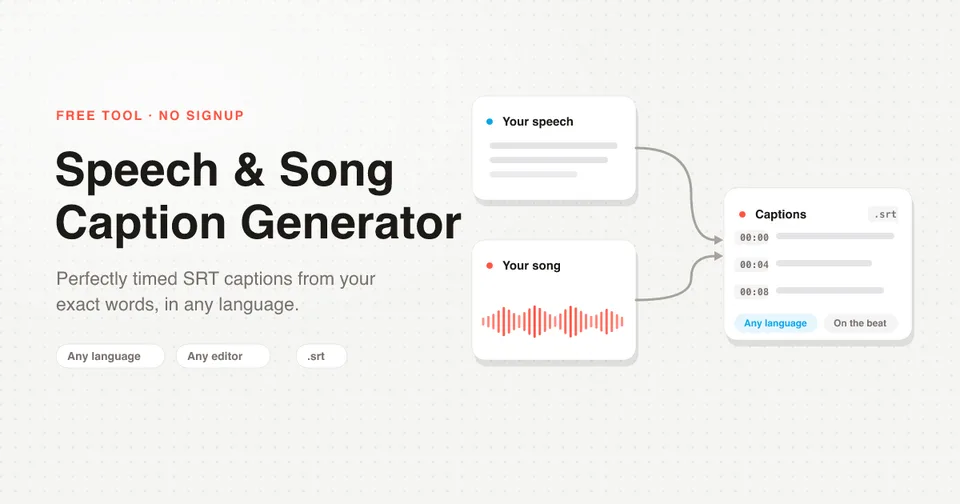
There is a better way, and it is free. Our Speech and Song Caption Generator flips the process around. You upload your video or audio and paste your own exact words, a script or song lyrics. It transcribes the audio only to find the timing, when each word is spoken or sung, then snaps your real text onto that timing and hands you a downloadable SRT.
Because you supply the words, two things are always true:
- It works in any language. Spanish, Polish, Arabic, Hindi, Japanese, anything. The tool never has to guess the language, so it never mishears it.
- It never misspells. Your pasted text is the source of truth, so brand names, proper nouns, accents, and diacritics stay exactly right.
Upload, paste your words, download the .srt, and import it into CapCut, Premiere Pro, DaVinci Resolve, or any editor. No signup, no timestamps to type.
Converting Between SRT and VTT
Since the two formats are almost identical, converting is mechanical. If you have an SRT and need a VTT for a web player, do two things:
- Add a
WEBVTTline plus a blank line at the very top of the file. - Replace the comma in every timestamp with a period (
00:00:01,000becomes00:00:01.000).
To go the other way, VTT to SRT, remove the WEBVTT header and switch the periods back to commas. The cue numbers are fine to keep or drop in either direction.
You rarely need to do this by hand. Most editors export whichever format you pick, and plenty of free online converters handle it in one click. And since SRT imports nearly everywhere, the simplest path is usually to generate an SRT and only convert to VTT if a specific web player demands it.
The Bottom Line
- SRT is the universal format for video editing and social platforms. Pick it by default.
- VTT is the web-native format with CSS styling and positioning. Pick it for captions inside an HTML5 player on a website.
- They are close enough that converting between them takes seconds.
The hard part was never the file format. It is getting words that are correctly spelled and perfectly timed. Paste your script or lyrics into the free caption generator, download the SRT, and drop it into your editor. It works in any language and keeps your spelling exactly as you wrote it.