Contents
0%Hey!
The hard part of a lyric video was never the styling. It is the timing. Getting every line to land on the exact shot the vocal hits usually means dragging subtitle blocks around in Aegisub for an hour, or typing timestamps by hand until your eyes cross. This walks through a faster way: paste your real lyrics, let a free tool find the timing from the audio, and export a synced lyric SRT you can drop into any editor.
What you need to make a lyric video
Only two things:
- The song file. An MP3, WAV, or M4A works, or an MP4 if the audio is already in a video. The exact mix you plan to use, not a rough demo, so the timing matches your final export.
- The exact lyrics. The real words, the way you want them to read on screen. This is the part that matters most, and it is the part auto tools get wrong.
That second point is the whole trick. Instead of asking a machine to guess what the singer said, you hand it the words. The tool only has to solve one problem: when each line is sung. It never has to guess what was sung, because you already told it.
Why auto-lyric tools mangle sung words
Auto-caption features, including CapCut's, transcribe the audio and guess the words. That works okay for a clear talking-head in English. It falls apart on a song.
- Singing bends words. Vowels stretch, consonants drop, and a held note turns "forever" into "foreveeer." Transcription models mishear all of it.
- Ad-libs and backing vocals confuse it. Overlapping harmonies, "yeah, yeah," and reverb tails get transcribed as garbage lines.
- Brand names and proper nouns break. Your artist name, a product name in a song ad, a city, a slang spelling, all of it gets auto-corrected into something wrong.
- Non-English lyrics collapse. Most auto-subtitle tools only handle a few languages well. Spanish, Polish, Arabic, Hindi, Japanese, and the rest come out mangled or blank.
When you supply the words yourself, none of that can happen. Your text is the source of truth, so every word, accent, and diacritic stays exactly as you typed it, in any language. The tool only lines your words up to the audio.
Step 1: Clean up your lyric sheet
Your line breaks become your caption lines, so a couple of minutes here decides how the finished video reads.
Delete the section labels
Strip out [Verse 1], [Chorus], [Bridge], producer tags, and any notes. Those are not sung, so they should not be captions.
One line per caption
Break the lyrics the way you want them to appear on screen, one caption per line. A single sung phrase per line reads best. Very long lines get cut off in a vertical frame, so split them.
Write every repeat out in full
If the chorus is sung four times, paste it four times, once for each time it lands. The tool times the words where they actually occur, so each repeat needs to be present.
Fix spelling now
Type names, stylized spellings, and any other language exactly as you want them shown. Whatever you paste is what appears, so this is your one chance to get it perfect.
Step 2: Upload the song and generate a synced SRT
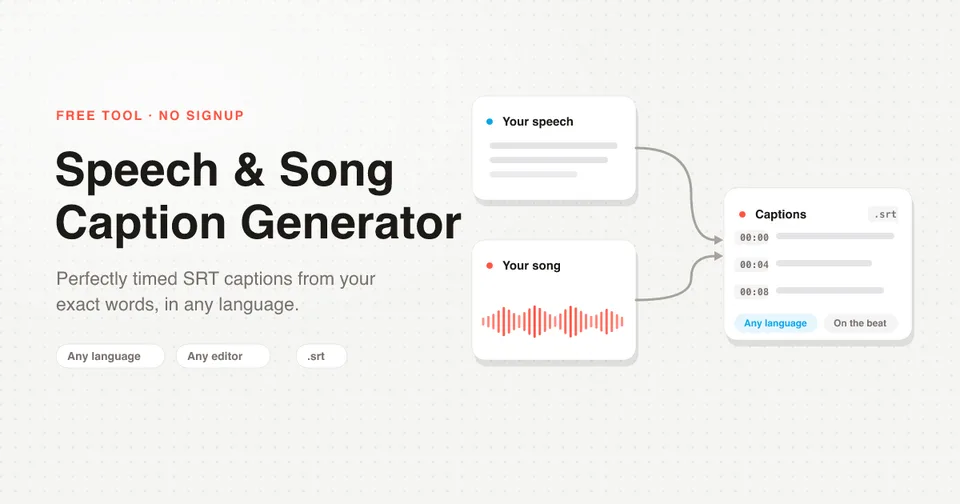
Open the free Speech & Song Caption Generator. There is no signup and nothing to install.
- Upload your song (MP3, WAV, or M4A up to 50 MB, or an MP4 up to 200 MB).
- Paste your cleaned-up lyrics, one line per caption, in any language.
- Pick the frame shape. Vertical (9:16) caps each line around 25 characters for TikTok, Reels, and Shorts. Horizontal (16:9) allows up to 42 characters for YouTube. You can switch between them after generating with no re-processing.
- Download the SRT. The tool transcribes the audio only to find the timing, snaps your exact words onto that timing, and hands you a subtitle file. You never type a single timestamp.
The tool anchors the words it recognizes in the audio, then evenly spaces the rest between those anchors. That is why small differences between your sheet and the vocal, an extra ad-lib or a dropped filler word, do not throw off the timing.
Step 3: Fine-tune line timing if needed
Most lines land right the first time. When one feels early or late, you have two clean fixes:
- Nudge it in your editor. After you import the SRT, every caption is its own block on the timeline. Drag the one line that is off a few frames. Faster than touching the other fifty that are already correct.
- Fix it at the source. If a whole section drifts, it is almost always because a repeated chorus or an ad-lib was missing from the sheet, or a lyric version did not match the vocal. Add the missing words, or paste the version that is actually sung, and regenerate.
Step 4: Style the lyrics in CapCut, Premiere, or DaVinci
SRT is the universal subtitle format, so the same file imports straight into CapCut, Adobe Premiere Pro, DaVinci Resolve, Final Cut Pro, VN, and InShot. No plugin, no conversion.
- CapCut: Text, then Import captions, and select your SRT. Every line drops onto the right frame. Style the font, size, color, and position once and it applies to all lines.
- Premiere Pro: Import the SRT as a caption track, then set your font and box style in the Essential Graphics panel.
- DaVinci Resolve: Import Subtitle onto the timeline, then style it in the Inspector.
The timing is already solved, so this step is purely how it looks: the font, the drop shadow, where the line sits, and whether it fades or pops in.
Karaoke word‑by‑word vs line‑by‑line: which to choose
A synced SRT gives you one caption per line, the whole line on screen at once. That is the classic lyric-video look, and for sung vocals it is usually the right call, because a held note keeps a line on screen long enough to actually read.
The word-by-word karaoke look, where each word lights up as it is sung, is a styling choice you add on top, not a different export. Two ways to get there:
- Animate the line in CapCut. Keep the line-level SRT and apply a per-word highlight or typewriter animation to each caption. You get the karaoke effect while the line timing stays locked to the audio.
- Break the lyrics into shorter lines. Paste one or two words per line so each caption is tiny. This gives a rapid word-by-word feel, but it can look choppy on long sung phrases, so use it for fast, punchy sections rather than a whole ballad.
For most lyric videos, line-by-line for the verses and a highlight animation on the hook is the sweet spot.
Exporting for YouTube, TikTok, and Reels
- YouTube: Use the horizontal (16:9) setting for a longer line length. You can burn the captions into the video, or keep them as a soft subtitle track viewers can toggle.
- TikTok, Reels, and Shorts: Use vertical (9:16) so lines fit the narrow frame, and burn the captions in. Social platforms often load with subtitle tracks off, so baked-in lyrics are the only way to guarantee everyone sees them.
Because switching between vertical and horizontal needs no re-processing, you can export one SRT for the vertical cut and another for the horizontal cut from the same upload.
Common mistakes to avoid
Two fixes solve almost every timing problem before it starts.
- A chorus that only appears once in your sheet. If the words are not present each time they are sung, the tool has nothing to anchor to on the later repeats. Paste every repeat in full.
- Trying to caption the instrumental. Long intros, solos, and breakdowns have no words, so leave them out. The tool times your words to where the vocal actually is and lets the instrumental sections breathe. You do not need filler lines to "cover" the gap.
- Captioning every ad-lib and backing vocal. You do not have to transcribe every "ooh" and "yeah." Include an ad-lib only if you genuinely want it on screen. The aligner tolerates the ones you skip.
- Using the wrong version of the lyrics. A radio edit, a remix, or a live take can differ from your sheet. Paste the words as they are sung in the file you uploaded, or the whole thing drifts.
Next steps
Here is the fast version of everything above:
- Sync your lyrics free. Upload the song, paste your exact words, and download a perfectly timed lyric SRT for any editor. Open the tool.
- Making a song ad, not just a music video? Starpop turns your product into a finished AI ad, song and captions included, in one chat. Try Starpop.
Paste your real lyrics, let the tool find the timing, and spend your time on how the video looks instead of dragging blocks around a timeline.
Make a synced lyric video (free)