What does the output look like?
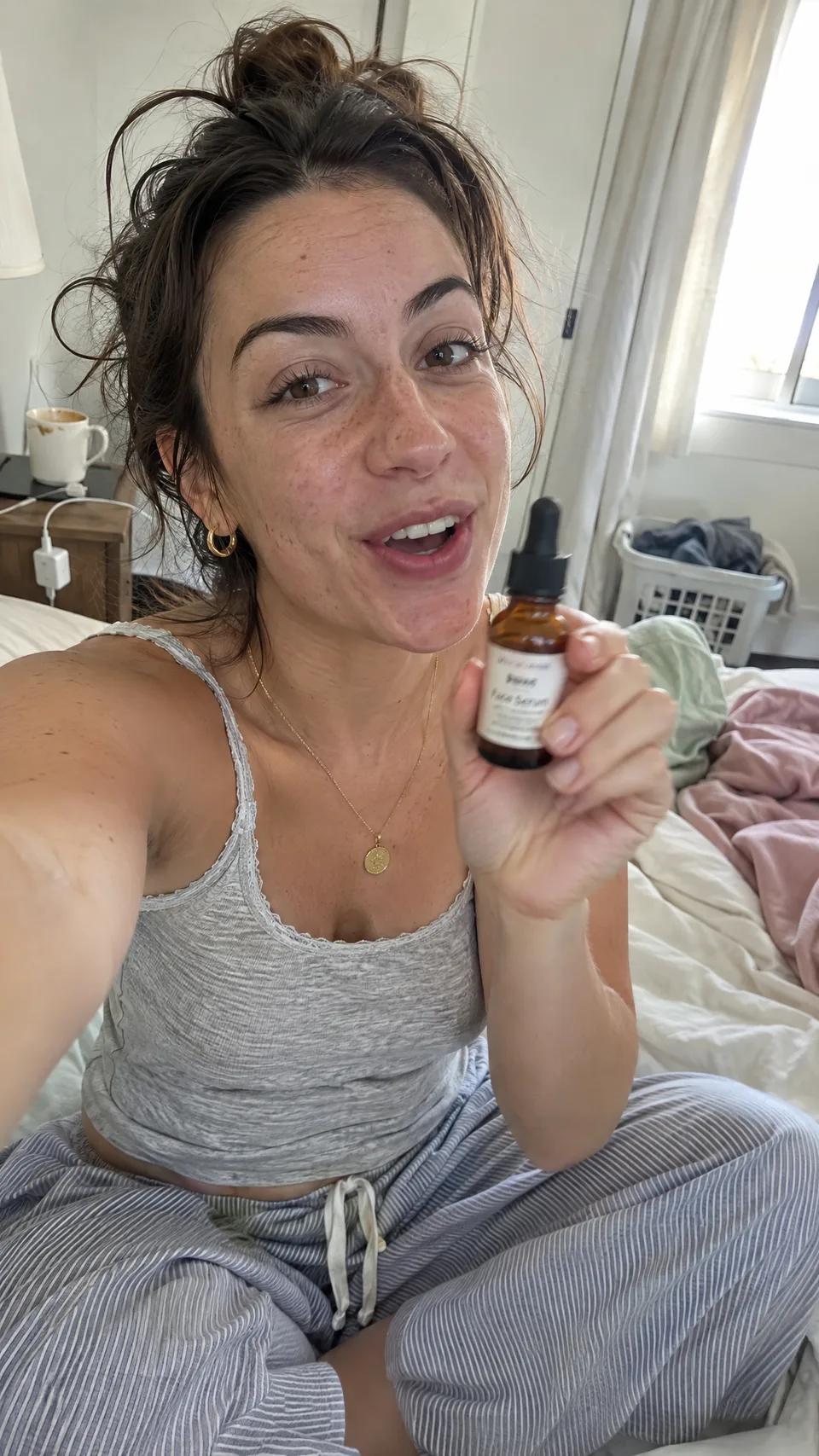
A realistic UGC selfie
A 9:16 arm's-length selfie of a woman holding a serum bottle on an unmade bed, made at 2K and High quality. The product is fictional.
Starpop example: GPT Image 2.6 Now Available on Starpop
An animated film still
A 16:9 animated-style scene of a girl showing a jar of fireflies to a stray cat in a rainy alley, made at 2K and High quality.
Starpop example: GPT Image 2.6 Now Available on StarpopWhat can GPT Image 2.6 Sunburst do?
Precision image generation and consistent multi-step edits for intricate detail
- Hero images and detailed product scenes
- Editing the same image over several turns
- Assets with transparent backgrounds
- Inputs
- Text, Image
- Aspect ratios
- 1:1, 3:2, 2:3, 16:9, 9:16, 4:3, 3:4, 5:4, 4:5, 2:1, 1:2, 21:9, 9:21, 3:1, 1:3, 1.91:1
- Output options
- 1K:auto, 1K:low, 1K:medium, 1K:high, 1K:xhigh, 1K:max, 2K:auto, 2K:low, 2K:medium, 2K:high, 2K:xhigh, 2K:max, 4K:auto, 4K:low, 4K:medium, 4K:high, 4K:xhigh, 4K:max
- Typical generation time
- About 50 seconds
- Developer
- OpenAI
- Takes longer than Flare to generate.
- Square images, higher resolutions, higher quality, and reference images all increase credit cost.
How much does GPT Image 2.6 Sunburst cost?
Base estimate
$0.05–$1.10 USD / image
0.5–11 credits / image
Estimated dollar cost uses the Solo monthly plan at $0.10 USD per credit. Your cost per credit depends on your plan.
Prices are per output image. Resolution, quality, reference images, and editing mode can affect the charge. Check the total shown in Starpop before generating.
How to use GPT Image 2.6 Sunburst
- Click “Create with GPT Image 2.6 Sunburst” and sign in or create an account. After setup, Starpop opens a new image workspace tab with the model selected.
- Describe the image to create, or choose Edit, add the image to edit, and describe what should change.
- Choose the aspect ratio, resolution, and quality. Square images and higher settings cost more credits.
- Review the credit estimate and generate. Check the result in your workspace, then download it or adjust your inputs to try again.