What does the output look like?
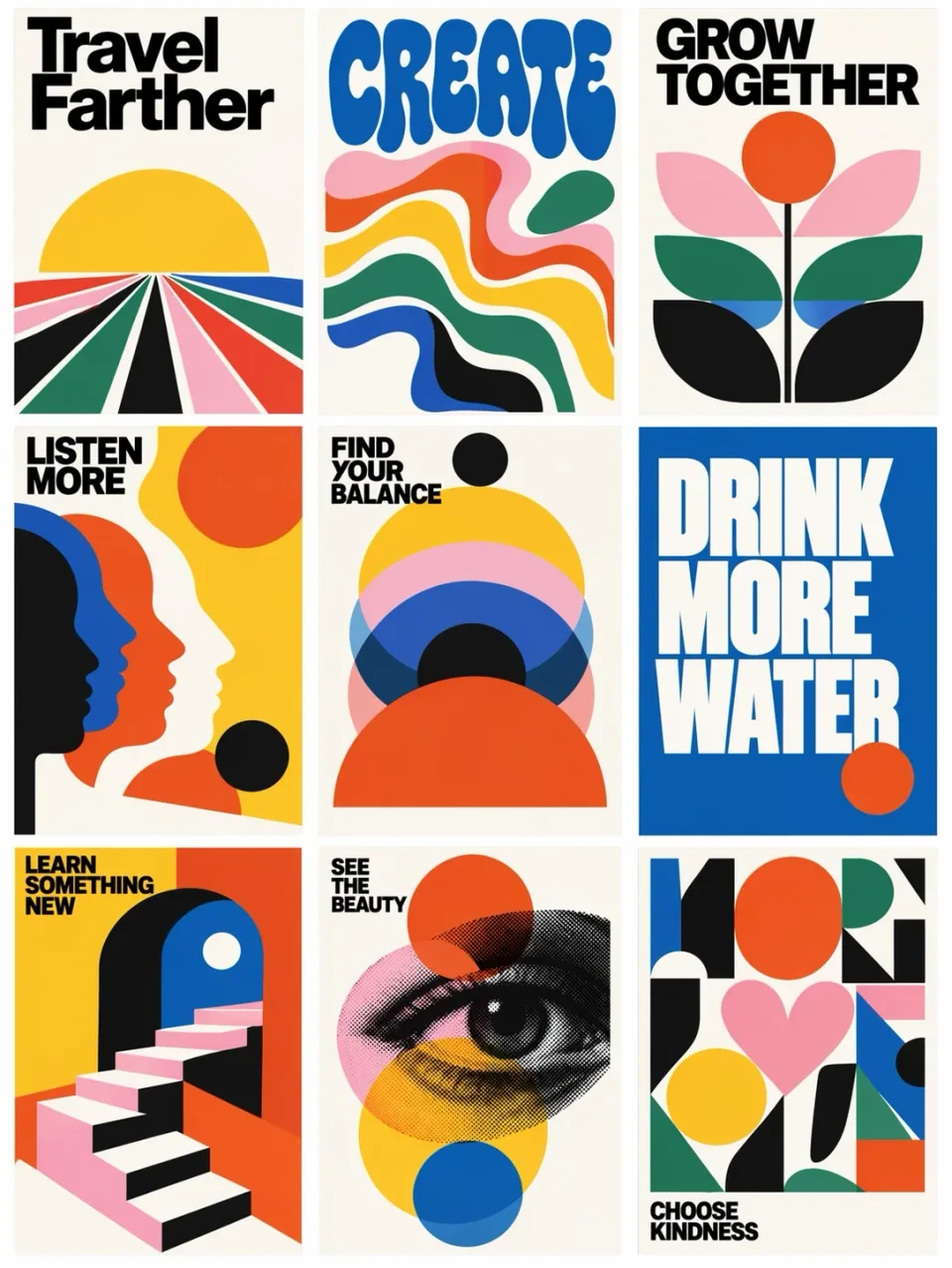
A coordinated poster collection
Nine colorful posters combine bold typography and geometric illustration. OpenAI’s GPT Image 2.5 announcement does not identify whether this example uses Flare or Sunburst.
OpenAI official family example: Introducing ChatGPT Images 2.5What can GPT Image 2.5 Flare do?
Fast image generation and precise reference edits with transparent backgrounds
- Fast visual concepts
- Reference-based image editing
- Assets with transparent backgrounds
- Inputs
- Text, Image
- Aspect ratios
- 1:1, 3:2, 2:3, 16:9, 9:16, 4:3, 3:4, 4:5, 1.91:1
- Output options
- 1K:auto, 1K:low, 1K:medium, 1K:high, 1K:xhigh, 1K:max, 2K:auto, 2K:low, 2K:medium, 2K:high, 2K:xhigh, 2K:max, 4K:auto, 4K:low, 4K:medium, 4K:high, 4K:xhigh, 4K:max
- Typical generation time
- About 45 seconds
- Developer
- OpenAI
- Higher quality increases generation time and credit cost.
- Reference images add to credit cost; up to 16 are supported.
How much does GPT Image 2.5 Flare cost?
Base estimate
$0.025–$0.65 USD / image
0.25–6.5 credits / image
Estimated dollar cost uses the Solo monthly plan at $0.10 USD per credit. Your cost per credit depends on your plan.
Prices are per output image. Resolution, quality, reference images, and editing mode can affect the charge. Check the total shown in Starpop before generating.
How to use GPT Image 2.5 Flare
- Click “Create with GPT Image 2.5 Flare” and sign in or create an account. After setup, Starpop opens a new image workspace tab with the model selected.
- Describe the image to create, or attach references and describe the requested edit.
- Choose the output size, quality, and background. Reference images and higher quality change the credit estimate.
- Review the credit estimate and generate. Check the result in your workspace, then download it or adjust your inputs to try again.