Contents
0%GPT Image 2.5 Flare and GPT Image 2.5 Sunburst are now available on Starpop. Create a new image from a prompt, or add reference images and describe what you want to change. Both variants work in the Create image tool.
OpenAI describes the release as bringing “sharper details, more precise editing, and faster generation.” It also reports improvements to natural lighting, textures, reference fidelity, and consistency through successive edits. Read OpenAI's announcement.
Flare or Sunburst: which should you choose?
Flare is the starting point for quick creative exploration. OpenAI positions it for faster generation and everyday creative workloads. Sunburst is for work that needs extra precision, with longer generation times. That makes the choice about the stage of your creative process: exploring a direction or refining the details. OpenAI's model overview.
Here is how we would use them in Starpop:
| Your next task | Start with | What to try |
|---|---|---|
| Explore a new ad concept | Flare | Compare a studio shot, a lifestyle scene, and a graphic poster. |
| Prepare everyday social content | Flare | Turn one campaign idea into a fresh visual for your next post. |
| Refine a product hero image | Sunburst | Specify the material, lighting, composition, and details to preserve. |
| Work on an intricate layout | Sunburst | Describe the visual hierarchy, exact copy, decorative elements, and spacing. |
Flare: find your next creative direction
Start with one product and one message. Try different settings or visual treatments before spending time polishing a single concept.
For example, attach a bottle photo and try this prompt:
Create a square skincare ad using the attached bottle. Place it on pale peach stone in soft morning light. Keep the bottle shape, label, and cap unchanged. Leave the upper third clear for a headline. No additional text.
Then ask for a different setting—a bathroom shelf, a travel bag, or a clean studio backdrop—to explore which direction suits the campaign.
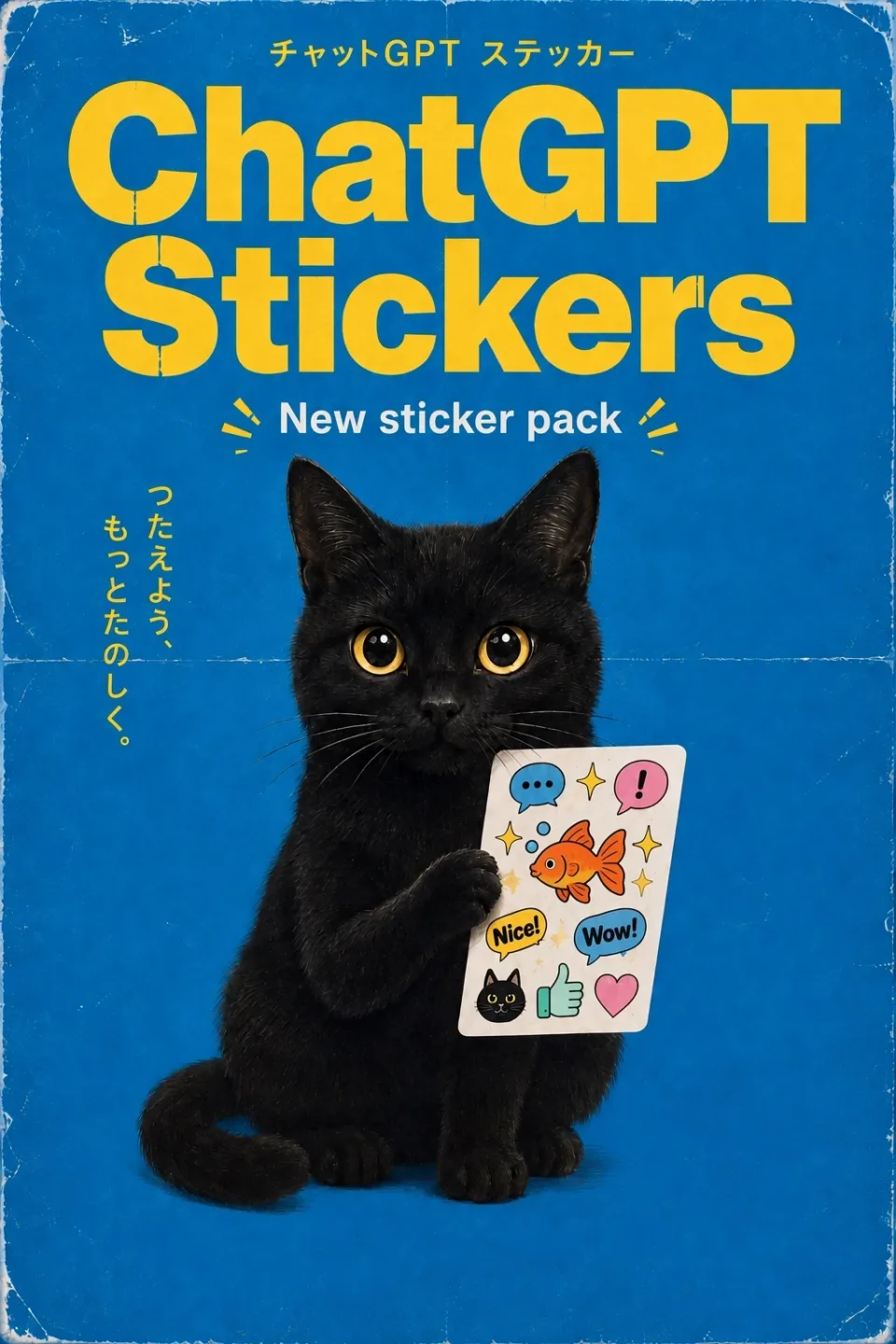
OpenAI example: a blue and yellow sticker poster featuring a black cat holding illustrated stickers
Image: OpenAI's ChatGPT Images 2.5 announcement. This poster illustrates a creative format to explore; OpenAI does not identify it as a Flare output.
Sunburst: work through the details
Once you have a clear brief, try Sunburst for the image where the small decisions matter: a campaign hero, a detailed product scene, or an invitation with a carefully specified layout.
Give it a focused editing brief rather than asking it to make everything better:
Use the attached product image. Change only the surface to brushed silver and the background to a deep forest green. Preserve the product's proportions, printed label, camera angle, and position. Add a soft reflection beneath the product.
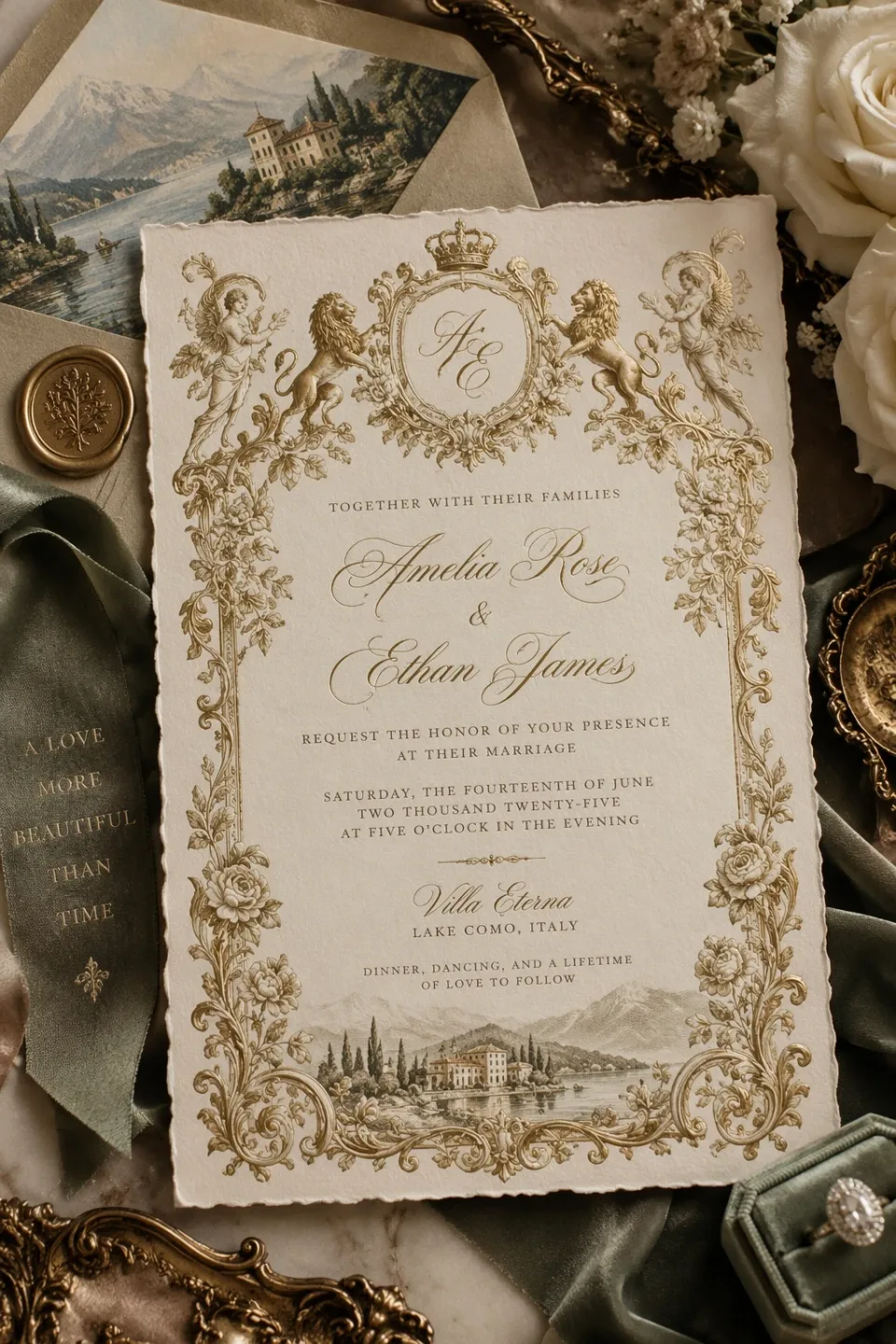
OpenAI example: a cream wedding invitation with ornate gold borders, fine lettering, and a Lake Como illustration
Image: OpenAI's ChatGPT Images 2.5 announcement. This invitation illustrates intricate visual detail; OpenAI does not identify it as a Sunburst output. Both official examples are from OpenAI's announcement, rather than generations made in Starpop.
How to use GPT Image 2.5 on Starpop
- Open Create image in your workspace, then open the model picker.
- Choose GPT Image 2.5 Flare or GPT Image 2.5 Sunburst.
- Write your Prompt. For an edit, add the source under Reference Images and explain what should change and what should stay.
- Choose Aspect Ratio, Quality, and Background.
- Review the credit total and select Generate image.
Both variants accept up to 16 reference images. The size selector includes square, portrait, and landscape formats, with output up to 3840×2160. Quality options are Low, Medium, High, Extra High, and Max. Background options are Auto, Transparent, and Opaque.
For a standalone graphic you plan to place into another design, choose Transparent. For a complete product scene, choose Opaque. The credit total reflects the selected size, quality, reference images, and number of outputs, so check it before each generation.
Give each edit one clear job
A useful brief names the subject, the destination, and the constraint: “Use this product, make a portrait ad, keep the packaging unchanged.” Add exact wording in quotation marks when the image needs text.
For the next pass, use your chosen result as a reference and ask for a specific change. Check the label, text, and product details before using the finished image in a campaign.