Contents
0%Your AI assistant already knows a lot about your business: the launch brief in your project, the reviews in your inbox, the plans you talked through last week. Turning that into an ad still meant copying a script out of the chat and starting again in Starpop.
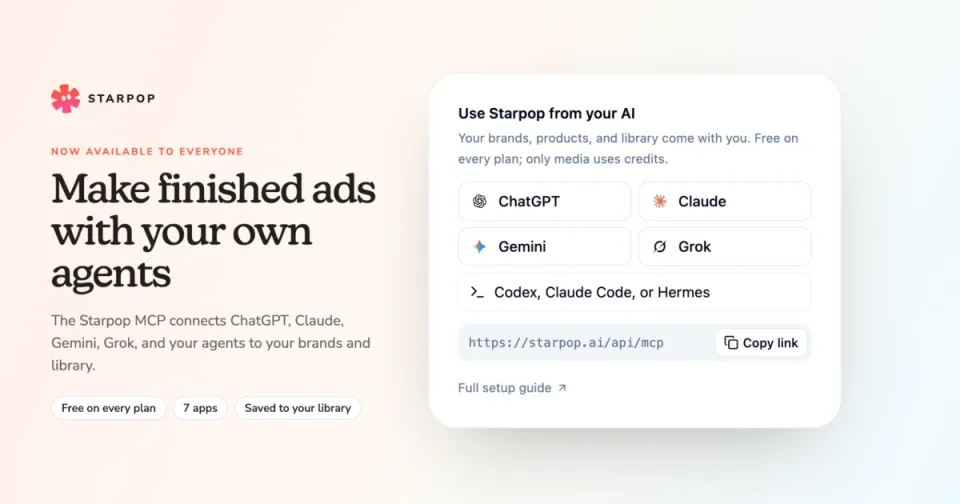
The Starpop MCP is now available to everyone. Connect ChatGPT, Claude, Gemini, Grok, or your own agent to Starpop, and it can make images, videos, voiceovers, and music for your brands without leaving the conversation. Everything it makes is saved to your Starpop library.
Free on every plan
The Starpop MCP is out of beta. You no longer need to turn on beta features, and it's included on every Starpop plan, including the free plan.
- Connecting and chatting are free. Your assistant's conversation with Starpop doesn't use Starpop agent credits.
- Media uses your normal credits. Images, videos, voiceovers, and music cost the same as they do in Starpop.
It works with:
- ChatGPT, Claude, Gemini, and Grok. Add Starpop in the app's settings in about two minutes, with no code.
- Codex, Claude Code, and Hermes. Connect from the terminal.
Claude's Free plan allows one custom connector. Gemini custom apps need a personal Google Account with Gemini Apps Activity turned on; work and school accounts aren't supported yet.
Starpop knows ads. Your agents know your business.
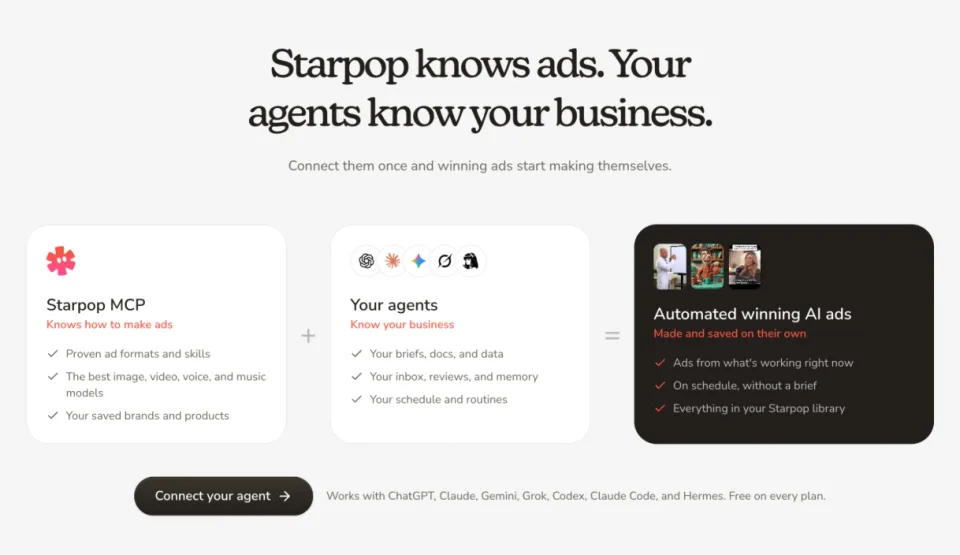
Starpop MCP, which knows how to make ads, plus your agents, which know your business, equals automated winning AI ads saved to your Starpop library.
Starpop brings what it takes to make an ad: proven ad formats, the best image, video, voice, and music models, and your saved brands and products. Your assistant brings what it already knows about your business. Put them together and you can ask for the ad where the context already is:
- In Claude: "Read the launch brief in this project and use Starpop to make a 15-second video ad from it."
- In ChatGPT: "You know our brand voice from our chats. Use Starpop to make three Instagram ads for the fall drop."
- In Gemini: "Find the best customer reviews in my Gmail and use Starpop to turn them into UGC-style videos."
- In Codex or Claude Code: "For every product in products.csv, use Starpop to make a square image and save them to the summer project."
- With an agent that runs on a schedule, such as Hermes: "Every Monday, take last week's top review and use Starpop to make a new video ad."
What your assistant can draw on depends on what you've connected to it in that app. Starpop only sees what your assistant sends with each request.
What your agent can do with Starpop
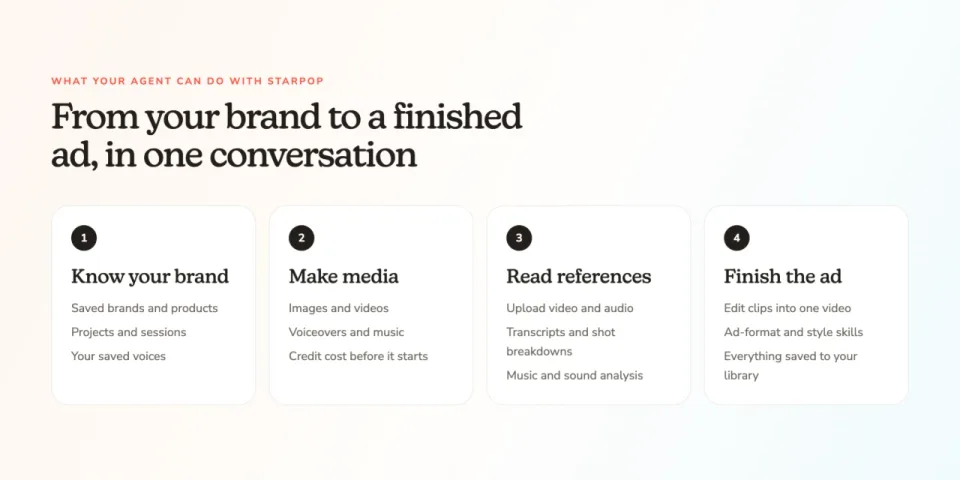
Four things your agent can do with Starpop: know your brand, make media, read references, and finish the ad.
- Work from your brand. Your agent can see your saved brands, products, projects, and voices, so it doesn't need you to re-explain them in every chat.
- Make media. Create images, videos, voiceovers, and music with Starpop's models. Your agent can check the credit cost of a request before anything starts.
- Read your references. Upload a video or audio file, such as a competitor's ad, and get its transcript, a breakdown of its shots, and a description of the music and sound.
- Finish the ad. Edit your clips into one video. Your agent can also use Starpop's skills: the same production knowledge Starpop's own agent uses, plus guides for formats like song ads, talking characters, and podcast ads, and styles like paper, claymation, and Disney-Pixar.
A good habit is to ask for the plan first: "Show me the script and shot list before you generate anything."
Everything lands in your Starpop library
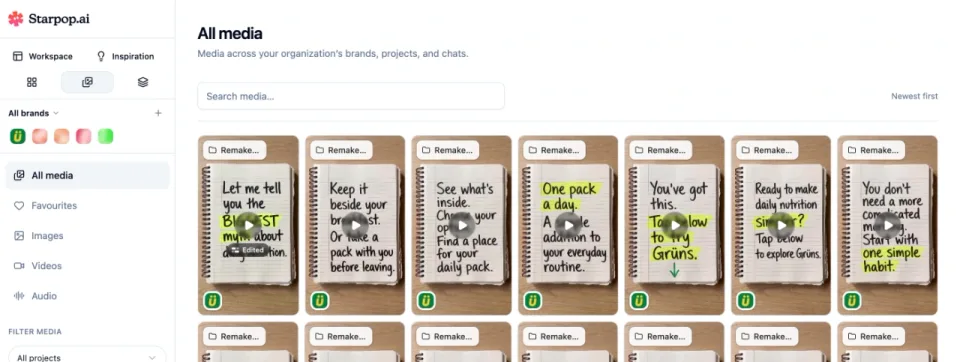
The All media page in Starpop: a search field and media from every brand, project, and chat in one grid.
Whatever your agent makes is saved in your Starpop library, next to everything you make in Starpop itself. Open Media in Starpop to search it, or filter by brand, project, creator, or type. It doesn't matter which app made it: what you made in ChatGPT on Monday sits next to what you made in Claude on Friday.
Set up in about two minutes
The setup guide walks you through each app, step by step. Pick your app and it shows only the steps you need. If you already know how to add an MCP server, the Starpop link is at the top.
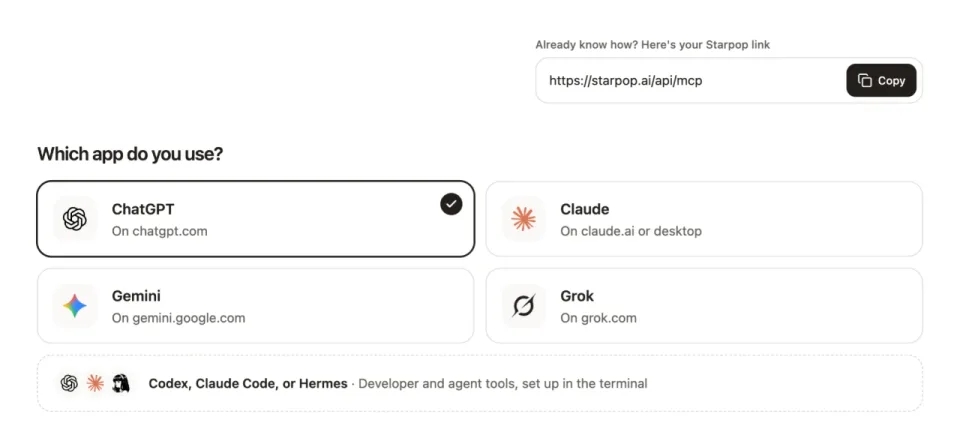
The Starpop setup guide with the Starpop link ready to copy and the question “Which app do you use?”, with ChatGPT selected.
Adding Starpop to ChatGPT? You can give it the Starpop icon too. Download it from step 3 of the ChatGPT guide and upload it under Icon in ChatGPT's form.
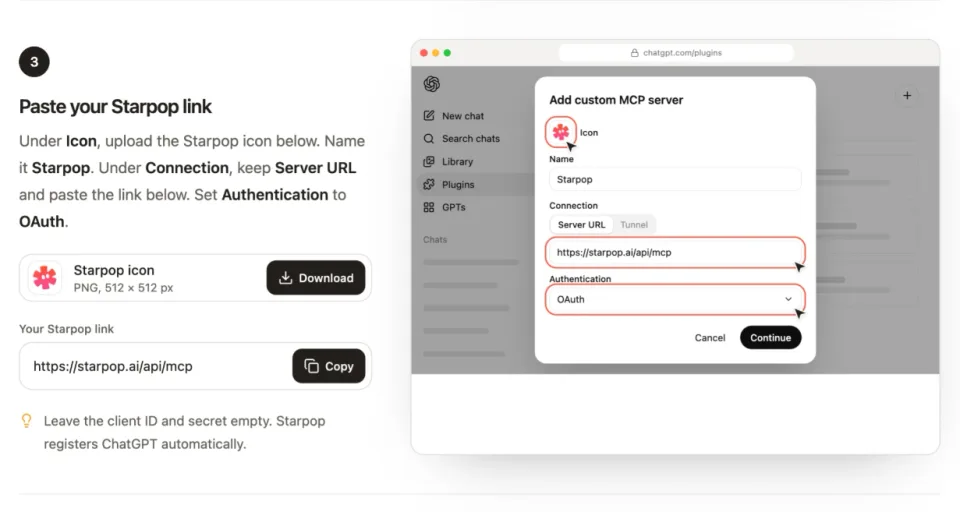
Step 3 of the ChatGPT setup guide: download the Starpop icon, copy the Starpop link, and an illustration of ChatGPT's Add custom MCP server form with the icon, name, link, and OAuth filled in.
Open the setup guide
Go to the Starpop MCP setup guide and pick the app you use.
Add Starpop to your app
Follow the steps for your app and paste your Starpop link,
https://starpop.ai/api/mcp, when it asks for the server URL.
Sign in to Starpop
A Starpop page opens. Sign in, choose the organizations your assistant can use, and click Allow access.
Say hello
In a new chat, send: “Use Starpop to list the workspaces I can access.” Your assistant should list your Starpop workspaces. This doesn't use any credits.
For an overview of every app, what it costs, and common questions, see Starpop integrations.
Connect from inside Starpop
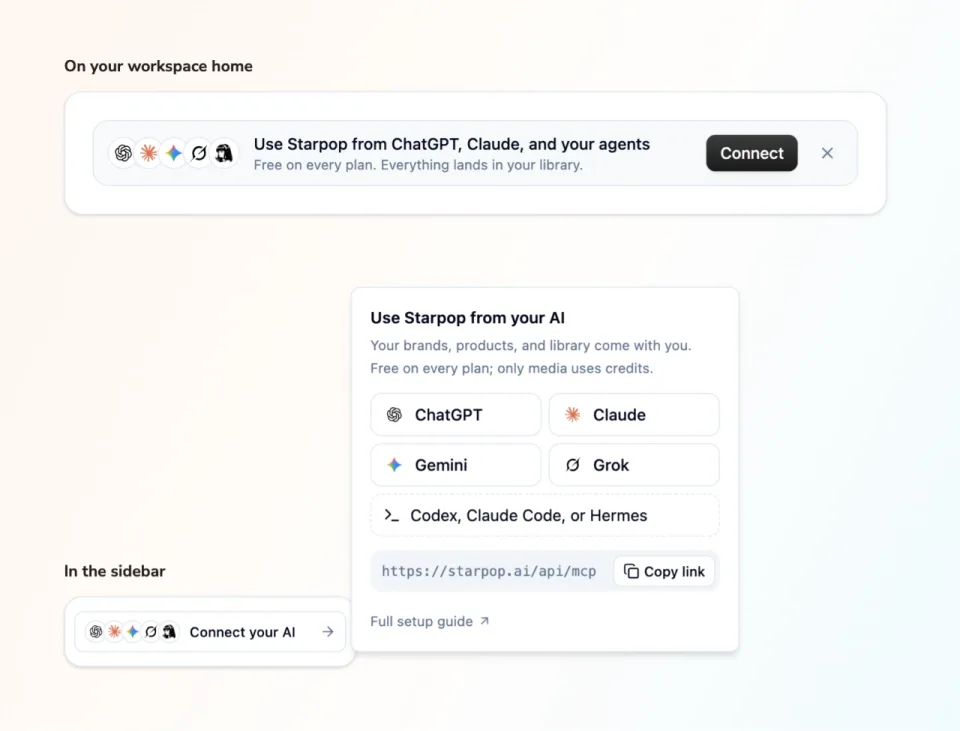
In Starpop: the “Use Starpop from ChatGPT, Claude, and your agents” card on the workspace home, and the “Connect your AI” entry in the sidebar with its panel open, listing ChatGPT, Claude, Gemini, Grok, and Codex, Claude Code, or Hermes, plus the Starpop link.
You'll also find Starpop's MCP inside Starpop:
- On your workspace home, a card under the composer. Choose Connect to see the apps, or dismiss it with ×.
- In the sidebar, a Connect your AI entry that stays there until you connect.
Both open the same panel. Pick your app to open its setup steps, or copy the Starpop link. Once you've connected an agent, the sidebar entry becomes Connected agents.
You decide what your agent can reach
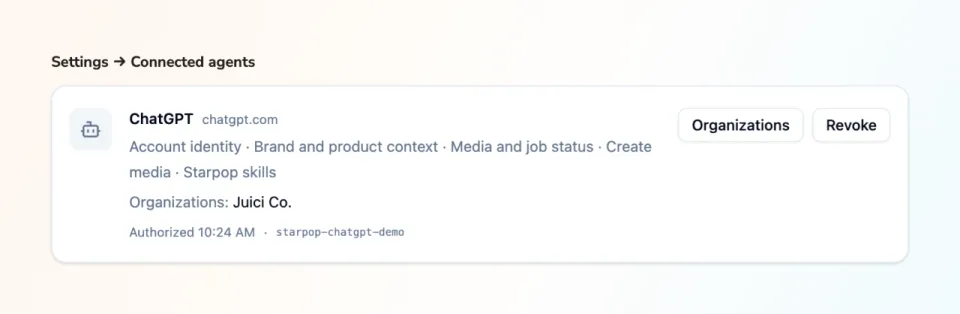
A ChatGPT connection in Settings → Connected agents, showing what it can access, the organization it can use, and the Organizations and Revoke buttons.
When you sign in to Starpop from your assistant, you choose which organizations it can use. Your connections are listed in Settings → Connected agents, with what each one can access. From there, choose Organizations to change which organizations an agent can use, or Revoke to disconnect it. Revoking takes effect immediately.