Contents
0%Generating the clips used to be where a Starpop chat ended. Lining them up under the voiceover, adding captions and music, and exporting the final cut happened in a separate editor.
Star can now edit your finished clips into one video, right in chat. Ask for an edit, and Star cuts your clips to the voiceover, adds music, captions, and transitions, renders the video, and checks it before handing it over. Then point at any moment in the result to change it.
Star edits your clips into one video
Tell Star which clips to use and what the finished ad should be. It works with finished clips you've generated or uploaded, and lays them out on one timeline:
- Clips in order, each trimmed to fit your voiceover or a target length. The voiceover sets the timing, and cuts move into nearby pauses between words.
- A music bed, if you want one, at a low, medium, or high level. It sits under the voice and fades out at the end.
- Captions built from the voice, in one of four styles: Bold, Karaoke (each word lights up as it's spoken), Boxed (text on a dark plate), or Clean. Place them at the top, middle, or bottom; the bottom position stays clear of the controls social apps draw over a video. Star can highlight words such as your product name, an offer, or a number, and spells names from your script instead of guessing from the audio.
- Transitions between clips: hard cuts, dissolves, fades through black, slides, whips, and zooms.
Edits can be vertical (9:16), horizontal (16:9), square (1:1), or 4:5, with up to 40 clips and three minutes of video. A clip that doesn't match the shape is cropped to fill the frame, shown whole with bars, or shown whole over a blurred fill. Its own sound can be muted under the voiceover, or kept and lowered beneath it.
Star never generates new footage for an edit or changes what happens inside a clip. If the edit needs a new shot, ask Star to make it first.
After rendering, Star checks the video itself: its length, loudness, black or frozen frames, and whether the captions stay on screen long enough to read. It tells you about any problem that affects the result.
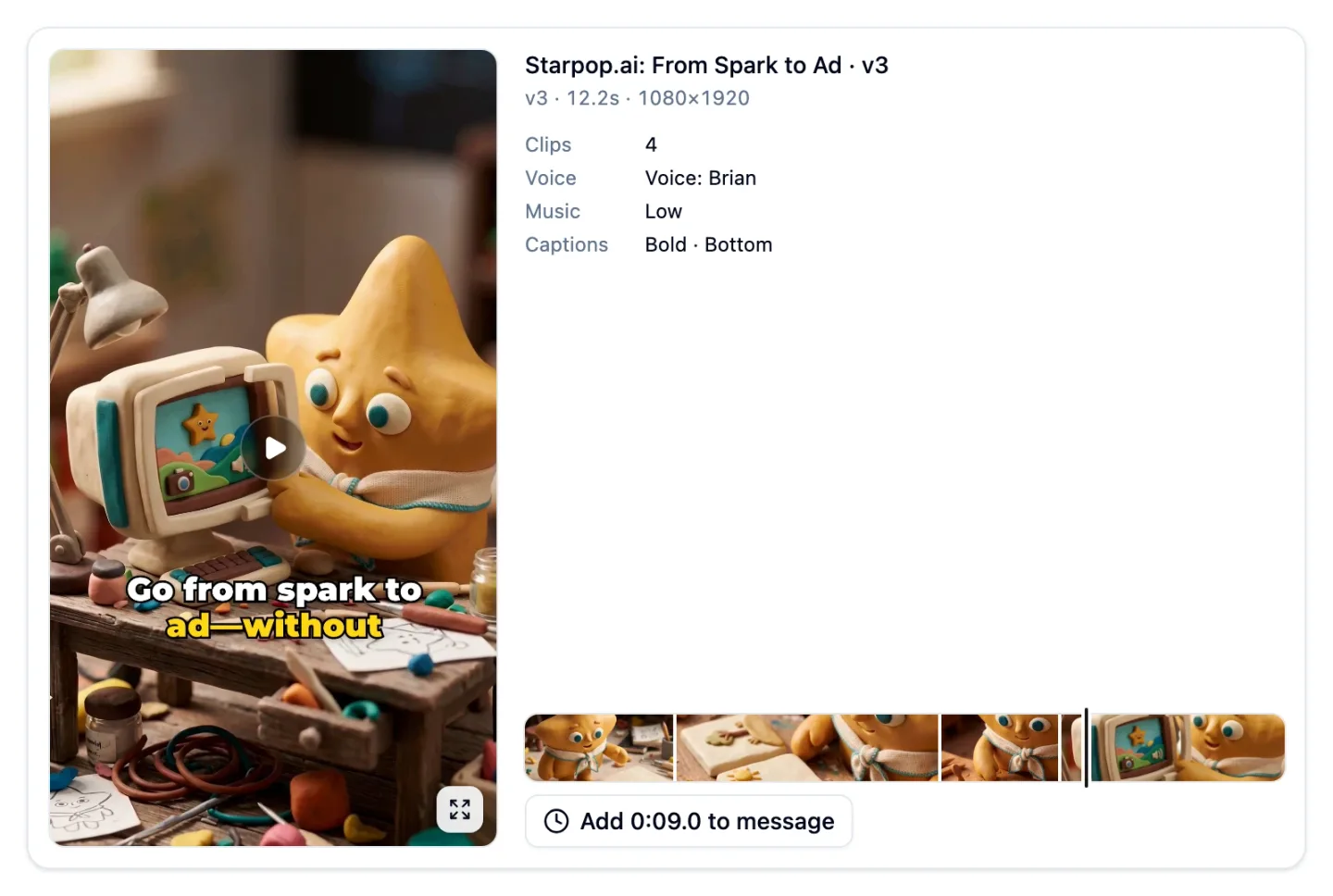
A rendered edit in chat: the video beside its details (4 clips, Voice: Brian, Music Low, Captions Bold · Bottom) and a filmstrip of its shots.
The finished video appears in the chat as a card you can play in place. It shows the edit's title, version, length, and size, what went into it, and a filmstrip of its shots. Use the expand button to watch it full screen, or favorite and download it like any other video.
Each render is also saved to your media. Open it there to see what changed in that version and the edit's timeline: the clips in order, with the voice, music, and captions laid over them.
Assembling and rendering an edit uses no generation credits. Your chat with Star uses agent credits as usual, and making new clips, voiceovers, or music uses generation credits.
Point at a moment to change it
To change part of an edit, show Star where. Scrub the filmstrip under the edit's details, or use the arrow keys to step a tenth of a second at a time, and the video follows. When you reach the moment you mean, choose Add 0:04.0 to message. The button always shows the current time.
Star adds the moment to the message you're writing as a timestamp chip and attaches the edit, so it knows which video you mean. Write around the chip as you would around any other words, and add as many moments as you need.
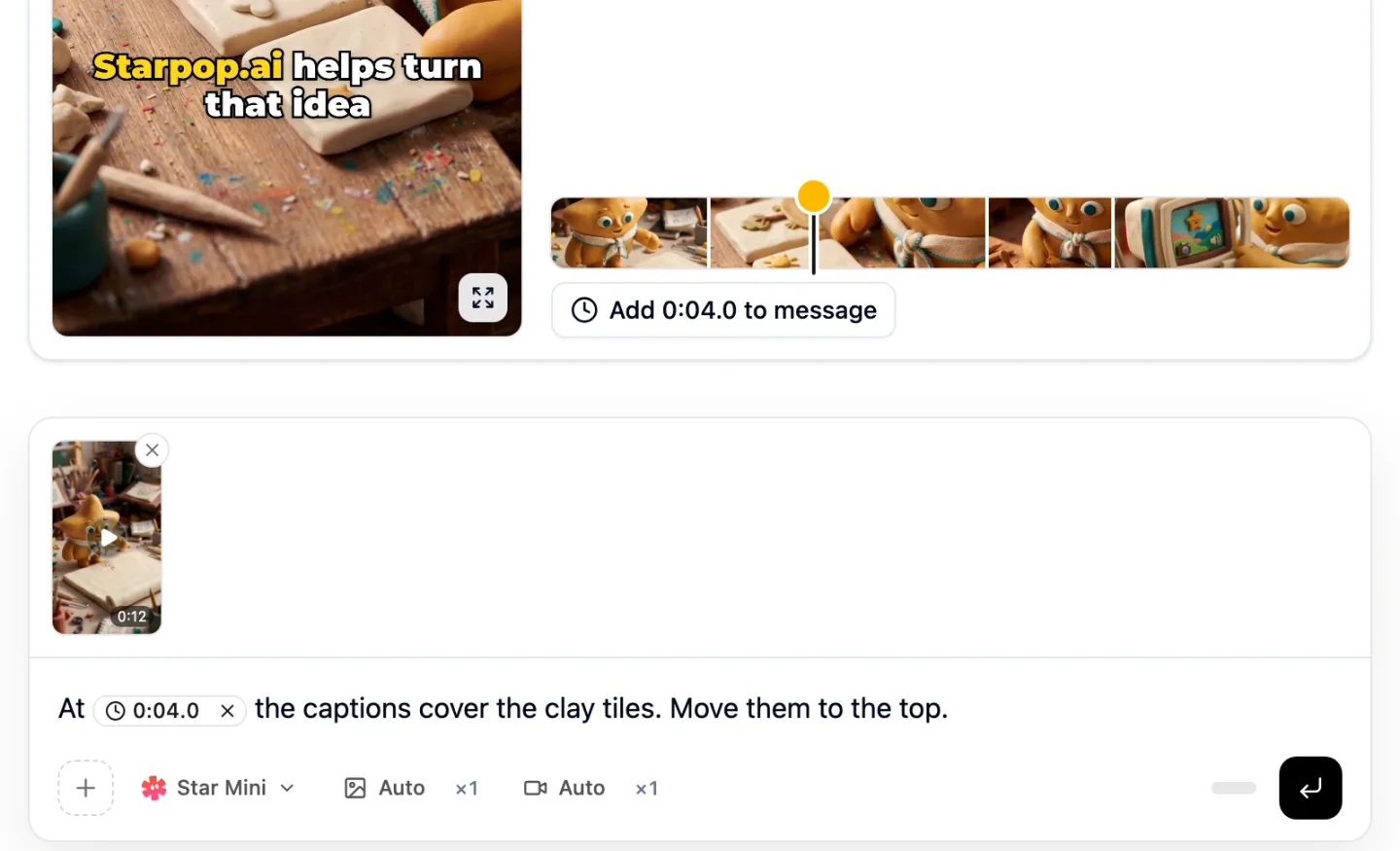
The filmstrip pinned at 0:04.0 and a message that reads “At 0:04.0 the captions cover the clay tiles. Move them to the top.” with the edit attached.
Each chip tells Star which shot is on screen and which words are spoken at that moment. Hover over a chip to see the same detail, or click it to jump the video back there. Pins on the filmstrip mark the moments already in your message.
Star changes only what you asked for and saves the result as a new version: v2, v3, and so on. It then renders the new version so you can watch it. Earlier versions stay in the chat and in your media.
You can ask Star to:
- Reorder, remove, insert, or swap clips.
- Trim a clip to an exact range, or change its speed between 0.5× and 2×.
- Change how a clip fills the frame, or how loud its own sound is.
- Change the transition into any clip.
- Replace or remove the voiceover or music, or change the music level.
- Change the caption style, position, or highlighted words, or turn captions off.
- Refit the clips to the voiceover or to a new length.
Replicate now ends with a finished edit
When you choose Replicate on an ad in Inspiration, or ask Star to recreate a reference video in chat, Star still starts by confirming what to keep and what to change. What's new is how it ends.
For an ad made of several shots, Star regenerates each shot with your product, actor, setting, or script, then assembles the finished clips into one edit. When the ad has a voiceover, your new one, not the original ad's timeline, sets how long each shot runs. You get the same playable edit described above, ready to watch and adjust by pointing at moments.
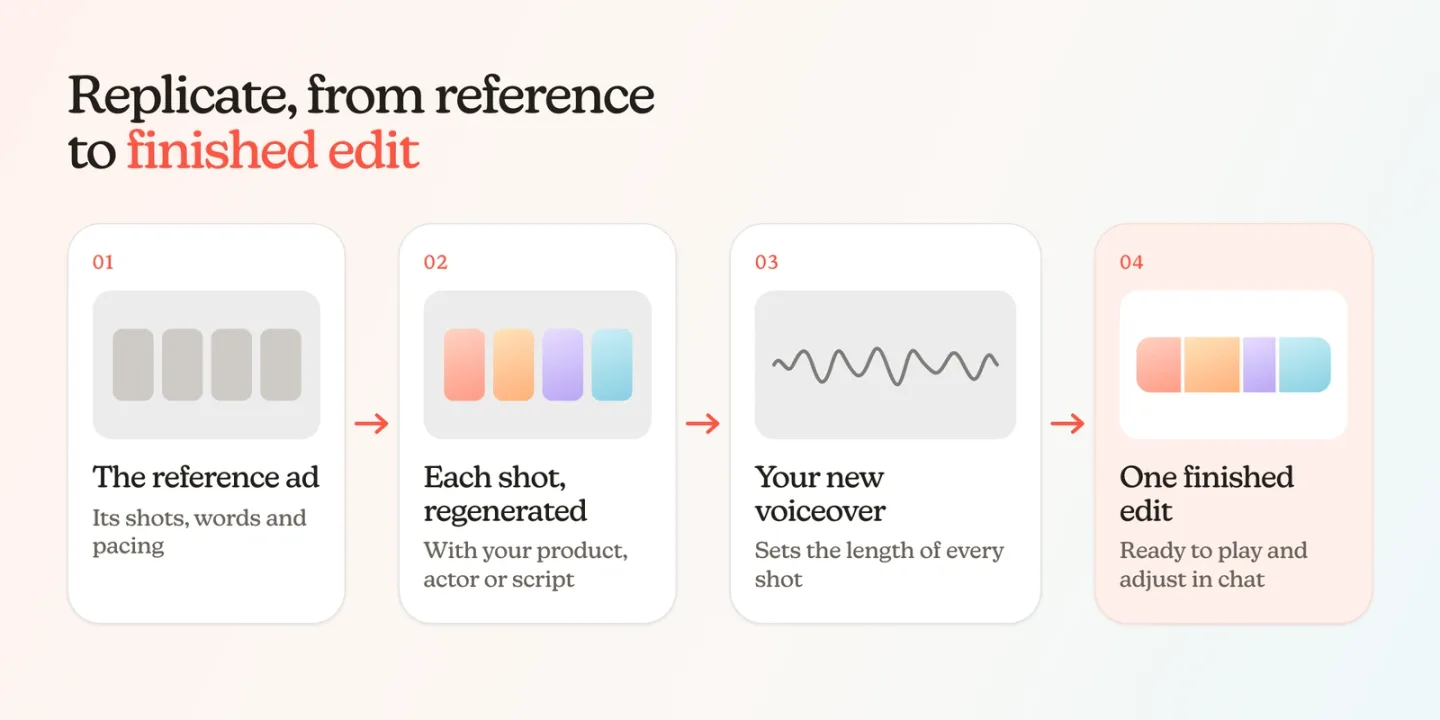
Replicate, from reference to finished edit: the reference ad, each shot regenerated with your product, actor, or script, your new voiceover setting the length of every shot, and one finished edit.
An ad filmed as one continuous shot is still recreated as a single video, so it doesn't need an edit. Regenerating shots uses generation credits as usual; putting them together into the edit does not.
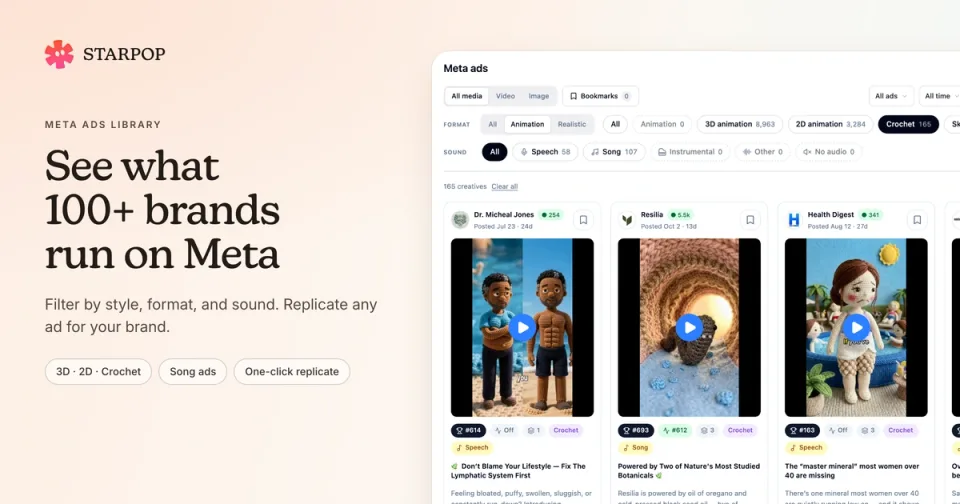
To find a proven ad to start from, browse the Meta ads library.
Star can check a take before using it
Star can now ask focused questions about a specific stretch of a video or audio file, so it can judge whether a take fits your brief before it uses it.
- Video: motion and gestures, camera moves, transitions, pacing, and on-screen text.
- Audio: how a voice sounds, including its accent, age, and tone; its delivery, pace, and pronunciation; and problems such as background noise or echo.
Star can also read the exact words with their timing, describe the music and sound under them, and look over still frames from each shot.
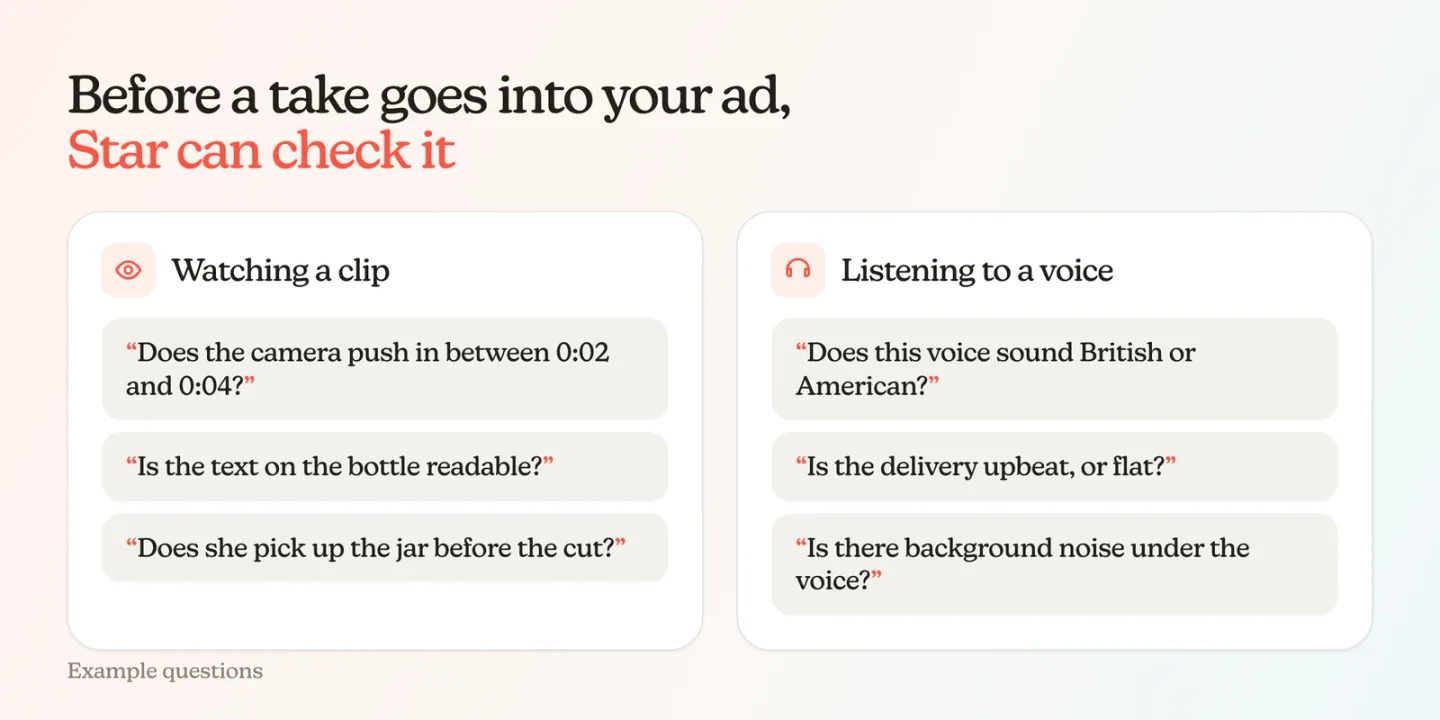
Example questions Star can ask about a take: while watching a clip, “Does the camera push in between 0:02 and 0:04?”; while listening to a voice, “Does this voice sound British or American?”
You can also ask Star about a take yourself, for example whether a voiceover's accent suits your audience. Treat its answers as observations rather than guarantees, and watch the final cut before you publish it.
Try it
Gather your clips
Open a chat in your project with the finished clips and voiceover you want to use, or ask Star to make them first.
Ask for an edit
Tell Star the order, the format, and any music or caption style you want. For example: “Edit these four clips to the voiceover as a 9:16 ad with bold captions and low music.”
Point at what to change
Play the edit in chat, scrub to anything you'd change, and choose Add … to message. Then say what should change at that moment.
Review the new version
Star saves and renders each change as a new version. When it's ready, download it from the card.