Contents
0%When Star, Starpop’s AI agent, lines up several images and videos for you, you can now decide whether it checks with you first or simply gets on with it. A new Ask and Auto switch in the chat composer sets this for each chat.
In Ask, Star pauses before it generates and shows you what it wants to make and what it will cost. Drop anything you don’t need, adjust a draft, and approve the rest in one click. In Auto, Star generates and continues without waiting for you.
We also redesigned draft cards in chat, so marking the result to reuse, editing it, and making another variant all happen right on the card.
Choose Ask or Auto for each chat
The switch sits in the row of controls under your message, next to the agent selector:
- Ask: Star asks before each generation.
- Auto: Star generates and continues without asking.

The Starpop chat composer with a prompt typed and the Ask and Auto switch set to Ask
Every new chat starts in Ask. When you turn on Auto, it applies to that chat and stays on until you switch back. The same switch appears on your project’s home page, so you can choose before you start a new chat.
Approve a whole batch in one go
In Ask, Star stops whenever it’s ready to generate images, videos, speech, or music. Its question appears at the top of the composer, such as Generate 2 images and a video?, followed by Star is waiting for your go-ahead.
- The main button shows the combined credit cost of everything included: Generate all 3, Generate both, or Generate for a single item.
- Details lists each generation with its own credit cost and how many results it will make. Untick anything you don’t want. The button changes to, for example, Generate 2 of 3, and the total updates.
- Hover over a row and select Show in chat to jump to that draft in the conversation.
- Generate and stop asking approves this batch and switches the chat to Auto.
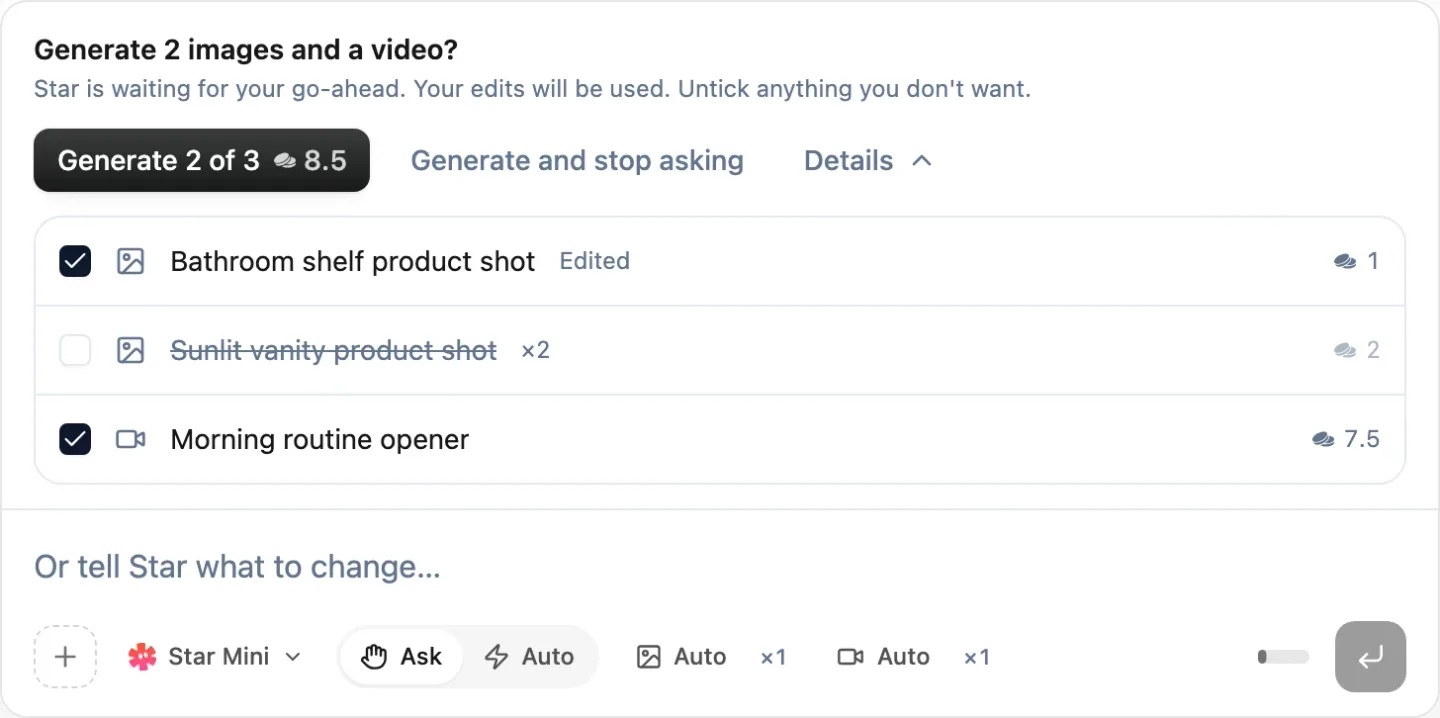
Star’s question “Generate 2 images and a video?” on the composer, with one draft marked Edited, one unticked, and a Generate 2 of 3 button for 8.5 credits
This question takes over from the earlier Generate all button: one click starts everything Star has lined up, and you see the total first.
To take a different direction, type a new message instead. While Star waits, the message box reads Or tell Star what to change…, and pressing Esc from the question takes you there. Star stops waiting and works from your new message.
Edit or skip a draft while Star waits
The drafts Star wants to generate also appear in the conversation, marked Waiting for you, with Edit and Skip.
- Skip leaves a draft out of this batch, just like unticking it in Details. The draft fades, and Include brings it back.
- Edit opens the draft’s prompt, reference images, model, and output settings right in the chat. Make your changes and select Save changes. The draft then reads Edited · waiting for you, the question adds Your edits will be used., and approving generates your version.
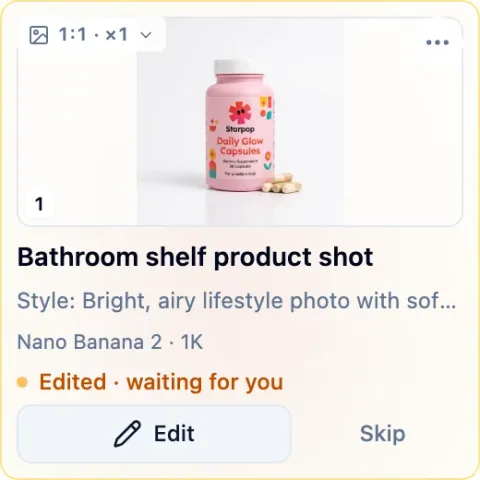
A square image draft in chat marked Edited · waiting for you, with Edit and Skip buttons
Let Star keep going with Auto
Auto suits longer productions you’ve already planned and don’t want to approve step by step. Before it turns on, Starpop explains what changes:
In Auto, Star runs generations and spends workspace credits without asking, including while you’re away. Usage can be much higher than expected, and results may need review.
Select Turn on Auto to confirm, or Keep asking to stay in Ask. Keep an eye on the run and use Stop to prevent more steps. Generations that have already started may still finish and cost credits, and your workspace’s auto top-up rules apply. To go back to approving each batch, switch the chat back to Ask.
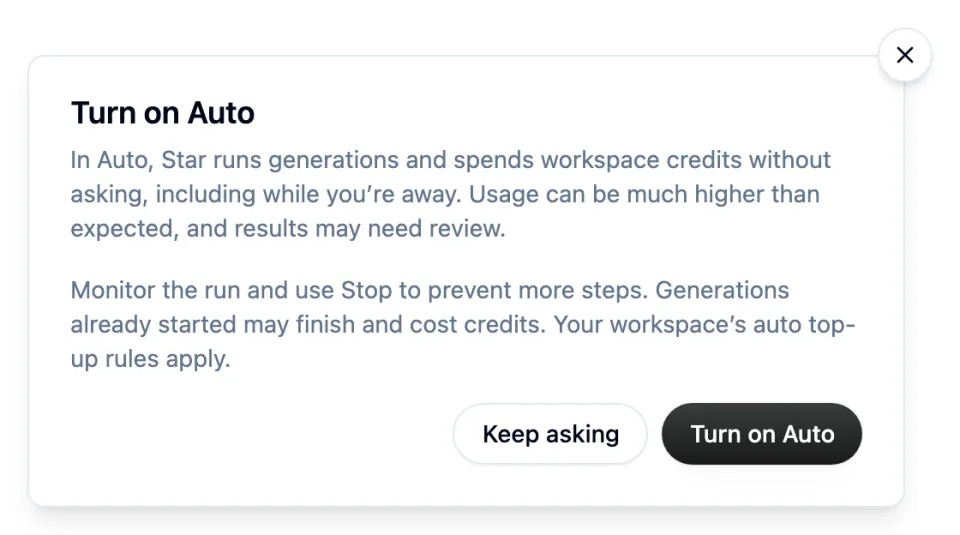
The Turn on Auto confirmation explaining that Star spends workspace credits without asking, with Keep asking and Turn on Auto buttons
Redesigned draft cards
Each draft in chat now takes the shape of the result it will produce and shows its reference images, title, prompt, model, and credit cost. The label in its corner shows the format and how many results it will make, such as 1:1 · ×1. Select it to choose from one to four results; music sets its own count. Before it runs, a draft has Generate and Edit.
Once it generates, the results take the draft’s place:
- Prefer and Edit now share one bar on each image result. Mark preferred, shortened to Prefer on narrow results, works like Prefer this did before: future references to the draft use that result unless you attach or name another one. The chosen result shows Preferred, and Clear preference undoes it. Edit opens the image in the image editor. Video and audio results have the preference button on its own.
- The dashed + beside the results adds Another variant. The draft opens again so you can generate more results from it or edit it first, and the new results join the same card.
- The ⋯ menu below it has Edit draft, Duplicate, and Add draft to context.
By default, results you didn’t prefer are dimmed so the preferred one stands out. Hover over one to see it in full.
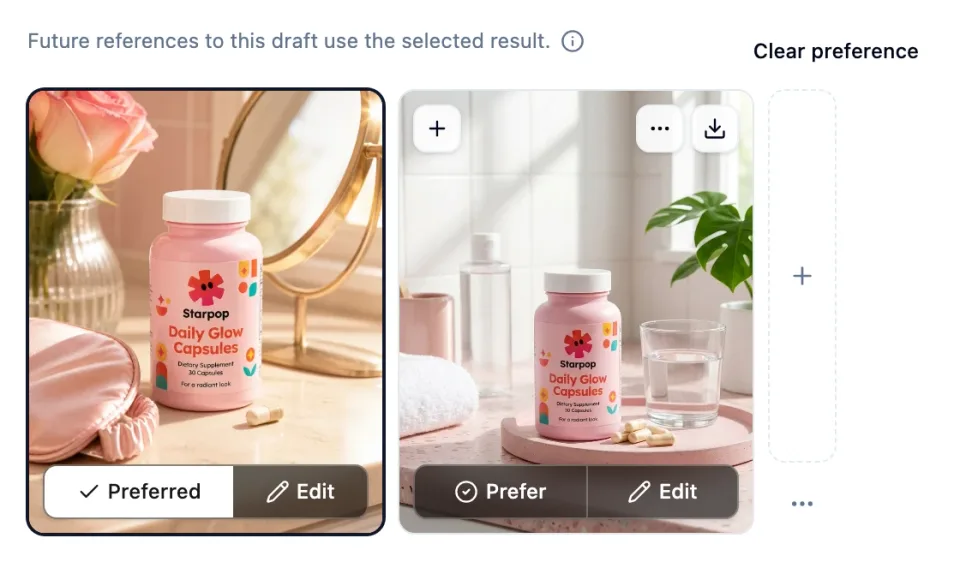
A generated draft with two results, one marked Preferred and the other showing the Prefer and Edit bar, beside a dashed + for another variant
Try it
Open a chat
Start a chat in any project. The composer starts in Ask.
Ask for a batch
Ask Star for a few images and a video, such as a set of launch visuals for one of your products.
Review the plan
Open Details, untick anything you don’t need, and Edit any draft you want to change.
Approve
Select Generate at the credit total shown, or Generate and stop asking to let Star continue in Auto.
Keep the best result
Select Prefer on your favourite, or use + for another variant.