Contents
0%Nano Banana 2.1 is now available on Starpop. Create an image from a prompt, guide it with up to 10 reference images, or edit an existing image by describing the change. Choose 1K, 2K, or 4K output.
This update also makes Suno V6 the default music model and adds three music composer controls: Instrumental in Simple mode, an Exclude field, and Reuse inputs for tracks you've already made.
Everything in this update
- Nano Banana 2.1: Google's image model for prompts, reference images, and instruction-based edits, with 15 aspect ratio options and output up to 4K.
- Suno V6: Create full songs from an idea or your own lyrics. Each request returns two tracks for 1 credit.
- Instrumental in Simple mode: Describe the music and switch off vocals without writing lyrics.
- Exclude: Name the styles or traits you want left out of a vocal track.
- Reuse inputs: Reopen the music composer with a track's original model and inputs.
Nano Banana 2.1: create and edit images up to 4K
Google's model card describes Nano Banana 2.1 as well suited for "creation and editing of images with professional levels of precision and control and multiple, quick iterations" and "generation of clear text for posters and intricate diagrams." Read Google's model card.
That makes it a good starting point for campaign artwork with a headline, product scenes built from reference photos, and quick variations of an image you already like.
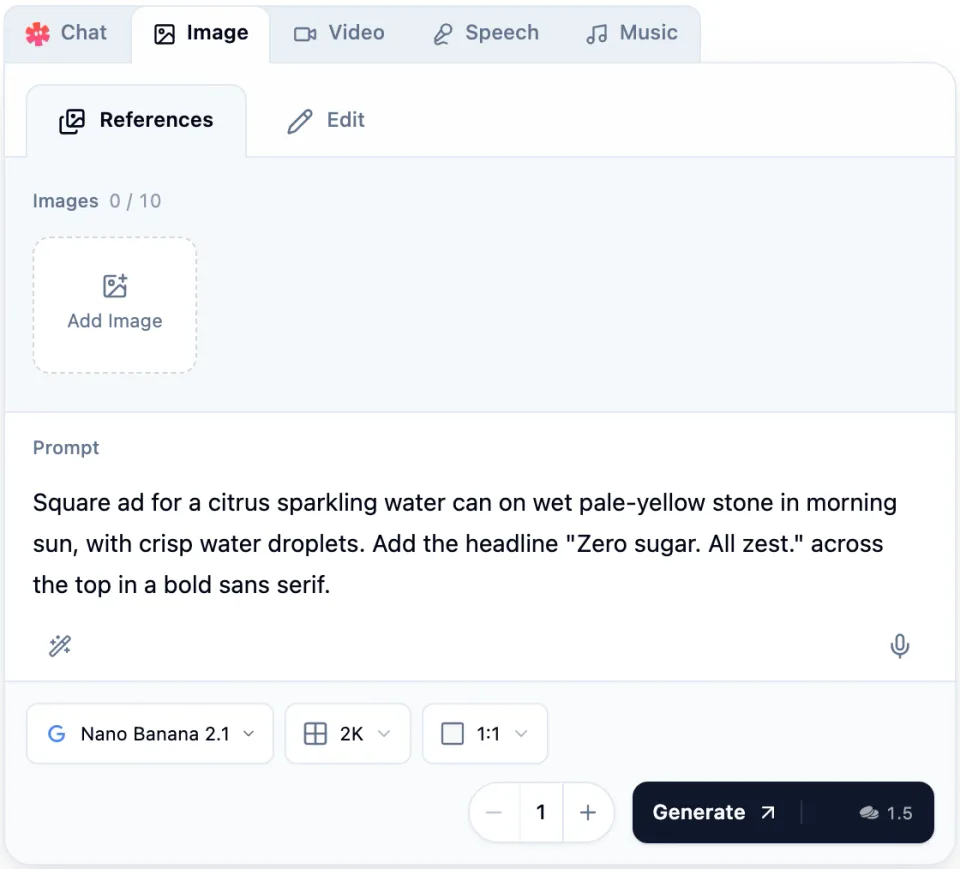
The Starpop Image composer with Nano Banana 2.1 selected, a square sparkling water ad prompt with a quoted headline, 2K resolution, a 1:1 aspect ratio, and a 1.5-credit Generate button
- Open the Image tab in the workspace composer. If Nano Banana 2.1 isn't already selected, choose it from the model picker.
- Stay on References to create a new image. Add up to 10 images when the result should follow a product, character, or visual style.
- To change an existing image instead, choose Edit, add the Image to edit, and describe what should change.
- Write your Prompt. Put any words that must appear in the image in quotation marks.
- Choose the resolution and aspect ratio, review the credit total, and select Generate.
| Resolution | Credits per image |
|---|---|
| 1K | 1 |
| 2K | 1.5 |
| 4K | 2.5 |
Each reference image adds 0.05 credits. Aspect ratios include Auto, the usual square, portrait, and landscape formats, and extra-wide or extra-tall 1:4, 4:1, 1:8, and 8:1 for banners and panoramic layouts. Prompts can be up to 20,000 characters long.
Google notes that small text can render blurry at 1K. When an image needs fine print, a price, or small labels, choose 2K or 4K and check the text before you use the image. For the full specifications, see the Nano Banana 2.1 model page.
Star uses it by default
On paid plans, when you ask Star for images without choosing a model, it now starts with Nano Banana 2.1 for most image work, including stills and start frames for animated ads. Some formats still use a different model where it fits the job better. If you choose a model yourself, Star keeps your choice.
New Image composer drafts also start with Nano Banana 2.1 unless you've already chosen another model. Nano Banana 2 remains available in the model picker.
Suno V6: the new default for music
Suno describes its V6 models as "faster, more expressive and higher quality." Read Suno's announcement. Suno V6 now starts every new music draft unless you've already chosen another model, and Star uses it when you ask for music without naming a model.
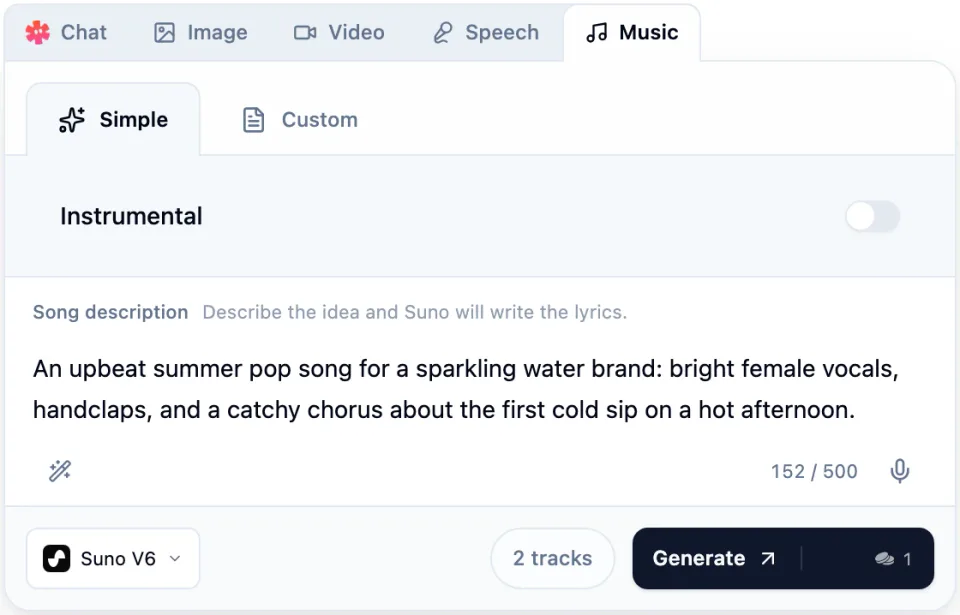
The Starpop Music composer with Suno V6 in Simple mode, a song description for a sparkling water brand, 2 tracks, and a 1-credit Generate button
Suno's announcement also covers editing tools on Suno's own platform. In Starpop, you create with Suno V6 in two modes:
- Simple: Describe the idea in up to 500 characters and Suno writes the lyrics.
- Custom: Set the Style in up to 1,000 characters and add exact Lyrics in up to 5,000 characters. They are sung as written. Leave the lyrics blank for an instrumental.
Each request returns two tracks for 1 credit, so you get two takes on the same brief to compare. Song titles are written for you.
More control in the music composer
These three controls work with every Suno model in the music composer, not only V6.
Instrumental in Simple mode
Before, an instrumental meant switching to Custom mode and leaving the lyrics blank. Now you can stay in Simple mode, turn on Instrumental, and describe the sound you want. Use it for background music under a voiceover, a product demo, or a social video.
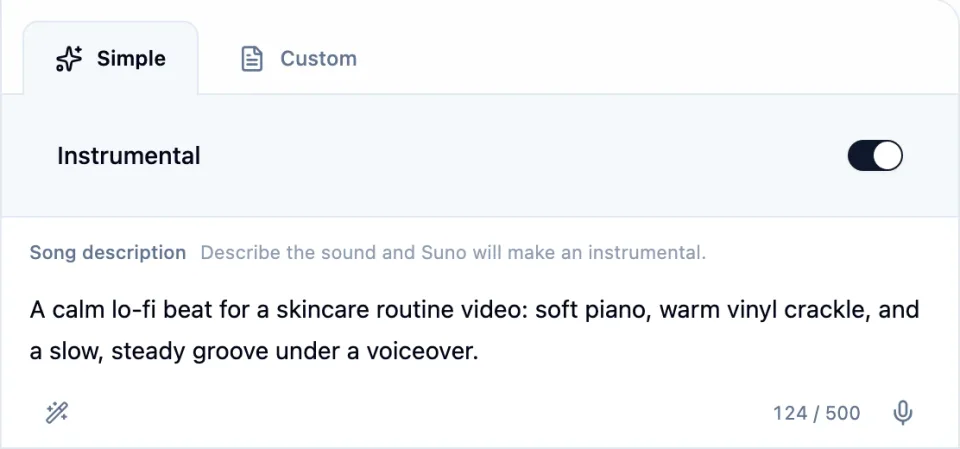
Simple mode in the Starpop Music composer with Instrumental turned on and a song description for a calm lo-fi beat under a skincare video
Exclude what you don't want
In Custom mode, an Exclude field appears below Style as soon as you add lyrics. List the styles or traits you want left out, such as "autotune, heavy drums, electric guitar." It accepts up to 1,000 characters.
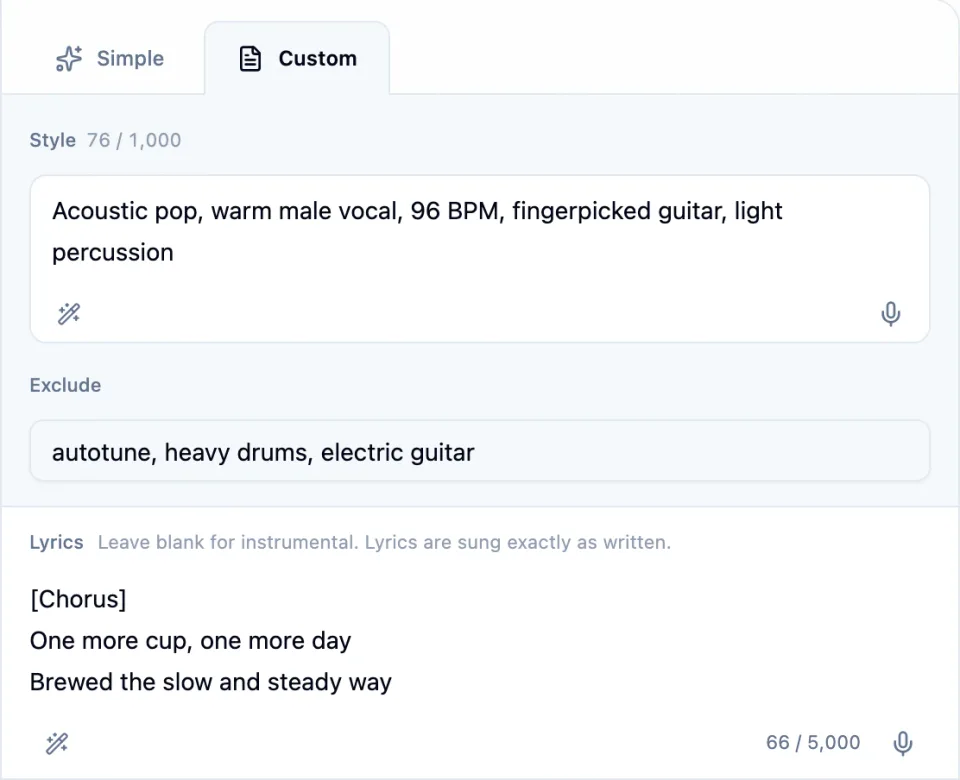
Custom mode in the Starpop Music composer with an acoustic pop Style, an Exclude field listing autotune, heavy drums, and electric guitar, and short chorus lyrics
Use Style to say what the song should sound like and Exclude to rule out what keeps creeping in. Exclude applies to tracks with lyrics. For a Custom instrumental, describe the sound you want in Style.
Reuse a track's inputs
Open a music track and choose Reuse inputs in its details. The music composer reopens with the same model and mode, the Instrumental setting, and the original song description, style, lyrics, and Exclude text. MiniMax Music 3 tracks bring back their description, lyrics, and duration. Change what you need, then generate again. Nothing is generated until you select Generate.
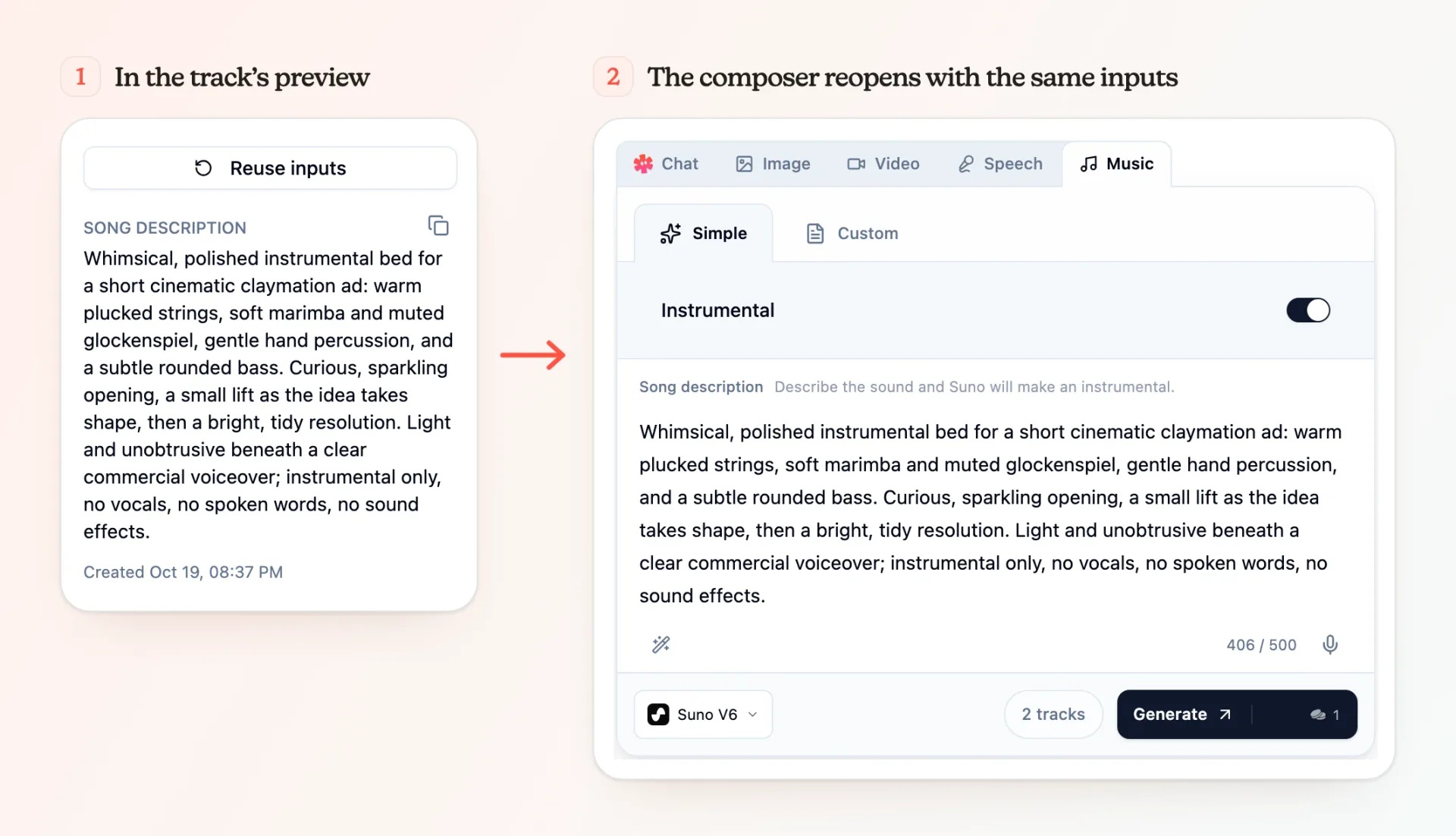
Two steps: the Reuse inputs button above a saved Suno V6 song description in a track's details, then the Music composer reopened with Suno V6, Simple mode, Instrumental on, and the same description
The details panel also shows the inputs behind a track, along with its model, mode, and whether it is instrumental. Reuse inputs appears when a track's original inputs were saved.