Contents
0%A script in one chat. Product images in another. Several campaigns in progress, each with its own brand context.
The new Starpop sidebar puts your projects at the center of that work. Open a project to find its conversations, keep different tasks open in tabs, and return to the campaign you want to work on. Shared asset folders and a clearer credit-activity view help the rest of your team stay organized too.
Your projects, right in the sidebar
A project is a home for a campaign, an idea, or a piece of work. It keeps the chats and creations for that work together. You can link a brand to give Starpop its identity, audience, products, and guidance—or start without one.
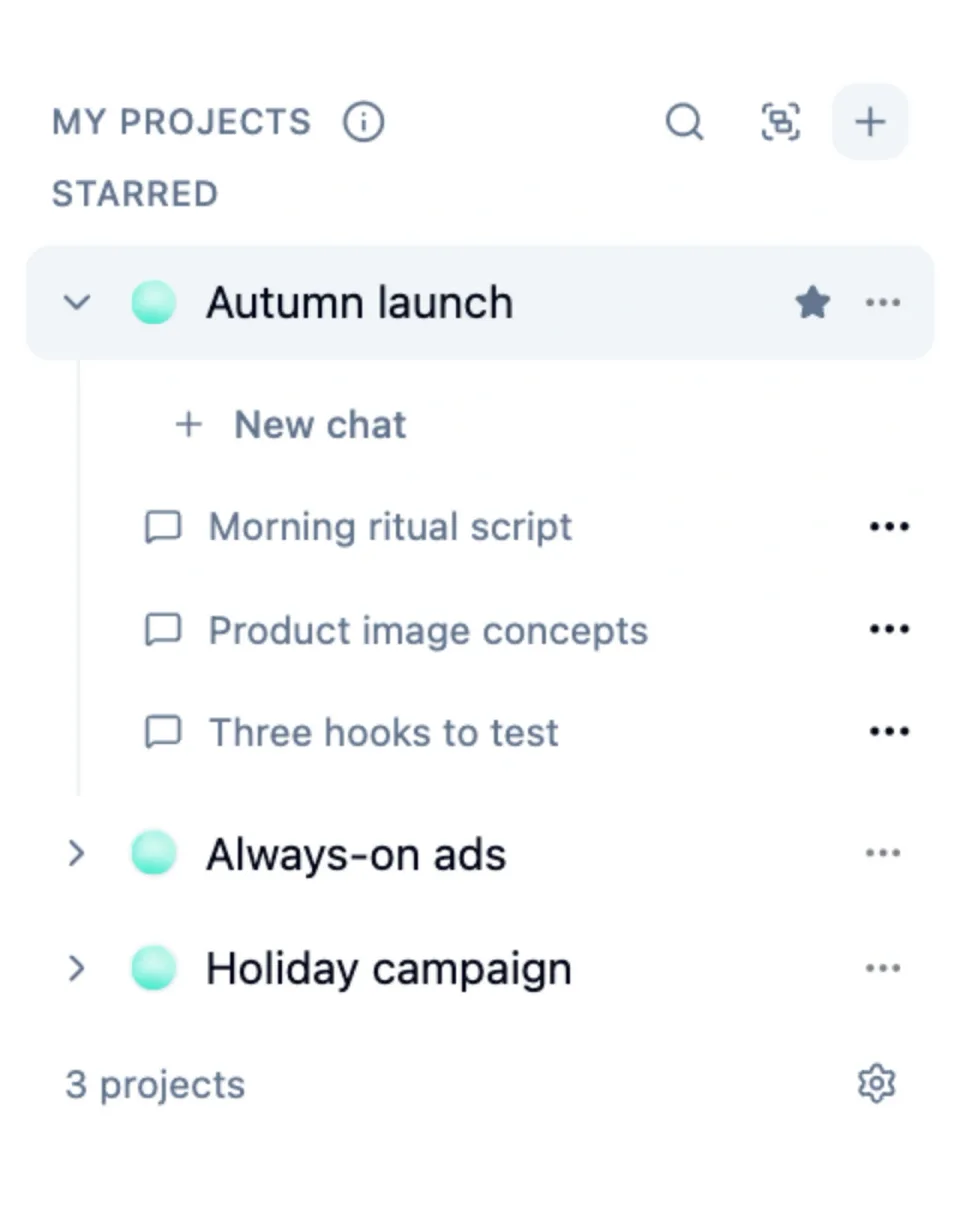
Starpop’s project sidebar with a starred Autumn launch project expanded to show its script, product-image, and hook conversations, alongside two other campaign projects.
Example project and conversation names shown for illustration.
Start a campaign in one place
- Click Create project beside My projects.
- Give the project a name, such as “Autumn launch.” The name is optional, and you can change it later.
- Choose Brand context if the project should use an existing brand. You can also create a brand from the picker or leave the project unbranded.
- Create the project and start a chat. Use separate conversations for your script, image concepts, and hook variations.
- Expand the project in the sidebar to return to those chats.
My projects includes projects you own or have joined. Use Star project in a project’s menu to keep a frequent campaign near the top. Browse Other projects to find your teammates’ work and choose Join project when you want it in your own list.
Projects are shared with everyone in your organization. Joining and leaving help organize your navigation; leaving does not delete your work or remove your workspace access.
Use Search projects and chats when you remember the project name, brand, or conversation title. You can also group projects by brand, or group Other projects by person.
Keep different tasks open in tabs
You can keep work from different projects open at the same time. Switch between a script conversation and an image-generation tab without closing either one.
Use Filter tabs to show the open tabs for a particular project or brand. This changes the visible tab list; it does not move your work. Right-click a tab to rename it, choose a color, or close other tabs when you want to tidy up.
The Quick create menu beside the new-workspace button opens Create image, Create video, Create speech, or Create music.
Keep brand guidance shared
Use the Brands area at the top of the sidebar to open a brand’s Context, Products, References, and linked Projects. Saved brand-context changes guide new chat turns and generations in linked projects.
An unbranded project has an Add brand action. For a project that already has a brand, open Project brand options → Change brand…. Changing the brand affects everyone working in that project. Existing messages and assets stay intact, including brand information already discussed in a conversation.
For a wider view of your work, Browse all projects opens the project directory. All media lets you browse creations across the organization and filter by brand, project, or creator.
Reuse assets across projects
A product photo should not need another upload for every campaign. Neither should your team’s reference documents or reusable audio.
The Gallery now includes two shared locations alongside your project’s folders:
- Organization: assets shared across the organization’s brands and projects.
- Your brand’s folder: assets shared across projects linked to that brand.
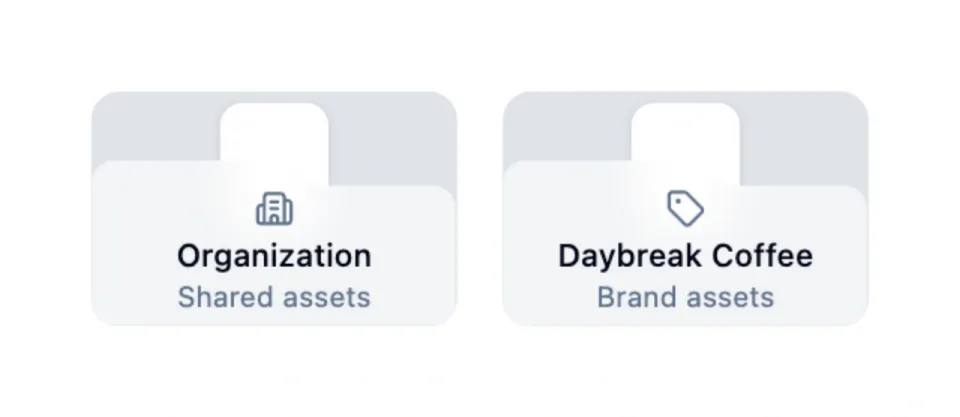
Starpop Gallery showing the Organization shared-assets folder and the Daybreak Coffee brand-assets folder.
To share an existing item, use its move action and choose the destination. You can also drag gallery items onto a shared folder. Upload directly into an open shared folder when you already know where the asset belongs.
A move changes where the item lives. It leaves its previous location, while existing references keep working. Move a folder when you want to keep a group of related assets together.
For example, keep Daybreak Coffee’s product photos and brand references in its brand folder. Put a reusable production checklist in Organization. Keep the Autumn launch’s working outputs in its project until you decide which ones should be reused.
An unbranded project can use the Organization folder. Add a brand to make that brand’s shared folder available. Opening a shared folder does not redirect new generations into it: generated outputs still belong to the project.
See who is using your workspace credits
When several people create in the same workspace, a single balance does not tell you where the credits went.
Open Settings → Credits → Activity to see usage over time, refunds, and a breakdown by person.
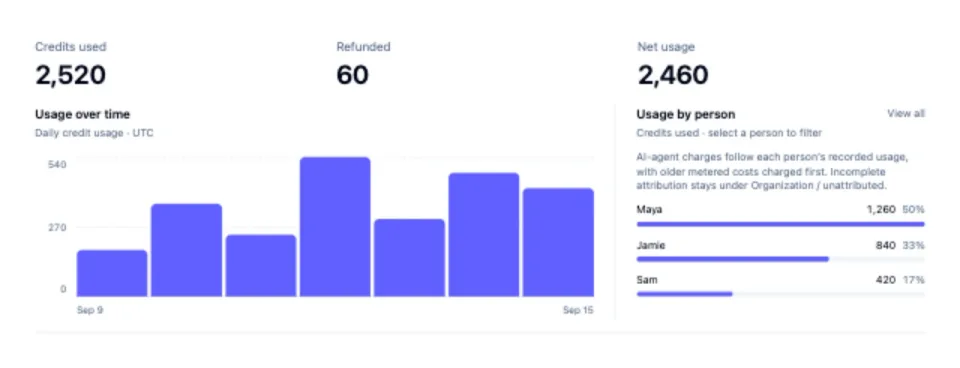
Starpop credit-usage overview showing 2,520 credits used, 60 refunded, a daily usage chart, and sample usage for Maya, Jamie, and Sam.
Demonstration figures and fictional names; this is not a customer’s billing data.
- Choose the period you want to review, or select Custom range for specific dates.
- Select someone under Usage by person, or use Filter by person.
- Review their usage and the matching activity details. Return to All people for the workspace-wide view.
AI-agent charges follow each person’s recorded usage. Where historical information is incomplete, the activity remains under Organization / unattributed rather than being assigned to someone without enough information.
Use the Top-ups tab when you want to purchase credits or manage automatic top-ups.
Set up your next campaign
Create a project, link its brand, and give your script and visual ideas their own chats. Put reusable material in a shared folder, then check credit activity as your team works.