Contents
0%You have a script in chat, but the hook needs work. Or a competitor analysis needs your own notes. Or you have a list of angles worth saving for next month's ads.
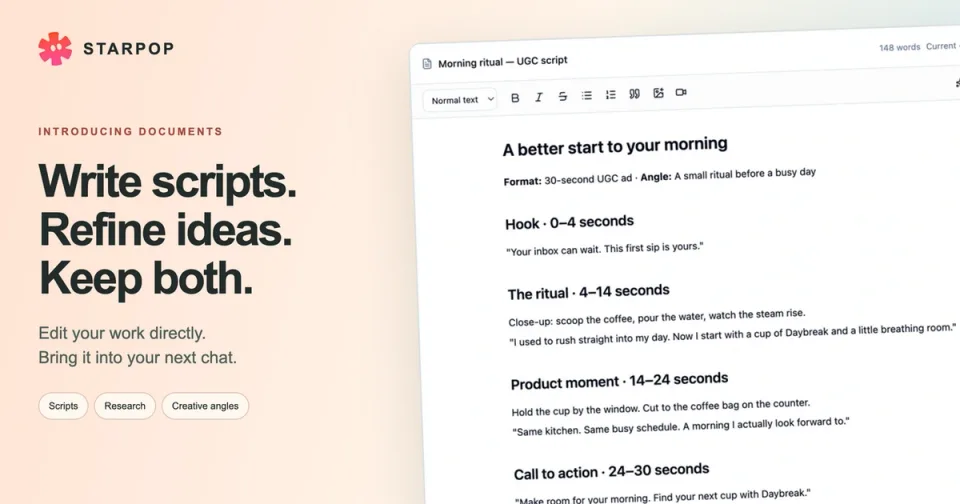
Documents lets you open that work and edit it yourself, right inside Starpop. Write directly in the text, ask AI to help with a passage, and bring the document into another conversation when you need it again.
Here is the workflow, using a coffee ad script as an example. Click any screenshot to enlarge it.
1. Ask Starpop to create a document
Open a chat in the workspace where you want to keep the work. Tell Starpop what you need and ask for the result as a document:
Write a 30-second UGC script for Daybreak Coffee as a document. The angle is a quiet morning ritual before a busy day. Separate the hook, ritual, product moment, and call to action. Add filming notes at the end.
The document appears as an editable card inside the chat. You can work in that card immediately, or click Expand document in its top-right corner to open the larger editor.
Already have a useful reply? Choose Save as document beneath the assistant's response, then open the saved document. This is useful for turning an existing script, analysis, or brainstorm into something you can keep working on.
2. Open the editor and make your changes
Click into the text and start editing. Change the title at the top, rewrite the opening, or add notes under a section. You do not need to send another chat message to make those changes.
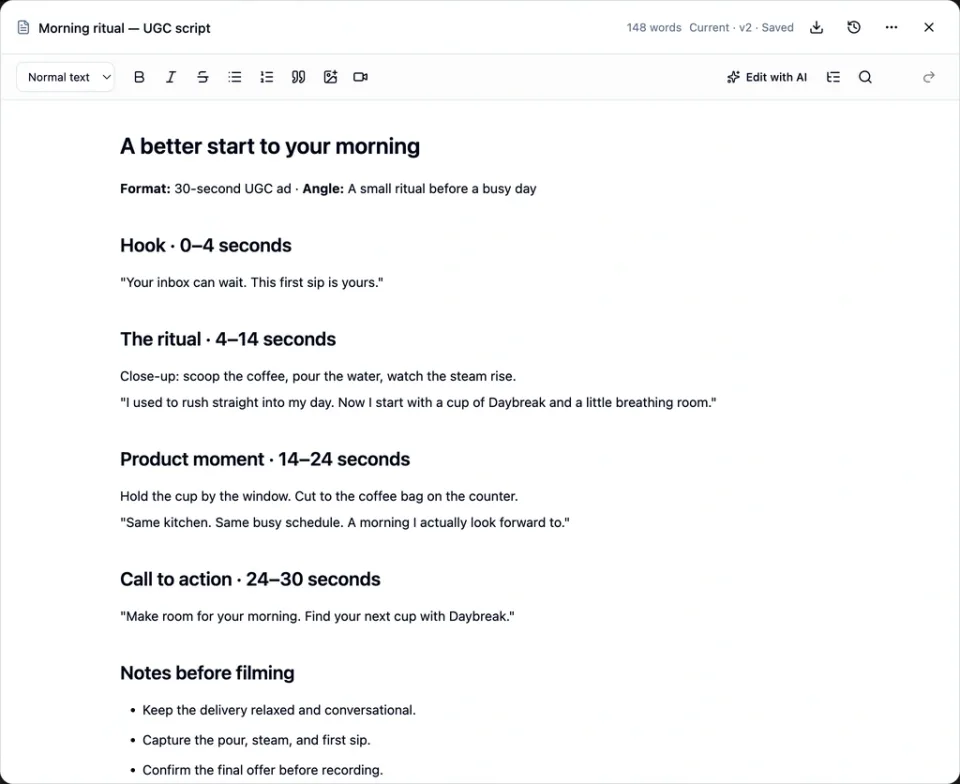
The Starpop document editor showing a coffee UGC script, formatting controls, Edit with AI, and Current v2 Saved after a manual hook edit.
In this example, the hook has been changed by hand to: “Your inbox can wait. This first sip is yours.” The rest of the script stays in place.
The toolbar includes text styles, bold, italic, lists, and quotes. Use Document outline to jump between headings, or Find and replace to locate and update wording across a longer draft.
Changes save automatically. Check the status beside the title: Saving… becomes Saved when the save completes. If it says Needs attention, resolve the save issue before moving on.
3. Ask AI to edit just the part you choose
For a hook that needs another direction, you can ask for help without rewriting the whole script:
- Highlight the passage you want to change.
- Click Edit with AI in the toolbar.
- Check that the scope says Selected text. Choose Whole document if you want a broader rewrite.
- Describe the change and click Preview edit.
- Review the result, then choose Accept edit, Refine prompt, or Discard.
For the sample hook, the instruction is:
Turn this hook into a short question about checking your phone before your first coffee. Keep it under 12 words.
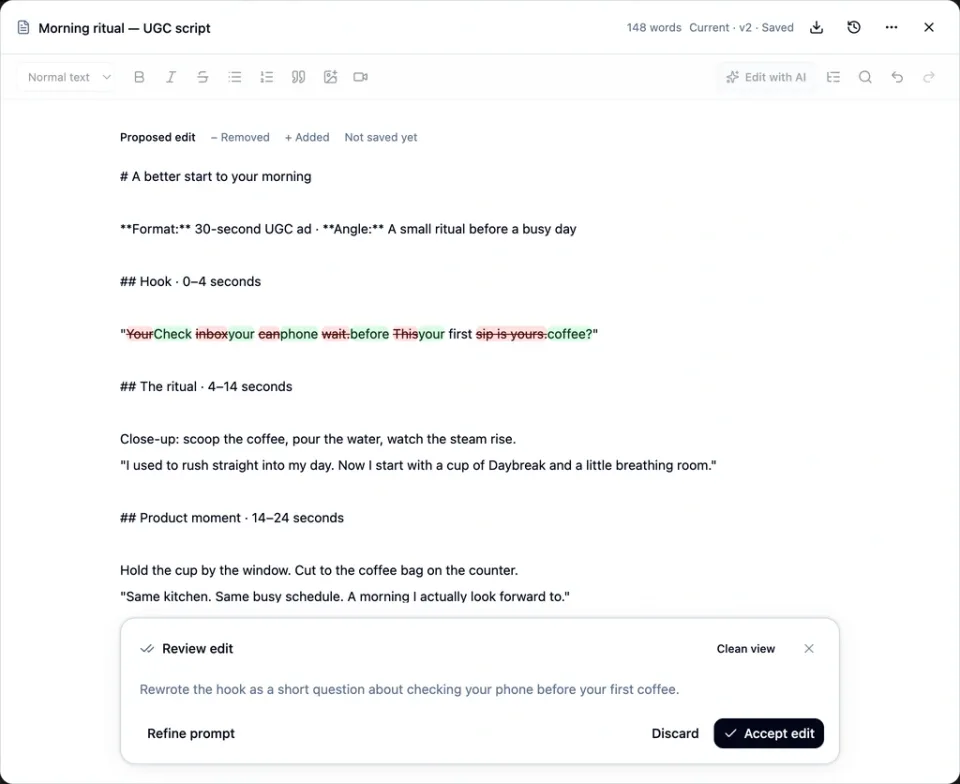
Starpop's AI edit preview highlights removed and added words in the hook and shows Not saved yet, Clean view, Refine prompt, Discard, and Accept edit.
The preview highlights removed and added wording. Clean view shows the proposed text without the change markings. Here, the new hook is: “Check your phone before your first coffee?”
In this editor flow, the AI's proposal is not saved until you accept it. You can read it first and keep the original if you prefer.
4. Check an earlier version
Click Version history beside the title to see previous saves. Select a version to read it; earlier versions are marked Historical version · read only.
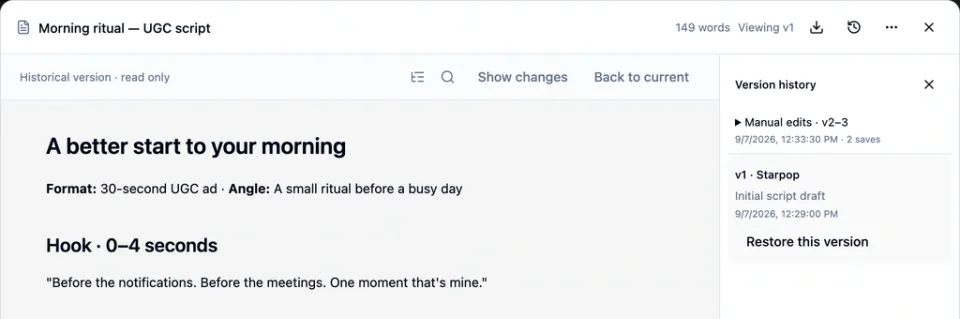
The document editor displaying the original hook in read-only version 1, with later manual saves in Version history and a Restore this version button.
Choose Back to current to return to your latest draft. If you want to bring an earlier version back, select it and choose Restore this version.
This is useful when you try several hooks and decide the first direction was stronger.
5. Bring a document into your next chat
Your document also lives in the Gallery. Open Filters and select the Documents icon under Type to find saved writing among your media, then click a document to open it.
To work with it in a conversation, open the three-dot Document actions menu and choose Ask Starpop. The document is attached to the chat composer. You can also add a document from the gallery using its + button.
Check the setting on the attachment before sending:
- Reference: Starpop can use the document as context, but cannot edit it through that attachment. Use this for research, an approved script, or your bank of creative angles.
- Edit target: Starpop can also change the document. Use this when your chat request is meant to update the saved work.
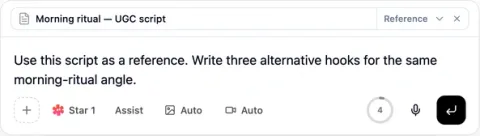
The Starpop chat composer with the saved coffee script attached as Reference and a prompt asking for three alternative hooks.
For example: “Use this script as a reference. Write three alternative hooks for the same morning-ritual angle.”
The same document can be reused across chats. To make a separate variation you can edit independently, choose Duplicate document from its actions menu.
Three useful documents to start with
A script you are still shaping. Keep the hook, dialogue, scene directions, and CTA together. Edit lines yourself, use AI to tighten a passage, and return to an earlier version when needed.
A competitor analysis with your own conclusions. Ask Starpop to organize the research you have gathered by hook, audience, offer, proof, and creative angle. Save it as a document, add your observations, and attach it as a Reference when planning your next ad.
An angles bank for later. Keep each angle's customer problem, possible hook, and supporting proof in one document. Add feedback and test results as you go. In a later chat, attach it as a Reference and ask: “Use angle three to write a new script.”
You can also keep briefs, content plans, and rough notes this way. If the next step is to open the text and work on it, a document is a useful place to keep it.
Keep your work handy
Use Add to favorites in the document's actions menu to make it easier to find. The editor has Download Markdown beside the title, and the actions menu includes Download text.
Documents remain available when their originating chat is deleted. Deleting a document itself moves it to Trash, where it can be restored.
Open Starpop and ask for your next script or analysis as a document. Make the first edit yourself, then keep building on it.