Contents
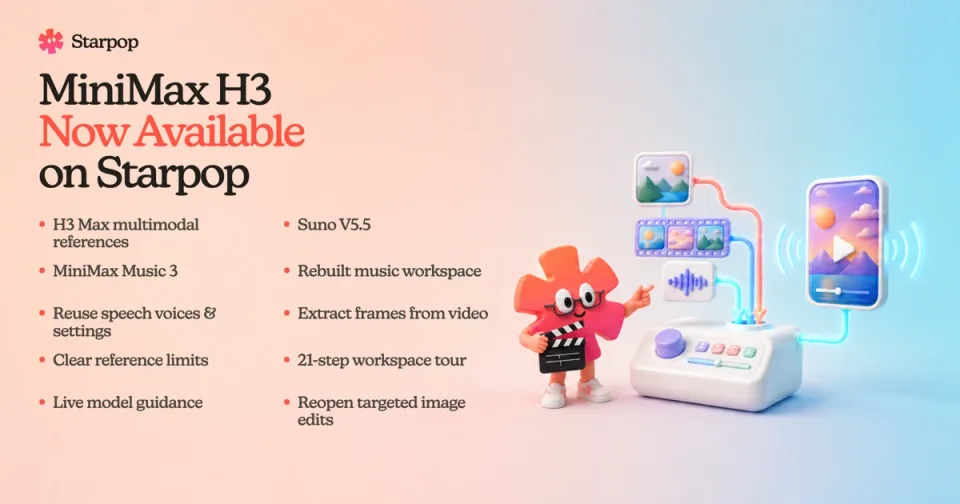
0%MiniMax H3 is now available on Starpop, bringing native-audio video generation together with flexible text, frame, image, video, and audio guidance. This release also expands multimodal references for H3 Max, adds two music models, and makes it easier to reuse, validate, and prepare media across the workspace.
Everything in this update
- MiniMax H3: Create 5–15 second native-audio videos from text, start and end frames, or mixed references, with six aspect ratios and output up to 4K.
- MiniMax H3 Max references: Guide H3 Max with images, video clips, and audio clips in one reference pack.
- Suno V5.5: Make complete songs from a simple idea or take direct control of lyrics, style, vocals, and instrumental output.
- MiniMax Music 3: Generate one lossless WAV track from exact lyrics, a detailed song description, and a required duration.
- A rebuilt music workspace: Search, filter, sort, and compare music models before opening the right form or preparing a chat draft.
- Reusable speech setups: Restore the voice, provider, engine, prompt, and saved settings from a previous speech generation.
- Video frame extraction: Drop a local or gallery video into an image reference input and capture the exact still you need.
- Visible reference limits: See the supported limit and exactly how many items must be removed before generation.
- A 21-step workspace tour: Learn prompts, models, tools, skills, context, tabs, Inspiration, and Actors through a hands-on walkthrough.
- Live model guidance in Star: Get answers from the same current capability index used by generation, while keeping explicit model choices intact.
- Reusable targeted image edits: Reopen eligible GPT Image 1.5 and GPT Image 2 edits with the source, prompt, quality, and closest output size restored.
MiniMax H3: native-audio video with more ways to direct the result
MiniMax H3 can create the picture and sound together. Start with a text prompt, define the opening and closing composition with frames, or switch to References when the result needs a specific character, product, motion, visual treatment, or sound.
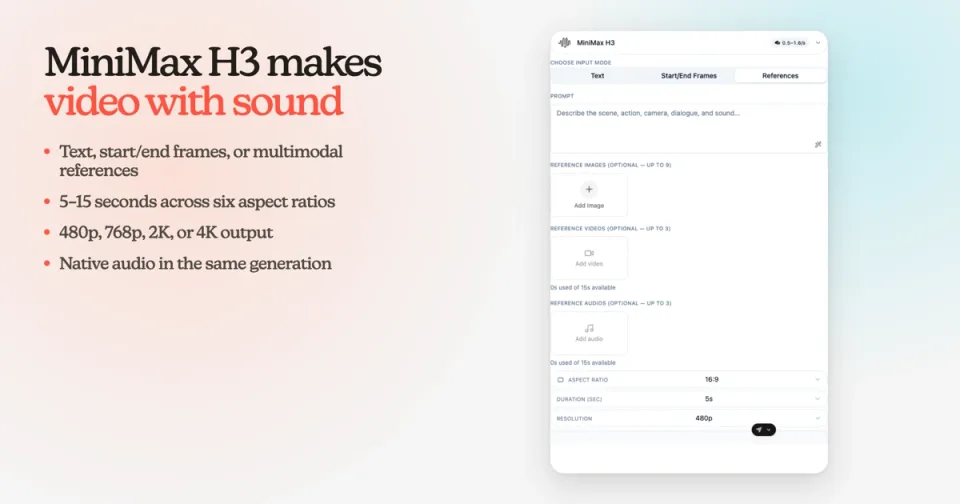
The MiniMax H3 References form in Starpop with image, video, and audio inputs plus aspect ratio, duration, and resolution controls
Choose from 21:9, 16:9, 4:3, 1:1, 3:4, or 9:16, set a duration from 5 to 15 seconds, and generate at 480p, 768p, 2K, or 4K. In the prompt, direct the scene, action, camera, dialogue, ambience, and sound so the audiovisual result is planned as one sequence.
Open Video and choose MiniMax H3
Select Video, open the model picker, and choose MiniMax H3.
Choose how to start
Use Text for a prompt-only generation, Start/End Frames for a defined opening and closing composition, or References for mixed media guidance.
Add references when needed
Add images, short videos, and short audio clips. A reference pack supports up to 12 items total, within limits of 9 images, 3 videos, and 3 audio clips. Video and audio clips can each be 2–15 seconds, with 15 seconds available across video and audio together. Audio guidance also needs a visual reference.
Choose the output
Set the aspect ratio, duration, and resolution, review the credit total, and select Generate Video.
H3 Max now supports multimodal references
MiniMax H3 Max previously started from text or frames. You can now use the same References workflow to combine image, video, and audio guidance when you want the faster H3 Max iteration loop with more control over the result.
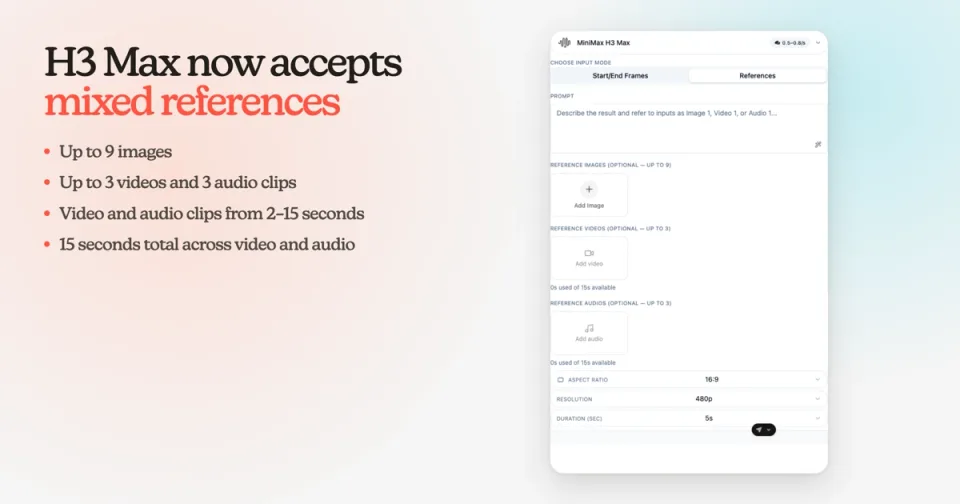
The MiniMax H3 Max References form with separate image, video, and audio inputs
The reference rules match H3: up to 12 items total within the 9-image, 3-video, and 3-audio category limits, 2–15 seconds per video or audio clip, and 15 seconds of video and audio combined. H3 Max creates 5–15 second videos at 480p or 768p in the same six aspect ratios.
Two new music models
Suno V5.5 for complete songs
Use Simple mode when you want to describe the song and let Suno shape it. Use Custom mode for a vocal track with exact lyrics and style direction, or turn on Instrumental when you do not want vocals.
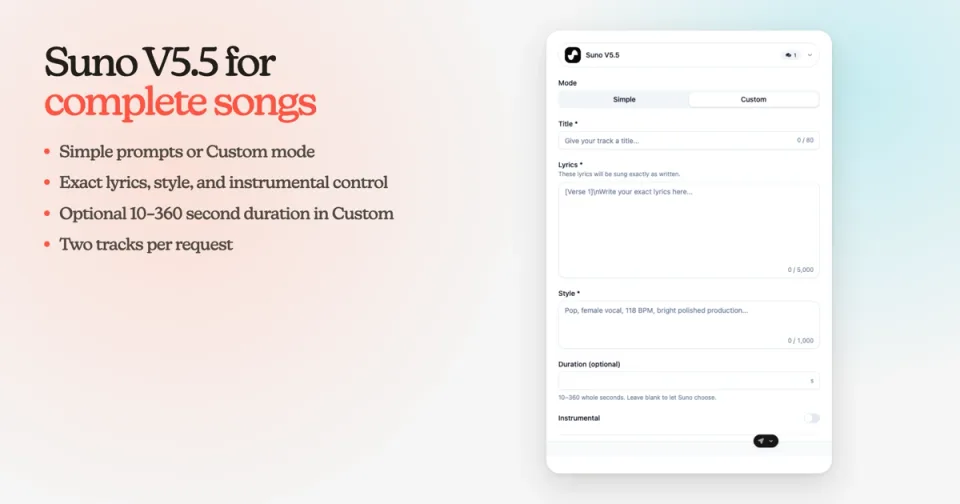
The Suno V5.5 Custom music form with title, exact lyrics, style, duration, and instrumental controls
Suno now chooses the length of each track, so Custom mode no longer has the duration field shown above. Each request produces two tracks, giving you two interpretations to compare.
MiniMax Music 3 for exact direction
MiniMax Music 3 takes a detailed song description and exact lyrics, then returns one lossless WAV track. It is a good fit when the words, arrangement, tempo, key, mood, vocal treatment, or production notes need to be explicit.
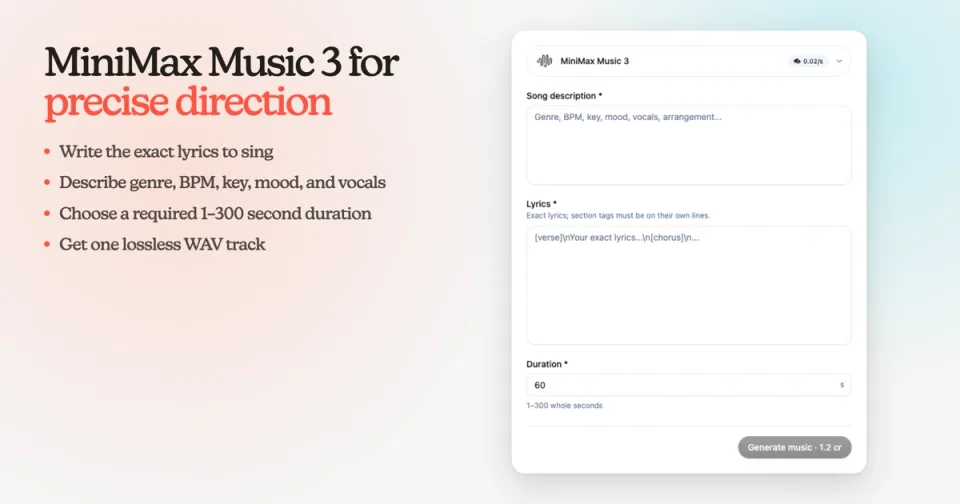
The MiniMax Music 3 form with song description, exact lyrics, duration, and generation cost
Choose a required duration from 1 to 300 seconds. The credit total updates with the requested length before you generate.
Compare music models before you create
The Music tool has been rebuilt around the choice you are making. Search by model, provider, or capability; filter between Suno and MiniMax; sort the catalog; or return to a recently used model. Each card shows the supported inputs, duration rules, number and format of outputs, and current cost.
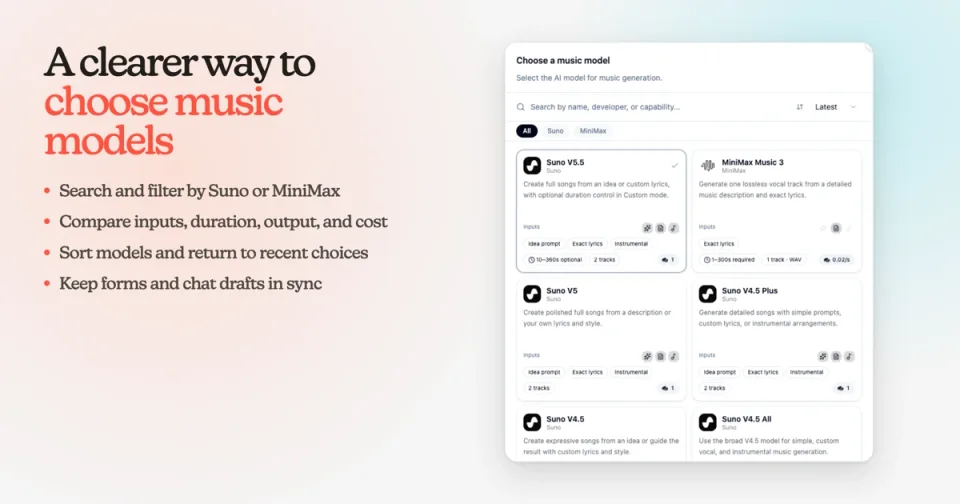
The rebuilt Starpop music model picker comparing Suno V5.5 and MiniMax Music 3 capabilities
After you choose a model, the form exposes only the controls it supports. Music drafts prepared in chat now carry the selected model, mode, duration, expected track count, and credit estimate into the generation step. The Song-style ad workflow also uses the chosen duration when it plans the track.
Reuse a speech voice—or the entire setup
Open a previous speech generation and choose Use voice to start again with that voice. Choose Reuse inputs when you also want the original provider, engine, prompt segments, and saved settings restored in the Speech tool.
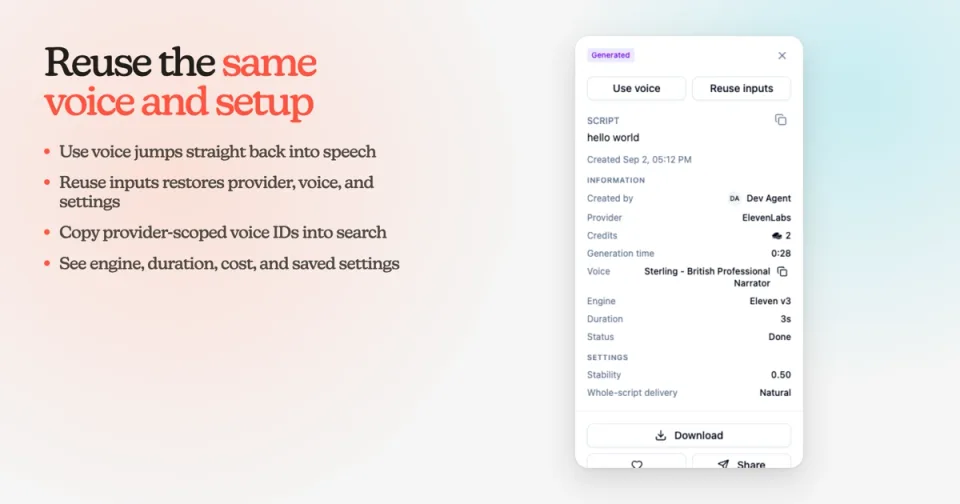
Speech generation details in Starpop with Use voice and Reuse inputs actions plus provider, voice, engine, duration, and saved settings
Voice IDs are now provider-scoped. Copy an ID such as elevenlabs:voice-id from the generation details, then paste it into voice search to find the exact voice without confusing it with a similarly named voice from Cartesia, Hume, or Fish Audio.
If a legacy generation does not contain its original detailed settings, Starpop explains that the current defaults will be used instead of implying that an exact setup can be restored.
The details panel also shows the provider, voice, engine, duration, status, cost, and saved settings. Downloads now use the correct file extension for the audio MIME type.
Capture an image reference from a video
An image reference can now come from a video you already have. Drop an MP4, MOV, or WebM file—or drag a video from the Gallery—onto an image reference input. Starpop opens Extract a frame, where you can scrub through the clip and capture the exact moment you want.
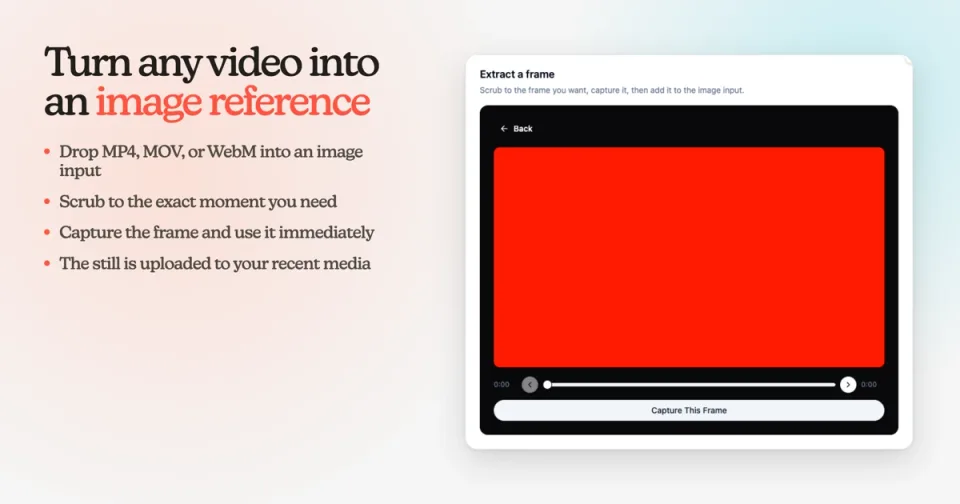
The Extract a frame dialog in Starpop with a video preview, timeline, and Capture This Frame action
Choose Capture This Frame, then use the still in the current image form. The captured frame is uploaded and also appears in your recent media, so it can be reused elsewhere.
Reference limits are visible before generation
Forms no longer silently discard extra references. When a model supports fewer items than you added, Starpop shows a direct message such as “Supports up to 3 videos. Remove 1 to continue.” Generation stays blocked until the reference set is valid.
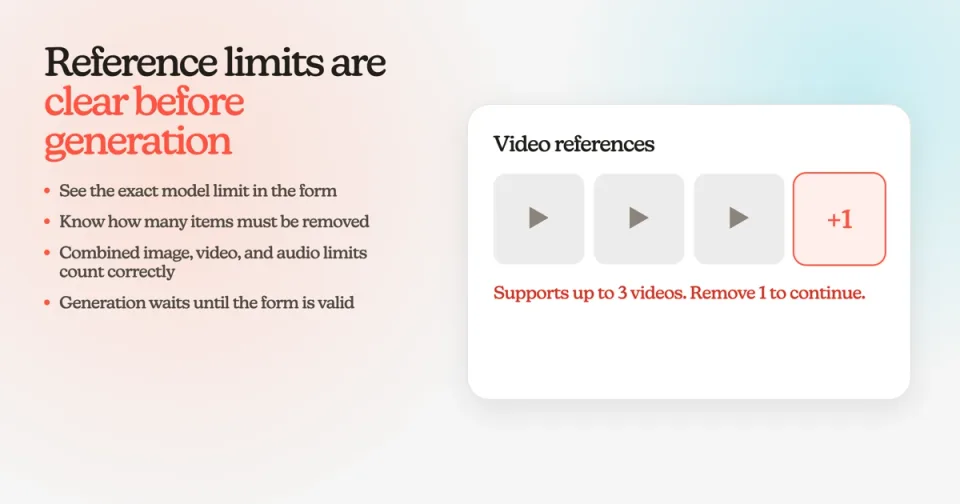
A reference limit explanation showing three supported videos, one extra video, and the number to remove before continuing
The same guardrail now applies across supported image and video models, including combined image, video, and audio limits. What you see in the form is what will be sent to the model.
Learn the workspace in 21 hands-on steps
The new workspace walkthrough is designed to be completed inside the product, not watched from the side. It opens automatically for a first visit and can be replayed from Tutorials → Tour your workspace in the sidebar.
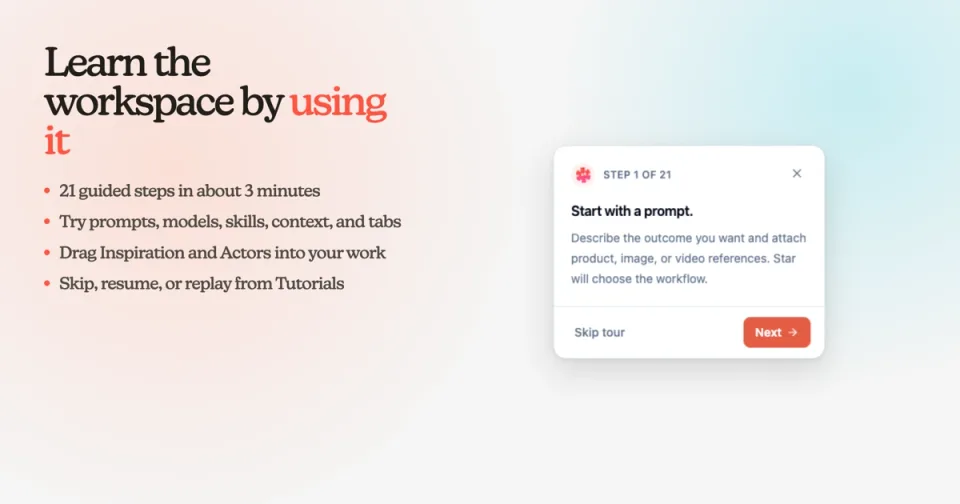
The first step of the Starpop workspace walkthrough prompting the user to start with a prompt
Over about three minutes, the tour covers prompts, model selection, tools, skills, context, tabs, and the workspace sidebar. You will also try /icp, open the model picker, drag a hand-picked Inspiration reference into the prompt, and add an Actor as creative context. You can skip the walkthrough and resume or replay it later.
Star now answers model questions from the live catalog
When you ask Star which model supports a duration, aspect ratio, resolution, mode, or reference type, it can answer from the same current capability index used by the generation tools. That makes guidance more precise and keeps it aligned with the available controls.
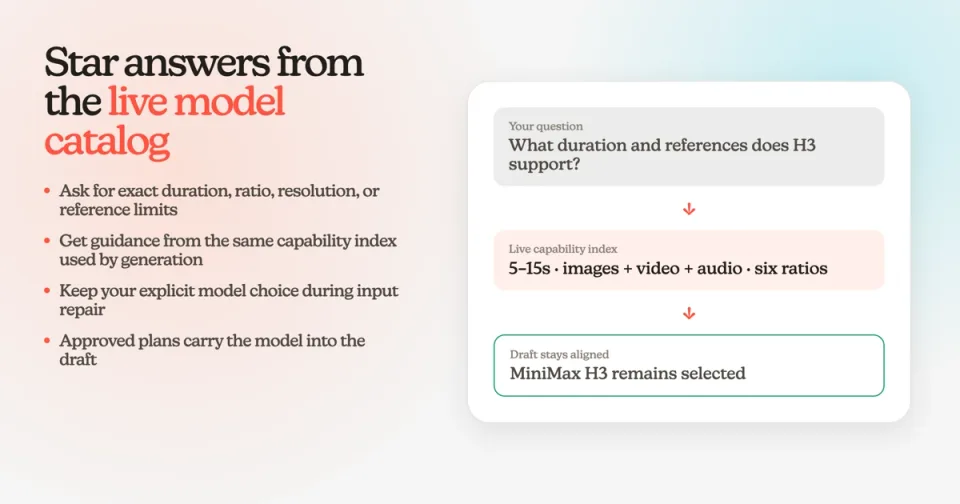
A static diagram showing a model capability question answered by the live model index while MiniMax H3 remains selected
If you explicitly choose a model, Star now preserves that choice while repairing incomplete tool inputs. Approving a plan also carries its model into the current draft, and clearer draft validation explains what still needs attention before generation.
Reopen eligible targeted image edits
Targeted edits made with GPT Image 1.5 or GPT Image 2 can now be reopened through Reuse inputs. Starpop restores the source image, edit prompt, quality, and the closest supported output size based on the generated image dimensions.
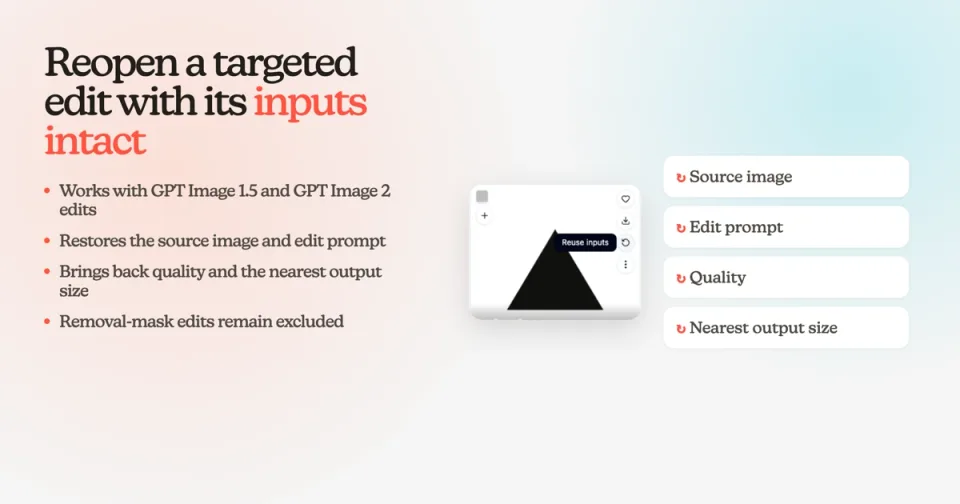
A generated image with the Reuse inputs action and a static list of restored source, prompt, quality, and output size fields
Removal-mask edits remain excluded because the mask cannot yet be reconstructed safely. For eligible targeted edits, the restored form gives you a faithful starting point for the next change without rebuilding the setup by hand.
Together, these changes make Starpop more direct at every stage: choose the right model, prepare inputs the model can use, generate with clearer controls, and reopen previous work without losing its setup.