Contents
0%Gemini Omni Flash 1.1 is now available on Starpop. You can create a new video from a prompt, direct the opening and closing frames, combine image and video references, or edit an existing clip—all from the same model.
The model includes output choices from lightweight 360p drafts through 4K, so you can match the resolution to the stage of your creative process.
One model, three ways to start
Choose the mode that matches the control you need:
- Generate: Start from text alone, add a start frame, or add both start and end frames when the shot needs to land on a specific composition.
- References: Guide the result with up to 10 images and three short reference videos. Use each file for a clear role such as character identity, product appearance, motion, camera direction, or visual style.
- Edit: Add one source video and describe the change you want in plain language.
Every mode can produce synchronized audio, making it possible to direct the visuals, dialogue, ambience, and sound as one generation.
How to use Gemini Omni Flash 1.1
Open Video
In your Starpop workspace, select Video and choose Gemini Omni Flash 1.1 from the model picker.
Choose a mode
Select Generate, References, or Edit depending on whether you want to create from scratch, guide the model with a reference pack, or change an existing video.
Write the prompt
Describe the scene, visible action, camera movement, dialogue, and sound. In Edit mode, state what should change and what should remain untouched.
Add your visual guidance
In Generate mode, add optional start and end frames. In References mode, add up to 10 images and three reference videos of up to three seconds each. In Edit mode, add one source video.
Choose the output
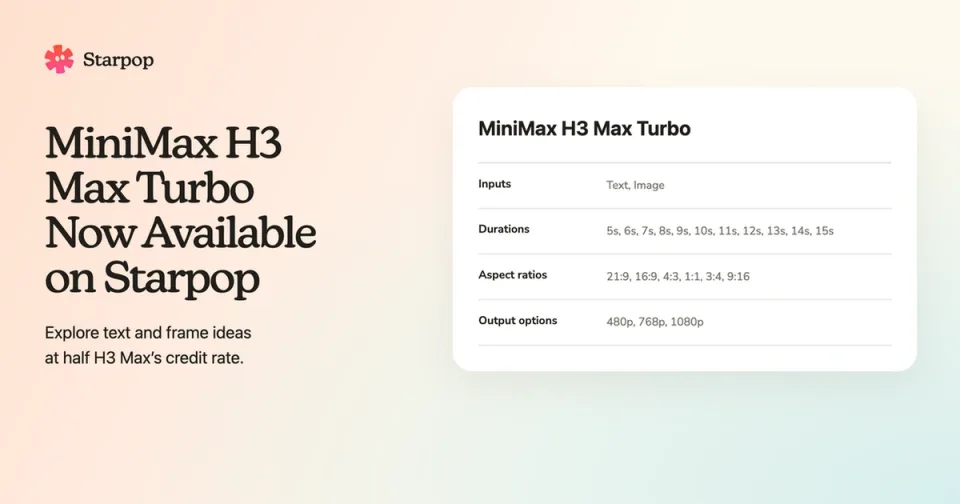
For a new generation, select 16:9 or 9:16, choose a duration from 3 to 10 seconds, and set the resolution to 360p, 720p, 1080p, or 4K. Then select Generate Video.
Draft light, finish in detail
Use 360p when you want to compare ideas with a lower credit cost. Move to 720p or 1080p when the direction is working, or choose 4K when the final video needs the most detail.
The credit total updates before generation, so you can see the effect of the selected resolution, duration, and number of videos before you begin.
Where it helps most
Plan the whole transition: Add start and end frames for an orbit, reveal, before-and-after moment, or loop that needs a defined opening and closing composition.
Keep references working together: Combine product images, character references, and short motion clips instead of asking one prompt to establish every detail.
Make a focused video edit: Add an existing clip, describe the exact change, and tell Gemini Omni Flash 1.1 what should stay the same.
Use it in Starpop chat
Gemini Omni Flash 1.1 is also available in Starpop's AI chat. Ask chat to use the model, describe the result you want, and identify the selected media that should become frames, references, or the source video. Starpop can prepare the draft for you to review before generation.