Contents
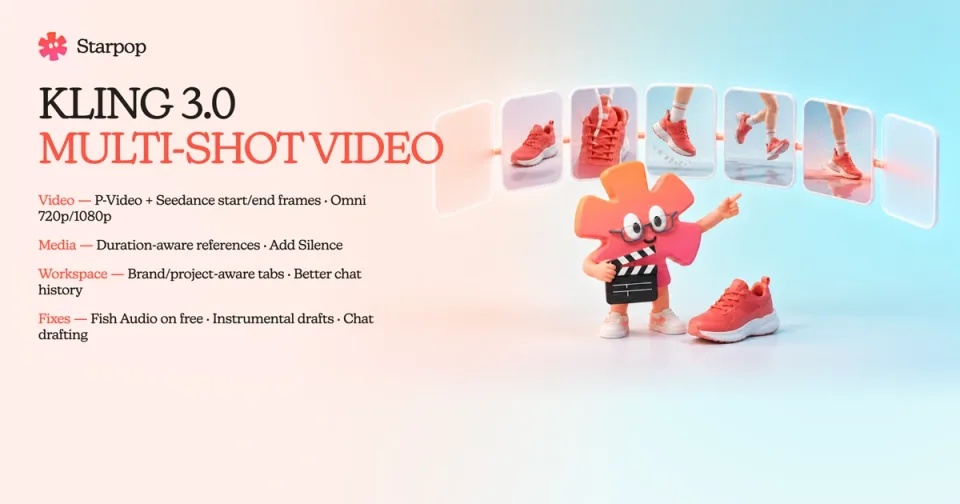
0%Kling 3.0 can now turn one generation into a planned sequence of shots. Set the prompt and duration for each shot, arrange the order, and generate one cohesive 3–15-second video instead of building every shot separately.
This update also adds opening and closing frames to P-Video and Seedance 1.5 Pro, resolution control to Gemini Omni Flash, duration-aware media references, faster audio cleanup, and clearer workspace context.
Build a multi-shot sequence with Kling 3.0
Switch Kling 3.0 from Single prompt to Multi-shot to plan between two and five shots in one generation. Every shot gets its own prompt and duration, and you can add, delete, or reorder shots before generating.
Each shot can run for 1–12 seconds, while the complete sequence must stay between 3 and 15 seconds. The form keeps a running total visible as you work.
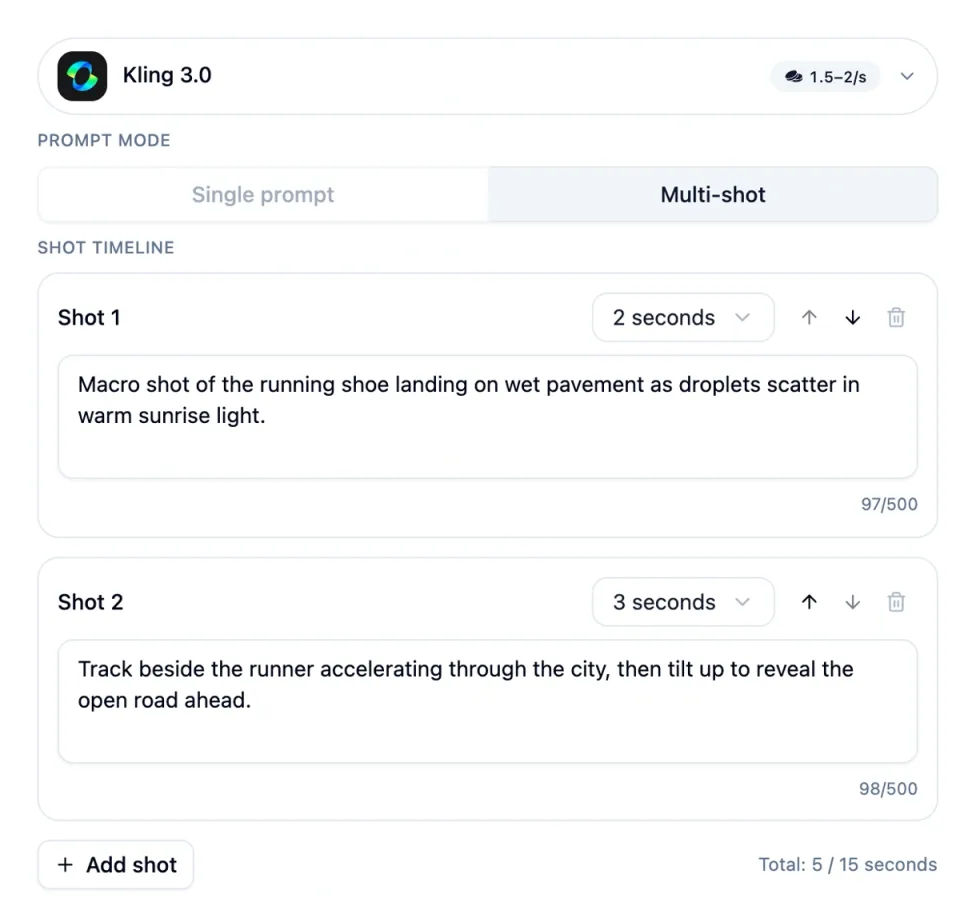
The Kling 3.0 video form in Multi-shot mode with two ordered prompts, per-shot durations, reorder controls, and a five-second total
You can still add optional start and end frames, choose 720p or 1080p, and generate native audio. When speed matters more than multi-shot control, Kling 3.0 Turbo offers the faster single-prompt path with one reference image and clips up to 15 seconds.
Choose Kling 3.0
Open the Video tool and select Kling 3.0.
Switch to Multi-shot
Add two to five shots, then write a prompt and choose a duration for each one.
Arrange the sequence
Reorder the shots and check that the combined duration is between 3 and 15 seconds.
Finish the generation settings
Add optional opening and closing frames, select the resolution and audio setting, then generate.
Guide P-Video and Seedance from the first frame to the last
P-Video and Seedance 1.5 Pro can now work toward a chosen end frame instead of receiving only an opening image.
P-Video
Add a start frame and an optional end frame, then use Generate between frames to create a 1–10-second transition. P-Video also supports an optional audio reference and 720p or 1080p output.
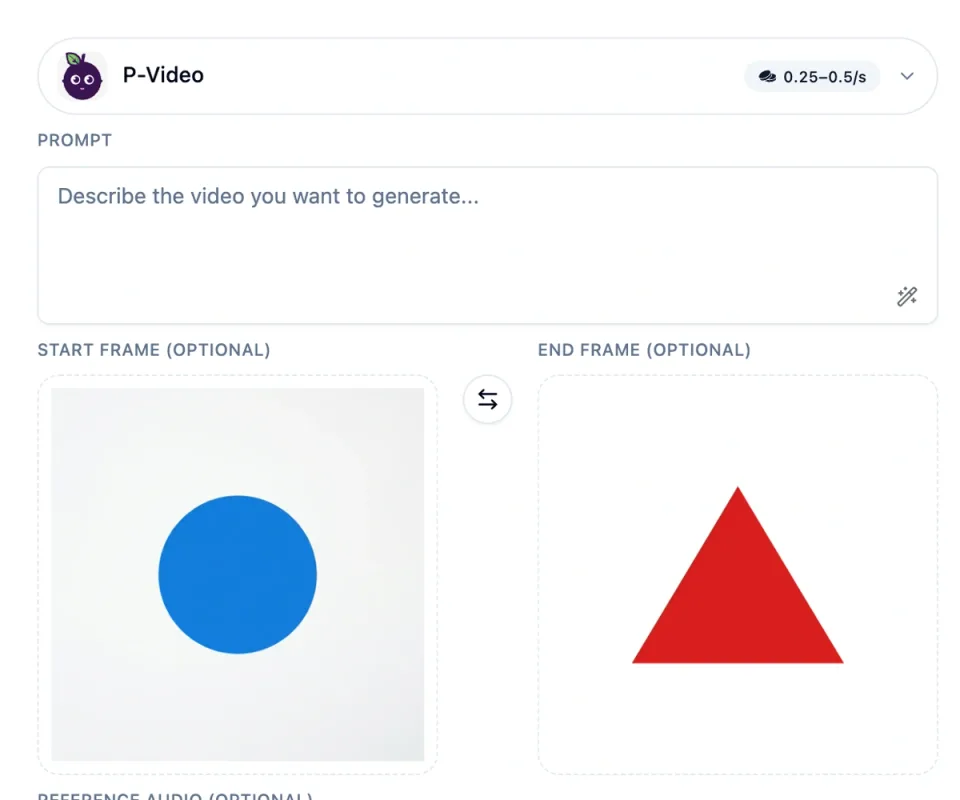
The P-Video form with a blue-circle start frame and red-triangle end frame selected
Seedance 1.5 Pro
Seedance 1.5 Pro now accepts the same start-and-end-frame guidance for 4–12-second clips. You can also choose 720p or 1080p and decide whether the result should include native audio.
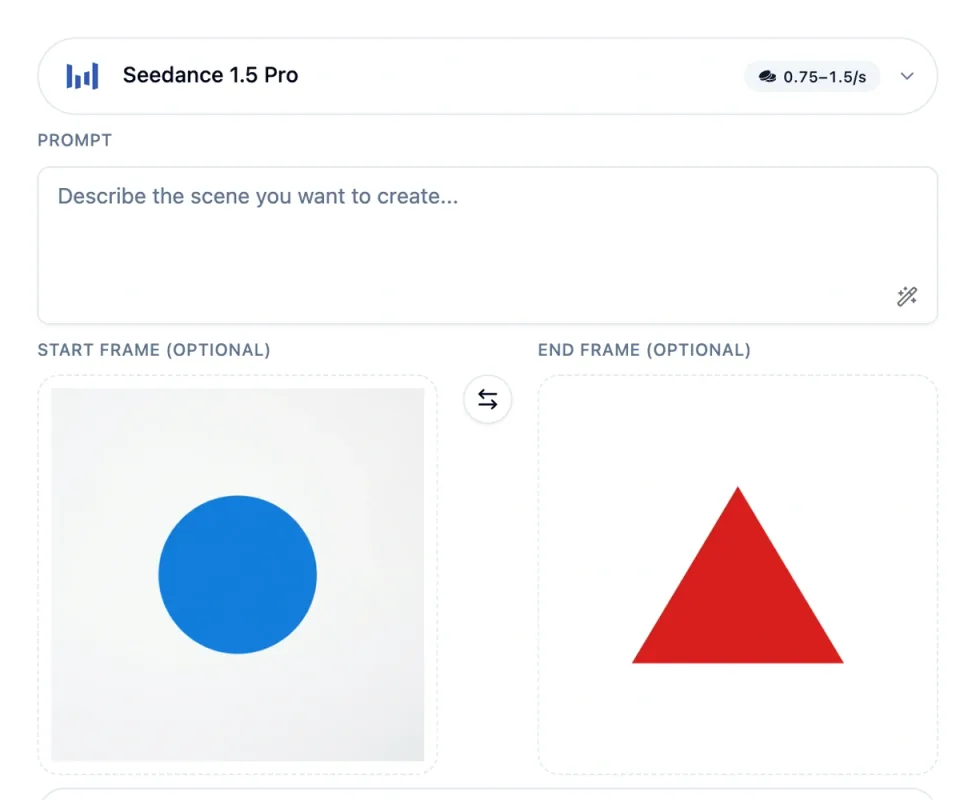
The Seedance 1.5 Pro form with separate start and end frame inputs
An end frame can only be added after a start frame is selected.
Choose the resolution in Gemini Omni Flash
Gemini Omni Flash now has a Resolution selector in both Generate and Edit modes. Choose 720p for a lighter draft or 1080p when the final output needs more detail.
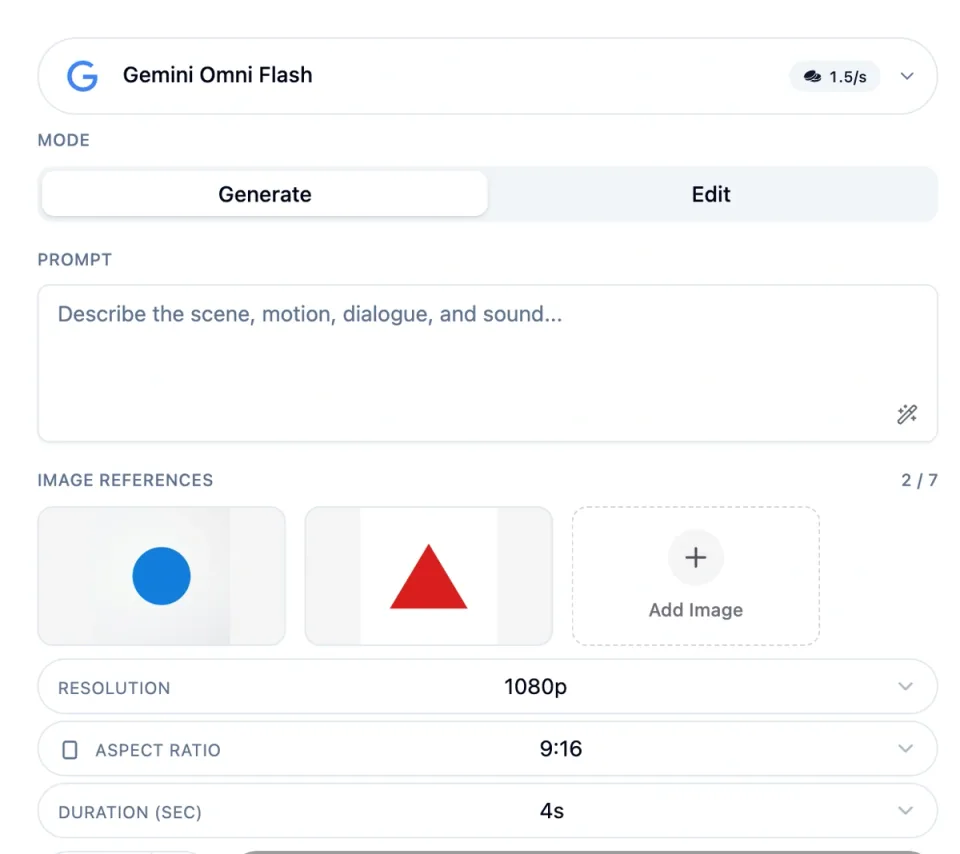
The Gemini Omni Flash form showing two image references and the resolution set to 1080p
Media references now respect each model’s time limit
When a model limits the combined length of its audio or video references, Starpop now checks every attachment before Generate becomes available. The form shows how much source media the model can use and what will happen next.
If the references are too long, Starpop keeps earlier attachments first, uses the opening portion of the next attachment when a trim is needed, and can leave later attachments out. While the check is running, you can keep editing. If a file’s duration cannot be read, the form explains whether to retry, replace, or remove it.
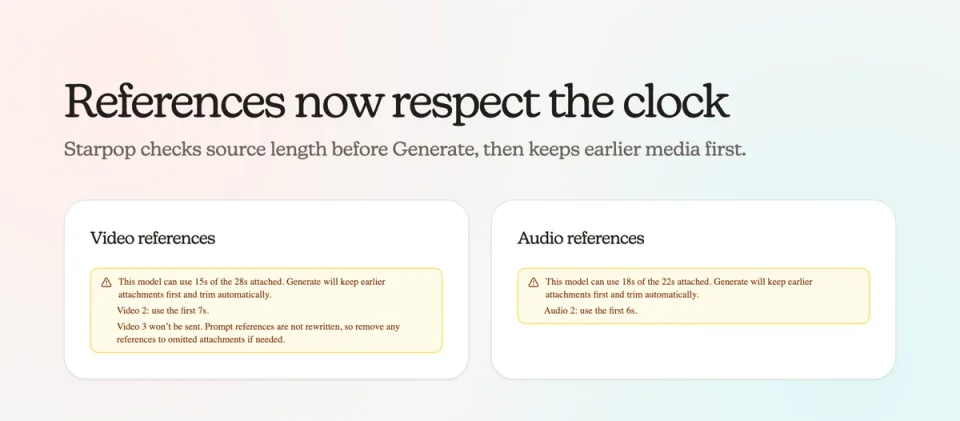
Duration notices for video and audio references showing automatic trimming and omission when media exceeds a model limit
Add exact silence before and after audio
Open an audio result and choose Add Silence to place the same amount of quiet time on both sides. Enter any whole number from 1 to 600,000 milliseconds, preview the new duration, and save the padded result as a new audio file without replacing the original.
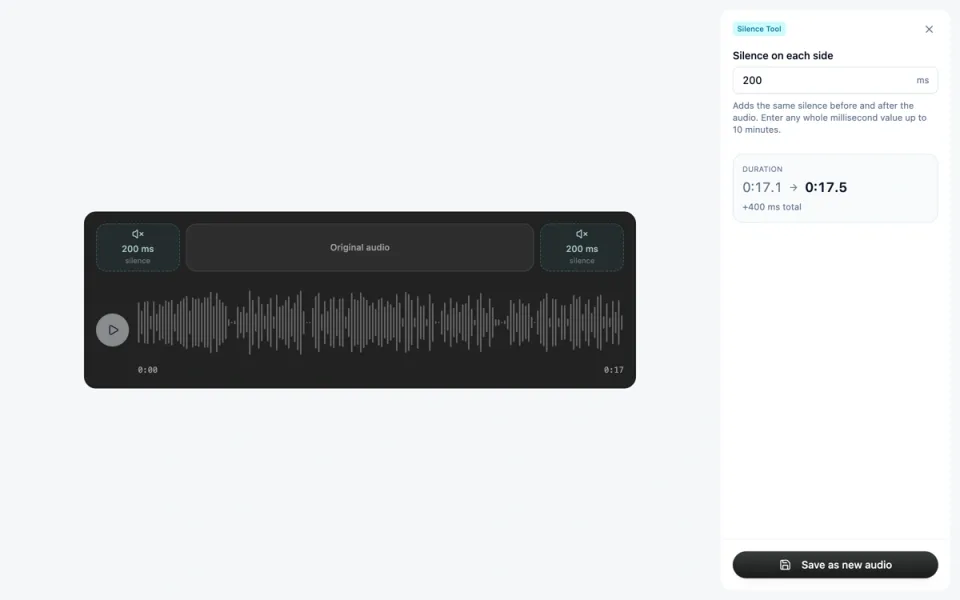
The Add Silence tool with 200 milliseconds on each side of a 17.1-second audio clip and a new duration of 17.5 seconds
Keep brand, project, and tool context visible in tabs
Workspace tabs can now show a tool icon, brand icon, and project badge, making similar chats and creation tools easier to tell apart. The same context appears in the hidden-tab menus too.
Open Tab display settings to choose which indicators appear in the All tab view. Your choices are remembered for the next session.
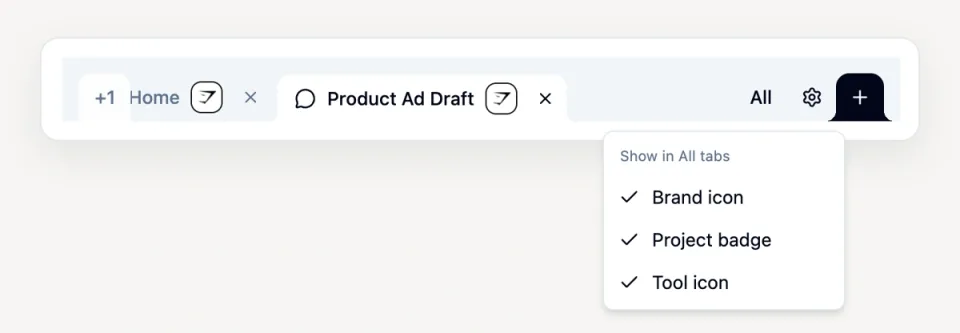
Starpop workspace tabs showing tool and brand icons beside a menu for Brand icon, Project badge, and Tool icon
Find chats across every workspace
Show Chats now opens an organization-wide history instead of limiting the list to the current brand or project. Search by title, creator, project, brand, or exact thread ID; switch between Mine and All; filter by location; and sort by recent activity or creation time.
Each result shows where the conversation belongs. Opening it automatically switches Starpop to the matching brand or project, so you land in the right context.
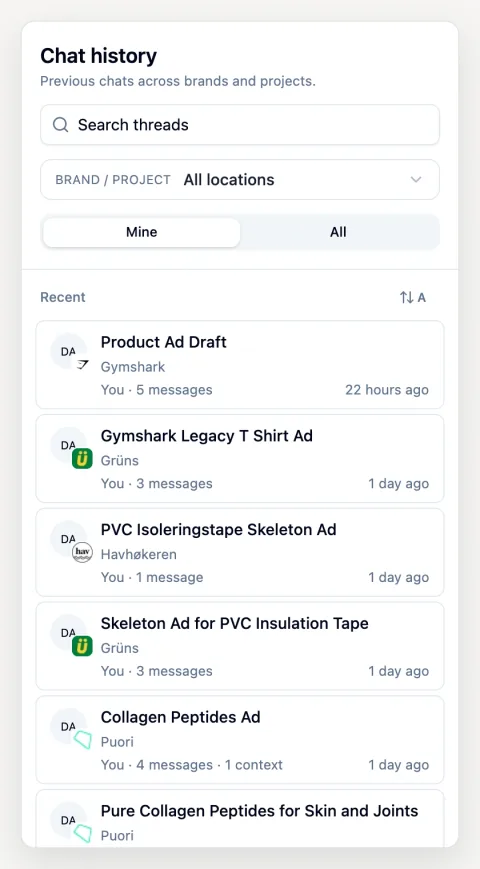
The Chat history panel with search, brand or project filtering, Mine and All controls, and conversations from several brands
Reliability fixes
Three fixes remove common dead ends:
- Fish Audio on the free plan: Speech generation no longer fails when Fish Audio is selected on a free workspace. Providers reserved for paid plans remain unavailable there.
- Custom instrumental music drafts: Custom instrumental drafts now preserve compatible title and style choices without adding an incompatible prompt that prevents generation.
- More dependable drafting in chat: Chat now waits for a successful draft before calling it ready, carries the selected model, resolution, and source references forward more consistently, and gives clearer feedback when a draft needs attention.
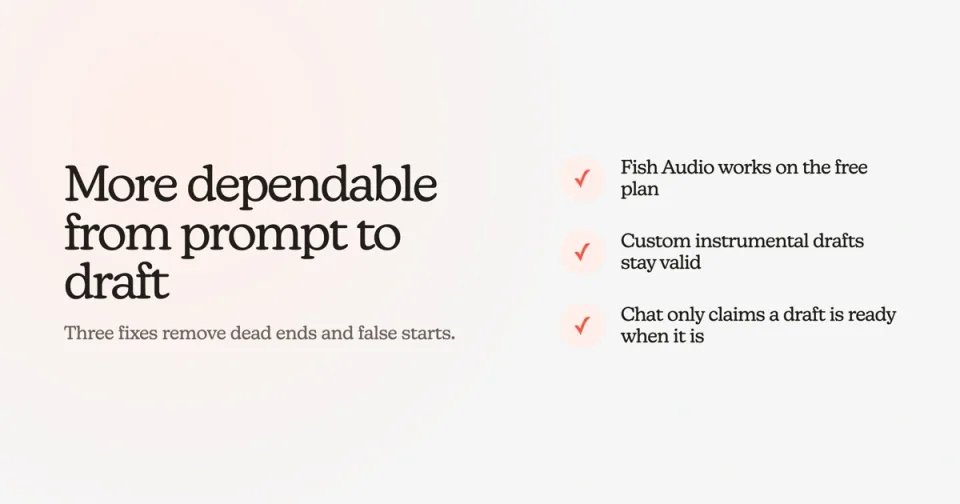
An editorial summary of fixes for Fish Audio on the free plan, custom instrumental drafts, and chat draft readiness