What does the output look like?
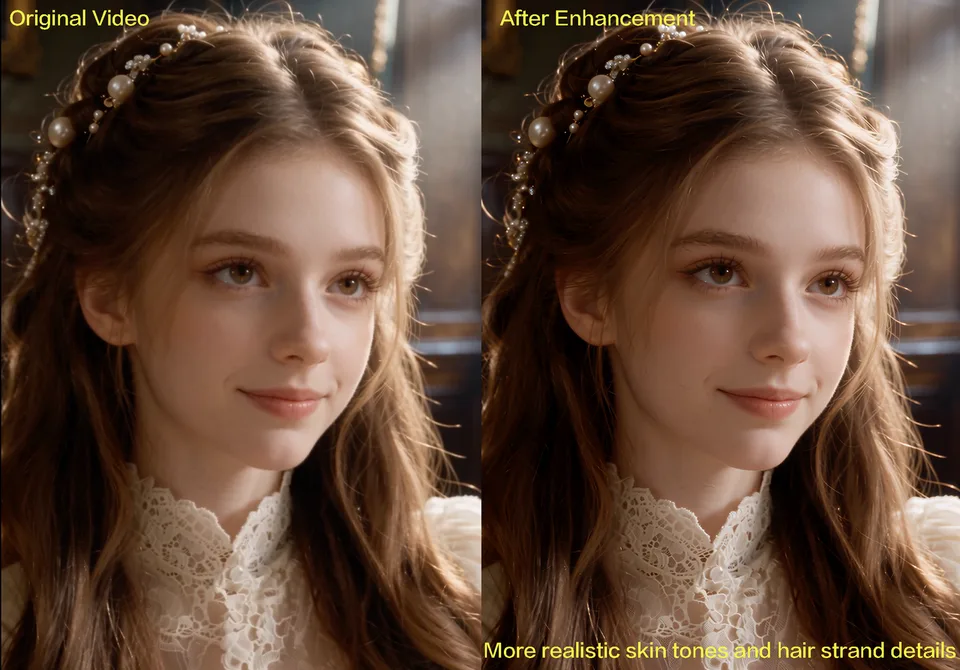
Restoring skin and hair in AI-generated footage
BytePlus compares a frame from an AI-generated portrait before and after enhancement: skin tones read as more natural and individual hair strands return. This is a still from the developer’s video comparison.
BytePlus developer comparison: Dreamina Seedance 2.5 quality enhancement for commercial AIGC video
Before and after on a costumed AI shot
The same enhancement on a generated Peking opera performer, with sharper headdress beads, embroidery, and armor scales against the dark stage. This is a still from the developer’s video comparison.
BytePlus developer comparison: Dreamina Seedance 2.5 quality enhancement for commercial AIGC videoWhat can ByteDance Video Upscaler do?
Upscale an existing video to 1080p, 2K, or 4K with optional frame interpolation up to 60fps
- Finishing AI-generated ads and product videos at 2K or 4K
- Restoring natural skin, hair, and small faces in generated footage
- Smoothing motion with frame interpolation up to 60fps
- Inputs
- Video
- Durations
- Determined by source media
- Aspect ratios
- See model settings
- Output options
- 1080p, 2K, 4K
- Typical generation time
- About 10 minutes
- Upscale the final cut: credits grow with the video’s length, output resolution, and frame rate.
- The Pro tier costs ten times as much as Standard; reserve it for close-ups where faces and skin need the most detail.
How much does ByteDance Video Upscaler cost?
Base estimate
$0.007–$0.029 USD / second
0.072–0.288 credits / second
Estimated dollar cost uses the Solo monthly plan at $0.10 USD per credit. Your cost per credit depends on your plan.
The billable duration depends on your source media. Multiply the per-second rate by the billable seconds to estimate the output cost. Check the total shown in Starpop before generating.
How to use ByteDance Video Upscaler
- Click “Create with ByteDance Video Upscaler” and sign in or create an account. After setup, Starpop opens a new video workspace tab with the model selected.
- Upload the finished video or choose one from your gallery. For a one-click 4K version, open any video in your gallery and choose Upscale.
- Choose the output resolution, frame rate, and the kind of footage, and keep the Standard tier unless faces and skin need Pro’s extra detail.
- Review the credit estimate and upscale. Check the result in your workspace, then download it or adjust your inputs to try again.