Contents
0%Descript's Overdub feature turns your voice into a text-to-speech model you can control by typing. Record a short training script, let the AI process it, and you've got a descript voice cloning setup that can generate new audio without ever hitting the record button again. For anyone producing ads, podcasts, or social content at scale, that removes a massive bottleneck from the editing process.
The setup itself is quick, but a few details, audio quality, consent verification, and script selection, make the difference between a voice clone that sounds like you and one that sounds like a robot reading a cereal box. Getting these right from the start saves you from re-recording and retraining later.
This guide covers the full Overdub setup process from account to first generated clip. And for creators who need to push voice content further, think multilingual dubbing with lip-sync across 100+ languages, Starpop extends that workflow with AI voice cloning, video generation, and localization tools built for high-volume marketing production.
What Descript voice cloning is and what it can do
Descript voice cloning works through a feature called Overdub, which turns a recording of your voice into a trainable text-to-speech model. Instead of re-recording every time you need to fix a word or add a sentence, you type the change directly in the transcript, and Overdub synthesizes the audio in your voice. The result gets inserted into your project exactly where you placed the cursor, synced to the surrounding audio.
How Overdub builds your voice model
Overdub uses a deep learning model trained on a script you read aloud during setup. Descript processes your recordings on its servers, analyzes your tone, cadence, and speech patterns, and builds a personalized voice model from that data. The more clearly you read the training script, the more accurate the output becomes. You are not training a universal model; you are training a private clone tied specifically to your Descript account.
The quality of your training recording is the single biggest variable in how natural your generated clips will sound.
Your voice model lives inside your Descript account and generates audio only when you request it. Other users cannot access or use your voice without your explicit consent during the setup flow, which Descript enforces through a verbal agreement step before training begins.
What you can produce with a cloned voice
Once your model is trained, Overdub covers several practical use cases across content production. You can correct a mispronounced word in a podcast episode without re-recording, add a sentence you forgot during filming, or build entire voiceover scripts from text alone. For ad production, this means you can generate multiple script variations from a single trained voice and test them against each other without booking another recording session.
Here is a breakdown of the core use cases:
| Use Case | What Overdub Does |
|---|---|
| Podcast editing | Replaces or inserts words by typing in the transcript |
| Ad voiceover | Generates full audio clips from typed scripts |
| Course narration | Produces consistent voice across multiple lessons |
| Social video audio | Creates clips for short-form video content |
Overdub fits into a broader Descript workflow that includes transcription, screen recording, and timeline-based editing. Generated audio drops directly into the same project you are already working in, which means no separate export or import step is needed to get your cloned voice into the final cut.
Before you start: requirements, limits, and consent
Before running descript voice cloning setup, confirm your account plan and recording environment are ready. Overdub requires a Creator plan or higher; free accounts cannot access it. You also need a quiet room and a reliable microphone. A USB condenser mic or quality headset works well, as long as your recording space is free of background noise and echo.
Account and audio requirements
Descript will reject training recordings that are too noisy or distorted. Your paid subscription must be active before the Overdub option appears in your account settings. Follow these setup conditions before you record:
- Record in a small, carpeted room to reduce echo and reverb
- Position your mic 6 to 12 inches from your mouth
- Close windows and turn off fans or HVAC during recording
- Set your input gain so audio peaks between -12 dB and -6 dB
- Use a pop filter if you notice hard "p" and "b" sounds distorting
What Overdub cannot do
Your voice model handles standard narration well but struggles with expressive delivery like whispering, shouting, or strong emotional variation, because the training data does not capture that range. It also only clones your own voice; Overdub does not allow you to replicate another person's voice under any plan.
Trying to generate audio that sounds very different from your training recording will produce flat, robotic output.
The consent step
Descript requires you to read a consent statement aloud before training begins. This recording confirms you are authorizing your own voice clone and gets stored on Descript's servers. You cannot skip this step, and it is the mechanism that prevents unauthorized cloning of your voice by other users on the platform.
Step 1. Create and train your Overdub voice
Starting your descript voice cloning setup takes about 10 minutes of active work, followed by a short processing window. The steps below walk you through opening Overdub, recording the required script, and submitting your voice for training.
Open Overdub in your account
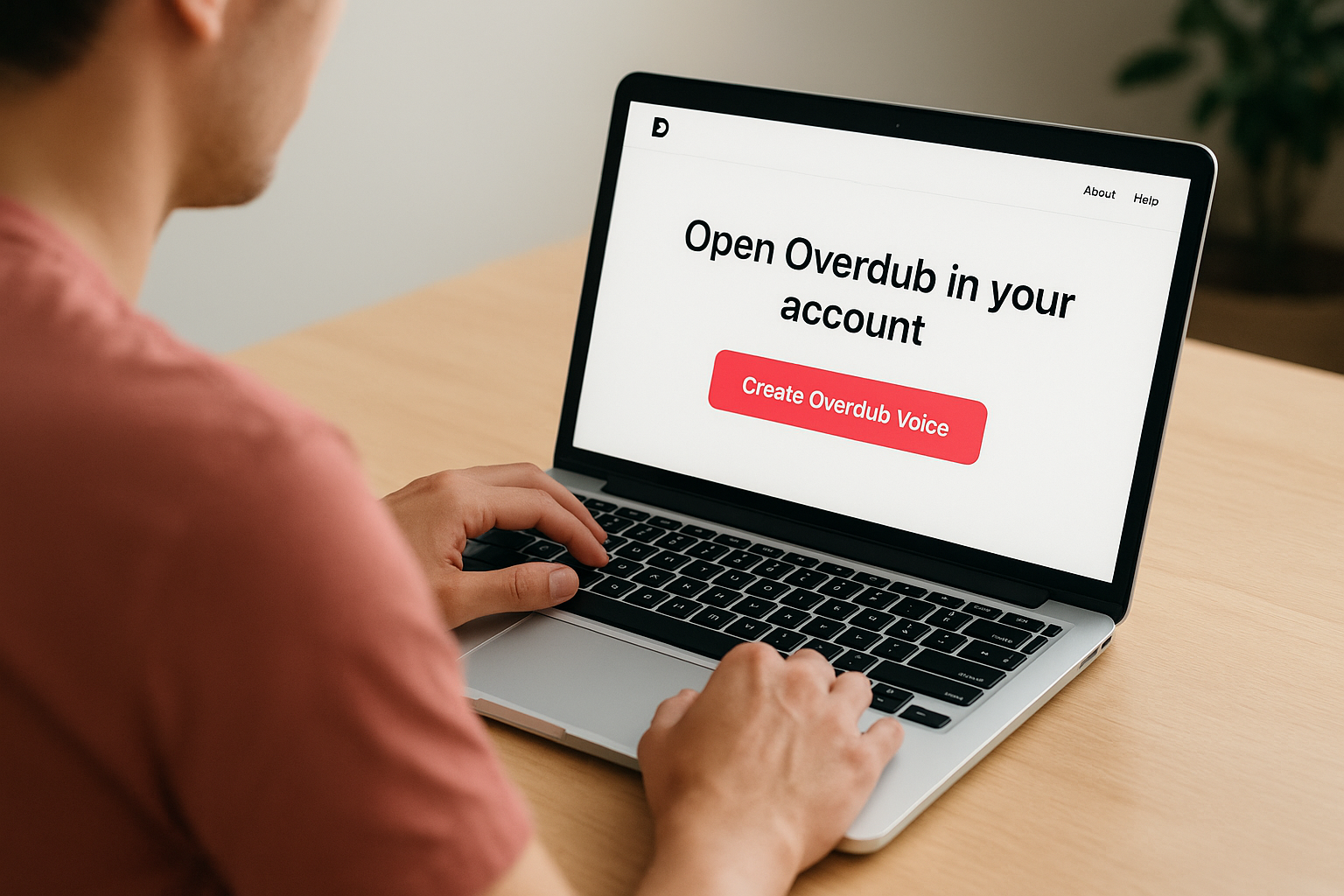
Log into your Descript account and navigate to your profile settings. Look for the Overdub section, which appears only on Creator and higher plans. Select "Create Overdub Voice" to begin. Descript will display the consent statement you need to read aloud before the training script loads. Read it naturally at your normal speaking pace, confirm the recording, and proceed.
Rushing through the consent recording can cause Descript to flag it for review, which adds processing time before you can move forward.
Record and submit your training script
Descript provides a reading script of roughly 10 minutes of audio content. Work through it in clean, consistent takes. If you stumble on a word, pause briefly and re-read that sentence before continuing. The platform lets you re-record individual segments if a take is noticeably off. Follow this sequence:
- Click "Start Recording" on the first script segment
- Read clearly at a steady pace, avoiding rushed phrasing
- Review the waveform preview to confirm no clipping or silence gaps appear
- Re-record any segment that sounds flat or distorted
- Click "Submit for Training" once all segments are complete
Processing typically finishes within one to three hours. Descript sends an email notification when your voice model is ready to use.
Step 2. Generate and edit audio with Overdub
Once Descript confirms your voice model is ready, open any project and bring up the transcript view. This is where descript voice cloning shifts from setup into production. Every word in your transcript is editable text, and Overdub turns those edits directly into synthesized audio in your voice.
Place and generate new audio
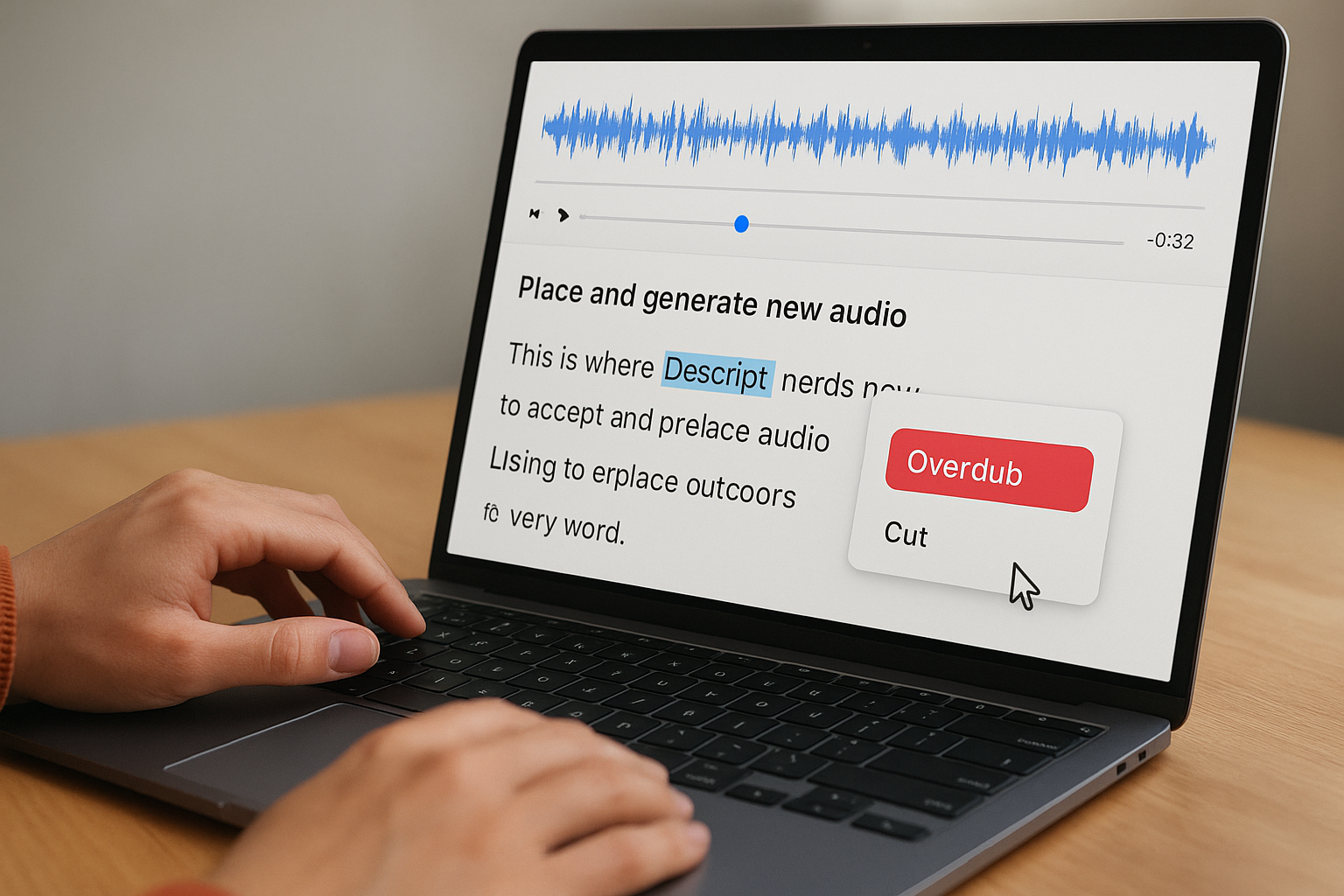
Click into your transcript at the exact point where you want to insert or replace audio. Type the new text where your cursor sits, highlight it, and select "Overdub" from the right-click menu or the toolbar. Descript synthesizes the phrase in your cloned voice and places it inline. The generated clip automatically matches the surrounding audio context so the transition sounds natural rather than spliced.
Keeping generated phrases short, under 15 words per insertion, produces cleaner results than generating long paragraphs in a single pass.
Use this process for these common editing tasks:
- Word replacement: highlight a mispronounced word, type the correction, apply Overdub
- Sentence insertion: place your cursor between two sentences, type the new line, generate
- Full voiceover: paste an entire script into a blank audio project and generate it section by section
Review and adjust the output
After generation, play back the clip in context with the audio surrounding it. If the pacing feels off, trim the handles of the generated clip in the timeline to tighten or loosen spacing. You can also regenerate a specific phrase by highlighting it and running Overdub again; each pass produces a slightly different result, so a second attempt often resolves an awkward inflection without any extra recording.
Fix common problems and make the voice sound real
Even a well-trained descript voice cloning setup produces occasional output that sounds stiff or unnatural. Most of these issues trace back to three sources: training audio quality, how you phrase the text you type, and the length of each generation request. Fixing them is usually faster than re-training from scratch.
When generated audio sounds robotic
Robotic output almost always means the typed phrase does not match the natural rhythm of your speech. Your voice model was trained on conversational, flowing sentences, so phrases with unusual word order or dense punctuation trip it up. Try these adjustments before re-recording anything:
- Break long sentences into two shorter ones and generate each separately
- Replace technical terms or acronyms with a phonetic spelling (write "ess-ee-oh" instead of "SEO")
- Remove unnecessary commas inside a phrase, since Descript reads punctuation as pause instructions
- Avoid starting a generated clip with a word that begins with a hard stop consonant like "p" or "b"
Rephrasing the typed text solves robotic output in most cases without any changes to your voice model.
When pacing or tone sounds off
Pacing problems usually appear at the start and end of a clip where the generated audio feels rushed or trails off awkwardly. Select the clip in the timeline and drag its edges to add a few frames of silence on either side. You can also use Descript's volume automation to fade generated clips smoothly into surrounding audio.
Tone inconsistencies happen when you generate clips in one session after training in a different acoustic environment. If your current setup sounds noticeably different from your training conditions, re-record the affected segments in your original space and regenerate from the corrected text.
Quick recap and next step
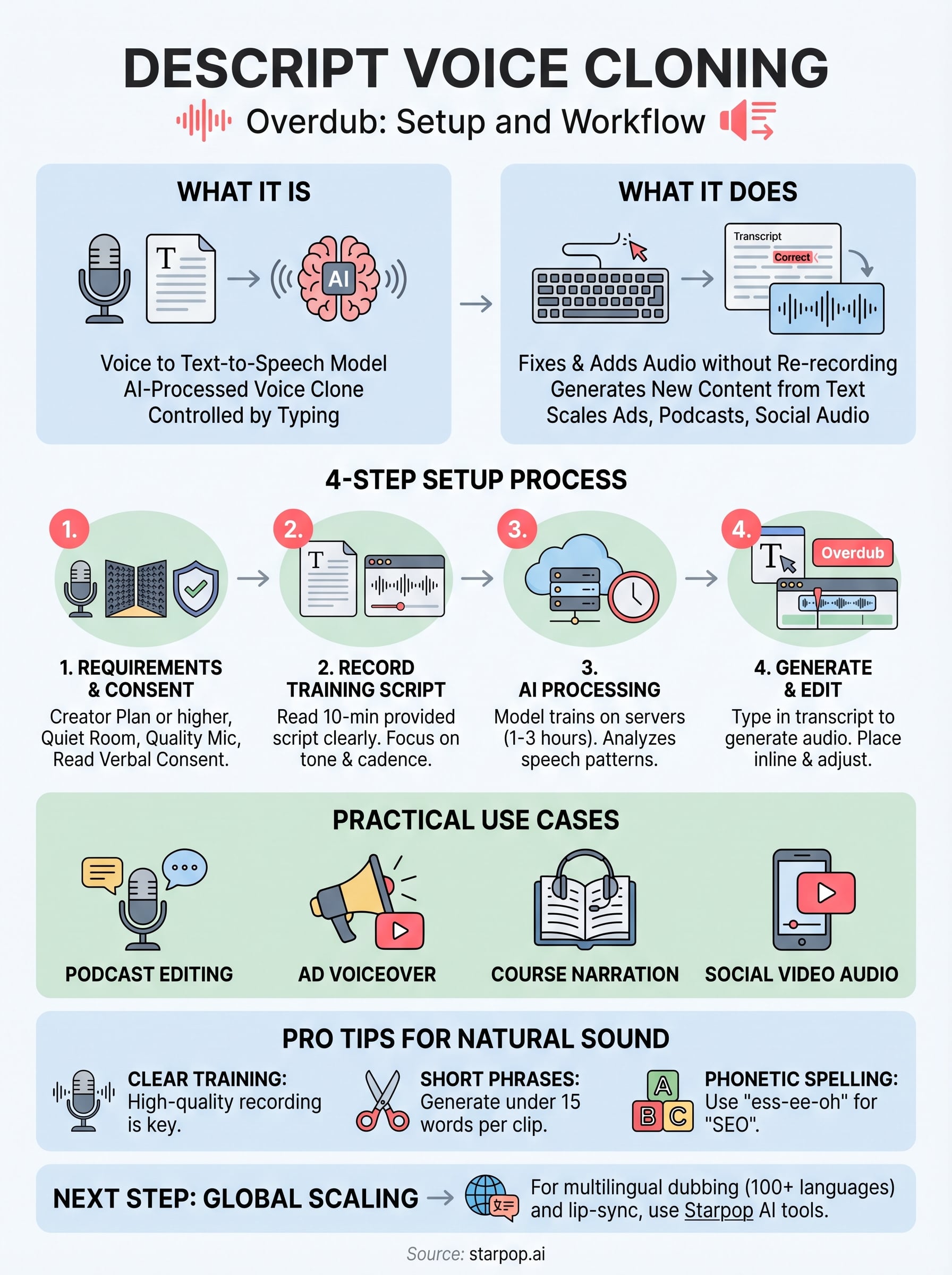
Setting up descript voice cloning comes down to four things: a paid plan, a clean recording environment, a carefully read training script, and typed phrases that match how you naturally speak. Your voice model trains once and then handles corrections, insertions, and full voiceover scripts on demand. When output sounds robotic, rephrasing the typed text fixes the problem faster than re-recording.
From here, the logical next step is scaling what you just built. Overdub handles single-language narration well, but if you need to localize the same ad or video across multiple markets, you will hit its limits quickly. Starpop's AI voice cloning and lip-sync tools cover that gap with support for over 100 languages, studio-grade dubbing, and batch generation that produces multiple assets at once. It connects directly into video production, so your cloned voice does not sit in isolation inside an audio editor.